Articles in this topic
Messages from guests
Read and answer what guests write about their bookings — the Message Center, where messages come from and what the guest receives.
4 min read
Under Communication, the page Messages — the Message Center — keeps the written conversations between your team and your guests, one for each booking. Use it when a guest asks for something, or when you need to tell a guest something about their booking.
Open the Message Center
- Go to Booking Management (the orange button at the top right).
- In the menu on the left, under Communication, click Messages.
On the left of the page is the list of conversations. Each one shows the guest's name and email address, the start of the last message, the number of Messages and when the Latest Message was written. Type a guest's name in the search box to find a conversation.
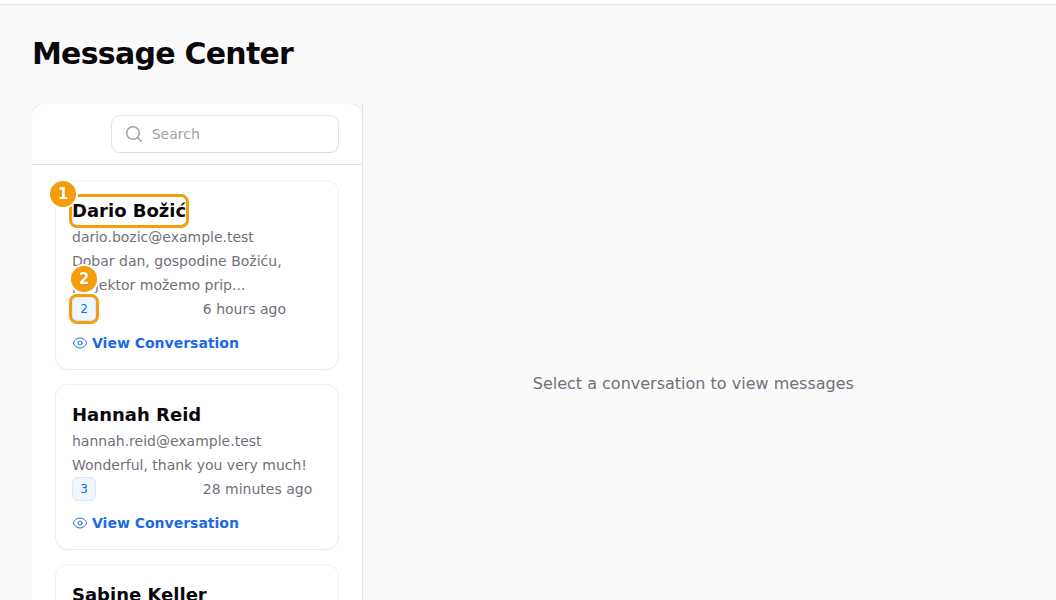
A booking that no one has written about yet is also in the list, with 0 messages. The list holds the conversations of your bookings at all locations. Party and event bookings have their own contact and are not listed here.
Read a conversation
Click View Conversation on a row. On the right the guest's name and email address appear, and under them the messages from the oldest to the newest.
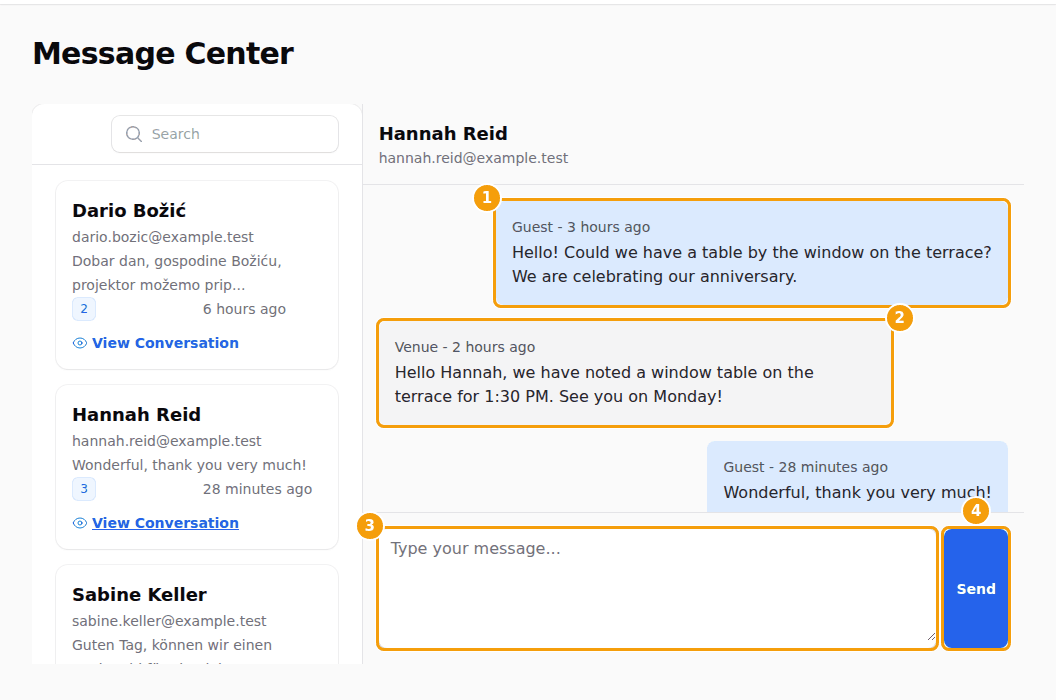
- The guest's messages are on the right in blue and say Guest.
- The messages from your team are on the left in grey and say Venue.
- Each message says how long ago it was written.
Write to a guest
- Open the conversation.
- Type your message into the box Type your message... (3).
- Click Send (4). A green message Message sent successfully appears.
If the booking has an email address, the guest gets an email "New Message from" followed by your location's name, with a View Message button. The button opens a page for 7 days where the guest reads your message and can answer. If the booking has no email address, the message only stays in the conversation — the guest can't see it.
Where the guest's messages come from
A guest's message reaches the Message Center in two ways:
- A reply. The guest answers on the page that the View Message button opened.
- A cancellation. When a guest cancels their booking with the link in the confirmation email, a message "Booking has been cancelled by the customer" is added, followed by the reason, if they wrote one. The booking itself moves to Canceled at the same time.
Important
Clava doesn't send your team an email or an alert when a guest writes. Open Messages at the start and end of a shift. A message is not a way for guests to reach you before they have a booking.
Messages and your plan
Messaging is a Pro and Ultimate feature. If Messages isn't part of your plan, an administrator can choose a plan in Configuration, under Account > Choose Plan.
The tick box Enable Messaging in the booking calendar has nothing to do with this page; it only decides whether a copy of booking emails goes to your own address — see Emails and messages.