Articles in this topic
Edit and translate a text
Change the subject and the text of an email in one language, insert variables with a click, preview it, copy it to the other languages, let AI fix the grammar or translate, reset to the default, and test before you rely on it.
7 min read
You change an email in one language at a time. This article goes through the editor — subject, text, variables, languages — and the two helpers that use AI. Read What the email templates are first if you haven't.
Edit a text
- Under Venue Setup → Email Templates, choose the Venue (the location) and click a template in the list.
- Click the language tab you want to change. HR, EN and DE come first, then twelve more languages.
- Change the Subject and the Content.
- Click the check mark at the top right — Save. A green message says Translation saved.
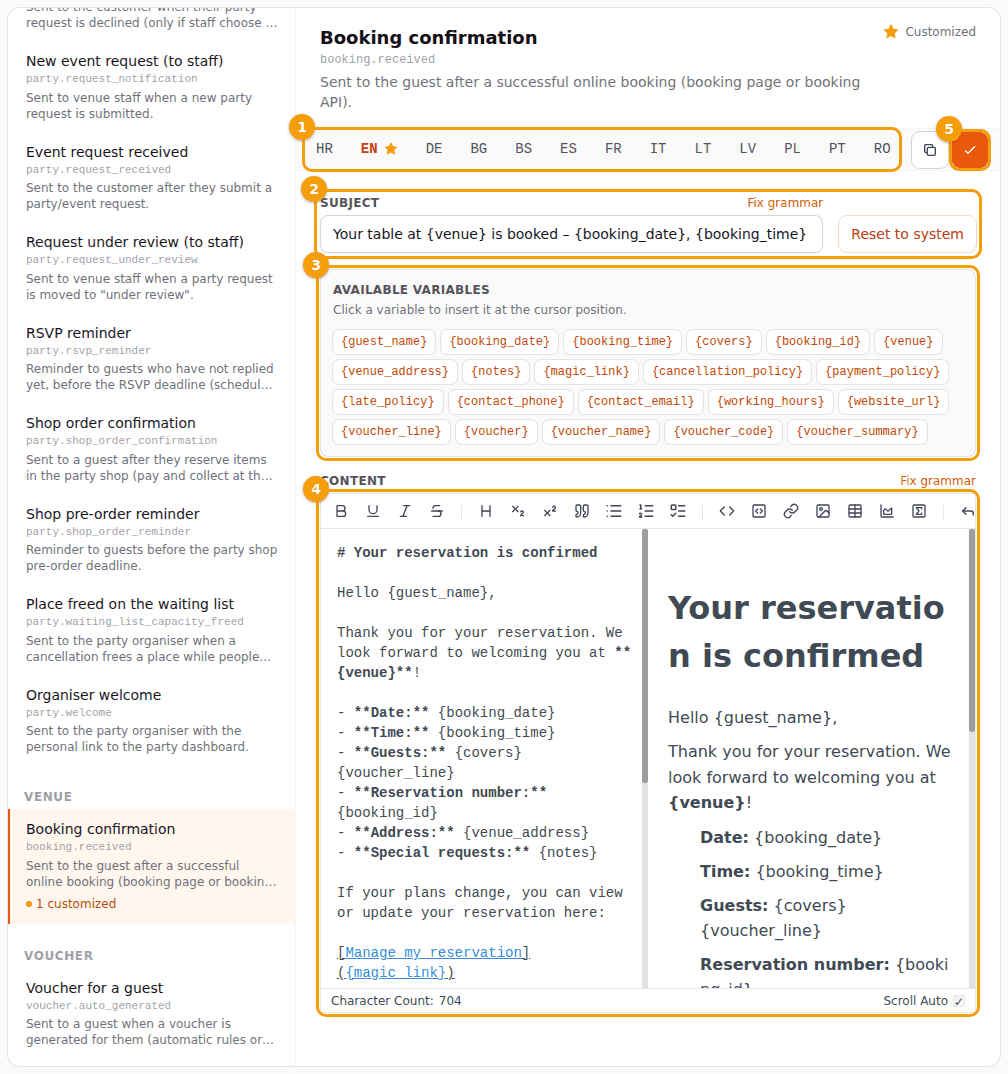
- The language tabs (1) show a star next to a language you have customized.
- The Subject (2) is the line a guest sees in their inbox. It is one line of plain text.
- The Content (4) is written in a small editor with a toolbar: bold, headings, lists, links. On the left you type, on the right you see how it will look. A link in the preview does not open here.
- If you move to another language tab or template while there are changes you haven't saved, a window Unsaved changes asks whether you really want to leave.
A few habits make an email easy to read: a short title, a greeting with the guest's name, short paragraphs, details as a list (Date: …), and one clear button or link.
Variables
A variable is a word in curly brackets that Clava replaces when it sends the email — for example {guest_name} becomes Ana, and {booking_date} becomes the date of the booking.
- Under Available variables (3) you see every variable this email can use. Click one and it is inserted where your cursor is. The list is different for every email.
- Write a variable exactly as it is shown, with the curly brackets and no spaces. Don't change its spelling or put words inside.
- Dates, times and amounts arrive already formatted in the guest's language. Don't put a weekday name or a currency sign around them.
When a variable has no value — for example a booking without a note — Clava removes it from the email. If everything on a line is empty, the whole line is left out, so a list like Notes: {notes} simply disappears for a guest who wrote none. A variable that Clava does not know — a typing mistake like {guest_nme} — stays in the email exactly as you wrote it, so check the spelling.
The Subject can use variables too, but keep to those that always have a value, such as {venue} or {booking_date}.
Look at the result
The right half of the Content editor is the preview. The variables stay as {names} there, because the real values exist only when an email is sent. There is no button to send a test email from the editor — see Test.
Other languages
Clava sends each email in the language of the guest — the language of the booking page or the party website. You can change every language separately. A language you don't customize keeps the default text, so you only work on the languages your guests use.
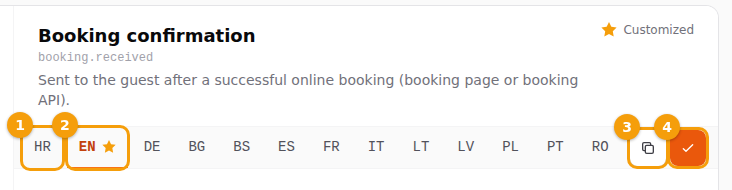
To use one text for another language, copy it:
- Open the language whose text you want to copy.
- Click Copy to… (3), the small button next to Save.
- Choose the target language. If it already has your text, it will be overwritten.
- Click Copy to… in the window.
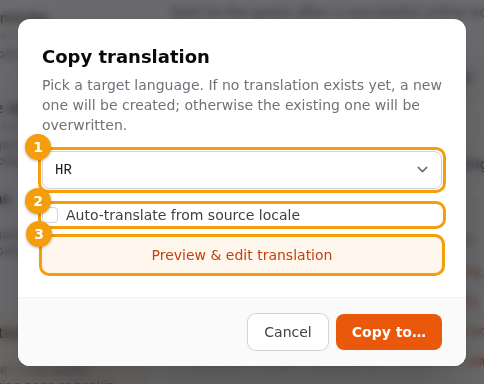
To let AI translate while copying, tick Auto-translate from source locale (2), or click Preview & edit translation (3). A window Review translation shows the source text next to the suggested translation; you can change the suggestion, and only when you save it becomes the text of that language. Read it before you save: a translation is a suggestion, and the greeting and the tone are yours to decide.
The AI keeps the {variables} as they are. What is sent to the AI service is the subject and the text of the template and the two language codes — never data of a guest, because the template contains only placeholders.
Fix grammar
Next to Subject and Content there is a link Fix grammar. It sends that one text — with the language code — to an AI service and shows the answer in a window; nothing in your template changes yet.
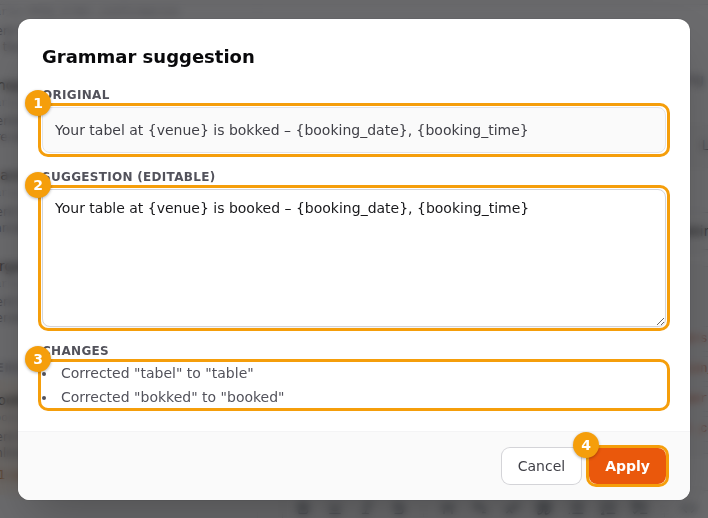
The window Grammar suggestion has the Original (1), the Suggestion (2) that you can edit, and a list of the Changes (3). Click Apply (4) to put the suggestion in the editor, or Cancel to keep your text. Applying only fills the editor — click Save afterwards to keep it.
If the AI service can't be reached, a red message says AI request failed. Please try again. and nothing changes.
Reset to the default
On a customized language there is a button Reset to system next to the subject.
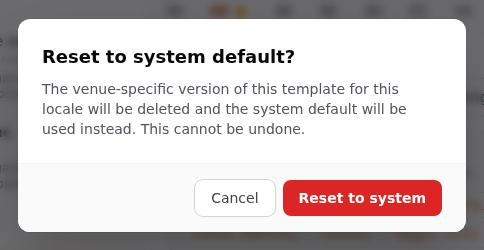
Click it and confirm Reset to system default?: your version of this email for this language and location is deleted and the default text is used again. This can't be undone. The other languages and the other locations stay as they are.
Test before you rely on it
Clava has no send a test button in the editor, so test with a real email to yourself:
- Booking confirmation — book a table on your own booking page with your own email address.
- Voucher for a guest — make a voucher for your own address.
- Party emails — create a test party, or an event, and use your own address as the guest.
Look at the subject, the greeting, the lines with variables and the buttons. Then do it once more in each language you changed.