Articles in this topic
What the email templates are
The emails Clava sends for you, where to change their text, how a location and a language are chosen, what "Customized" means, why your own text is never overwritten by updates, and which plans include it.
5 min read
Clava sends emails for you: a booking confirmation to a guest who books online, a personal link to a party guest, a voucher, a reminder before the RSVP deadline, an answer to an event request. Each of them has a ready-made text in 15 languages. Under Email Templates you can change that text for your own business.
Which emails there are
The templates are grouped on the left:
| Group | Examples |
|---|---|
| Venue | Booking confirmation — sent to the guest after an online booking. |
| Guest | Guest personal link — sent to a party guest with their personal link. |
| Party | Organiser welcome, Event request received, Request approved, Request declined, RSVP reminder, Menu choice reminder, Shop pre-order reminder, Shop order confirmation, Place freed on the waiting list, the emails to staff about new requests, and the event emails Event reservation confirmed and Event cancelled. The event series have eleven emails of their own: Series organiser welcome, Series application received, New series application (to the organiser), Series membership welcome, Series application declined, Series member sign-in link, Waiting list place reserved, Series event announced to members, Space request (to the venue), Space confirmed and Space not available. |
| Voucher | Voucher for a guest — the email with a voucher code. |
Each entry shows its name, a small technical identifier (for example booking.received) and one sentence about when it is sent and to whom. Read that sentence first: it tells you who the email goes to.
Open the editor
- Click Configuration (the orange button at the top) if you are in another area.
- In the menu on the left, under Venue Setup, click Email Templates. The page is called Email Template Editor.
Only administrators open this page. See Team roles.
Choose a location
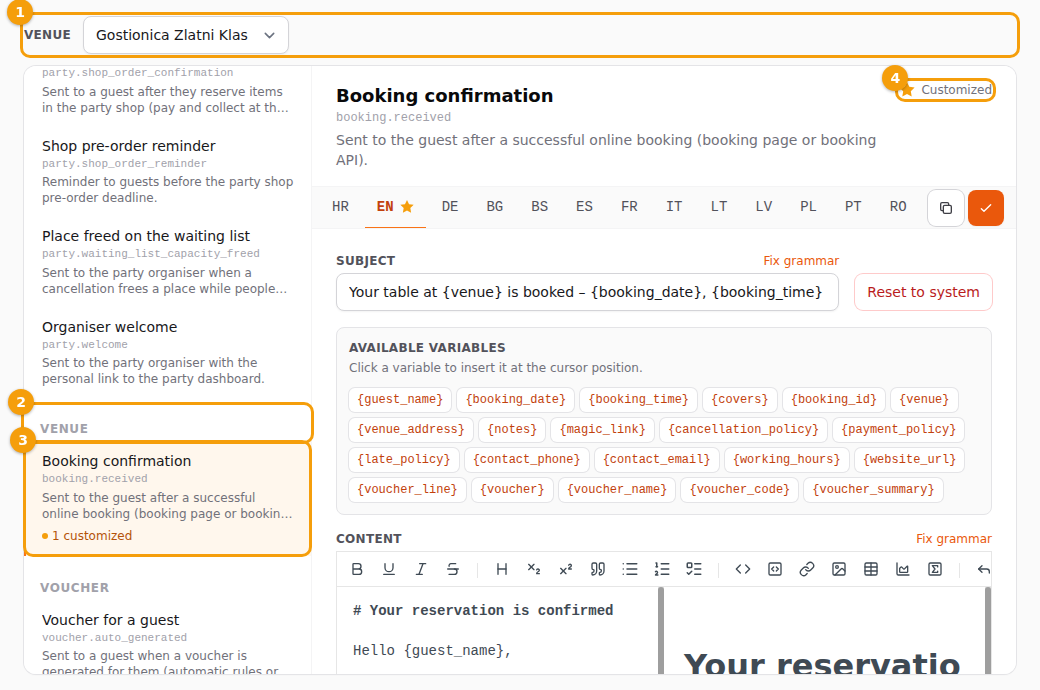
At the top the box Venue (1) names the location the texts belong to. Every location has its own texts: a change you make for one location is not seen at the others. If you have several locations, choose one before you edit — and do it again for the next one if it should say the same.
Click a template in the list to open it. A template with changes of your own shows a small orange line under it — 1 customized (3).
Customized or default
Every email starts with a default text, the one Clava provides. It is used as long as you don't change it.
- When you save a text in a language (see Edit and translate), that language becomes customized for this location. It gets a star on its language tab, and the star in the legend at the top right (4) says what it means.
- The other languages of the same email stay at their default.
- Reset to system next to the subject deletes your text and the default is used again.
Updates never overwrite your own text. When Clava improves a default text, a language you have not customized gets the new wording by itself. A language you have customized keeps your words — and doesn't get the improvement. If you want the new wording, use Reset to system: your text is deleted and the new default is used.
Your plan
Email templates are part of the Pro and Ultimate plans and of the free trial. On the Free plan the item Email Templates isn't in the menu. See Plans and billing.
Related
- Edit and translate a text
- Vouchers at a location — the voucher email
- Plans and billing