Articles in this topic
Plans and billing
Free, Pro and Ultimate — what each includes, how to choose or change a plan, the free trial, what the lock and "Upgrade" notes mean, your billing details and your invoices.
6 min read
Clava has three plans: Free, Pro and Ultimate. Everyone starts with a free trial of Ultimate (see Sign up for Clava). The pages for plans and billing are in Configuration, in the menu group Account, so administrators open them (see Team roles).
The plans
The page Choose Plan shows the current prices. You pay monthly or yearly; the yearly price is lower.
| Free | Pro | Ultimate | |
|---|---|---|---|
| Price per month | €0 | €25 | €40 |
| Price per year | €0 | €250 | €400 |
| Booking calendars | 1 | 10 | 50 |
Prices exclude VAT where it applies; the exact total is shown when you pay.
What the plans include, in short:
| Free | Pro | Ultimate | |
|---|---|---|---|
| Online booking page | Yes, up to 10 bookings a day | Yes, no daily limit | Yes, no daily limit |
| Embeddable booking widget, WordPress plugin | — | Yes | Yes |
| Website builder | — | One page | Many pages, languages and advanced sections |
| Menus you can create | 1 (not published) | 10 | No limit |
| Offers you can create | 2 (not published) | 20 | No limit |
| Email reminders and email templates | — | Yes | Yes |
| Reviews | — | Reviews, replies, photos | And your own criteria and statistics |
| Parties and events | — | Yes | And gift lists and shop |
| Event series | — | 1 series | No limit |
| Vouchers | — | Yes | And wallet |
| PDF menu designer, API access | — | — | Yes |
| Team members (you included) | 1 | up to 5 | No limit |
| Roles Editor and Reader | — | Yes | Yes |
On Choose Plan, each plan card also lists its booking calendars, its number of team members and whether it includes the Editor and Reader roles. The team limits are enforced: see How many people your plan includes.
Choose or change your plan
-
In Configuration, open Choose Plan in the group Account.
-
Fill in your billing details first. If they are missing, an amber note (1) at the top has a link to them, and you can't pay before they are complete.
-
Choose Monthly or Yearly (2). Yearly shows how much you save.
-
Click Subscribe on the plan (3) you want.
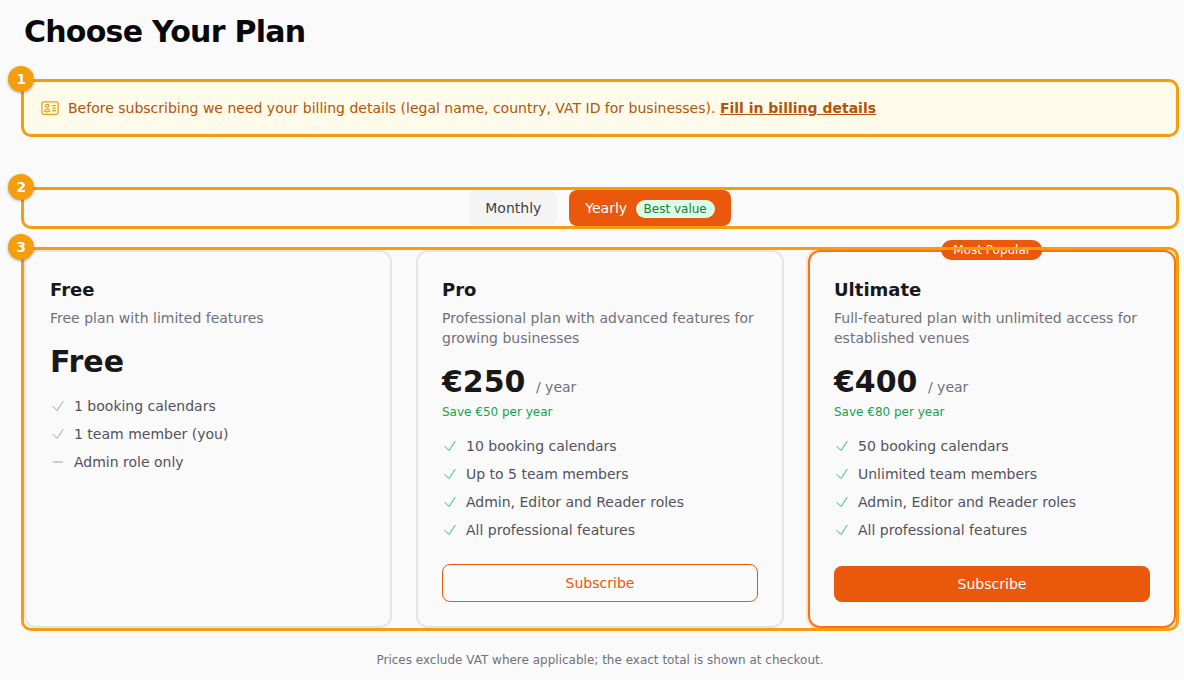
The page Choose Plan: the note about billing details (1), the switch Monthly and Yearly (2) and the three plans (3) -
Pay on the secure page that opens. Where the plan offers it, you can choose Pay by bank transfer instead of the card: Clava then emails you an offer with the payment details, and your plan starts when the payment is confirmed, which can take a few business days.
Once you pay for a plan, Choose Plan leaves the menu. Use Change Plan on the dashboard card Your Subscription instead (see The dashboard). It opens the same page, where the button on a plan now says Switch to this plan.
- Paying by card, a change takes effect at once and the difference is invoiced automatically.
- Paying by bank transfer, a change takes effect at your next renewal.
- You can't switch between monthly and yearly billing on a running subscription. Cancel it, and choose the new cycle when it ends.
- Cancel Subscription on the dashboard card ends the plan after the period you have paid for. Then your account moves to the Free plan. Nobody on your team loses access (see What happens to your team on a smaller plan).
The free trial
A new account gets a 14-day trial of everything in Ultimate, with no credit card. On the dashboard the card Your Subscription counts the days down. Without a choice, you stay on the Free plan when it ends; nothing is charged by itself. In the menu, features that only the trial gives you carry the badge TRIAL.
What the locks and "Upgrade" notes mean
When something isn't part of your plan, Clava tells you where you meet it instead of hiding the whole menu.
- PAID next to a menu item — you can open the page and try it, but the plan doesn't cover everything. For example, on Free you can build menus and offers, and publish them only on Pro or higher.
- TRIAL next to a menu item — you have it because of the trial. After the trial it is locked unless your plan includes it. On pages that show it, a blue box Trial Feature says so and has Choose a Plan.
- A yellow box with a lock, for example "Available on Pro plan", names the plan that unlocks the feature and has the button Upgrade Now, which opens Choose Plan.
- A lock and "Upgrade" on a step of the dashboard checklist — that step isn't in your plan.
- Some pages don't show up in the menu at all until your plan includes them.
Tip
A lock never deletes anything. What you made stays in your account; you only can't use or publish it until you choose a plan that includes it.
What happens to your team on a smaller plan
The people on your team follow your plan, and Clava keeps to the numbers:
- Everyone with access takes a place, you included. When all places are taken, Add user in User Access is greyed out until you free a place or choose a larger plan.
- Editor and Reader are part of Pro and Ultimate. Without them, only Admin can be given.
- Moving to a smaller plan — a lower plan, a cancelled subscription or the end of the free trial — never removes anybody and never takes anybody's access away. Everyone who is in stays in, with their role. You just can't add anyone new until the team is under the limit again, either by removing people or by choosing a larger plan.
Tip
Before your free trial ends, open User Access and decide who stays: the Free plan has a place for you only. Clava never removes anybody by itself.
More about adding and removing people in Team roles.
Your billing details
Billing Details, in the group Account, says to whom Clava writes the invoices. They appear on every invoice and decide how VAT is charged.
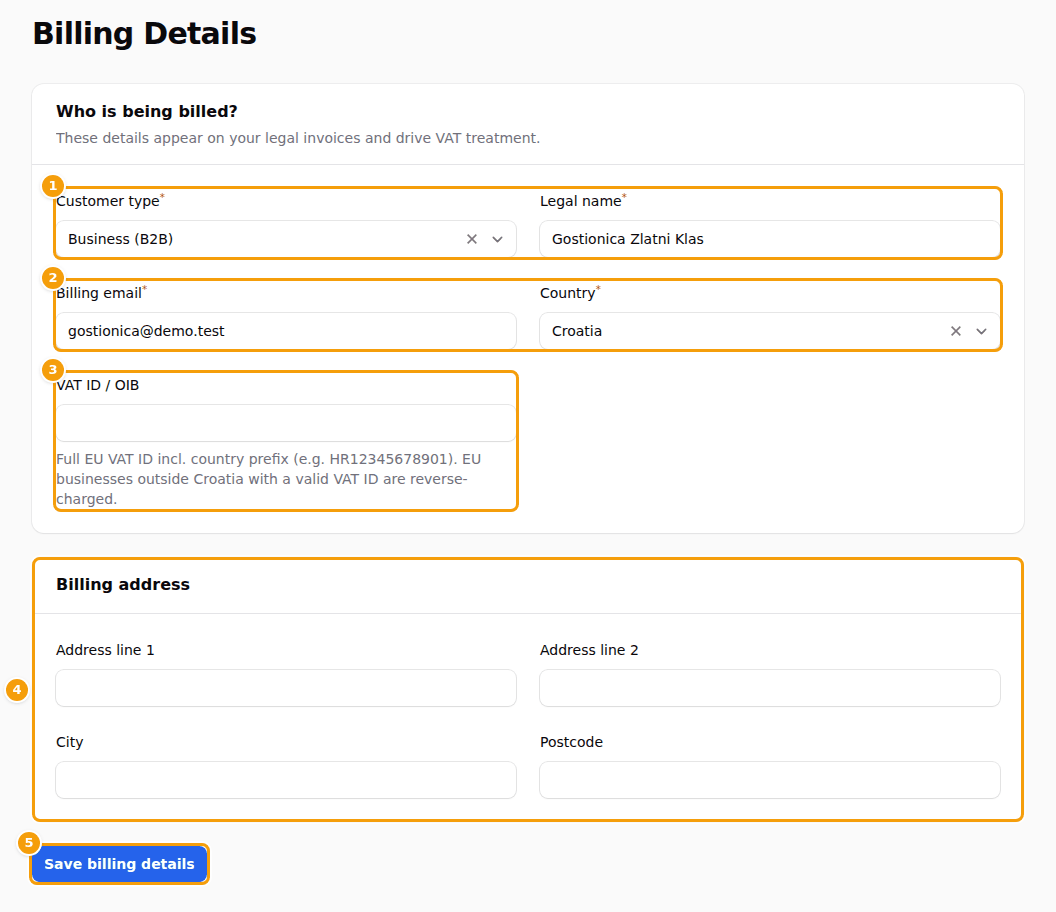
- Choose the Customer type (1): Business (B2B) or Private individual (B2C).
- Type the Legal name (1) exactly as it should be on the invoice, and a Billing email (2) of the person who handles your invoices.
- Choose your Country (2). Type the VAT ID / OIB (3) with the country prefix, for example HR and your OIB. An EU business outside Croatia with a valid VAT ID is invoiced without Croatian VAT (reverse charge). After you save, Clava shows the result of checking the number below the box.
- Fill in the Billing address (4): both address lines, City and Postcode.
- Click Save billing details (5).
You can change them later.
Your invoices
Billing History, in the group Account, lists every invoice.
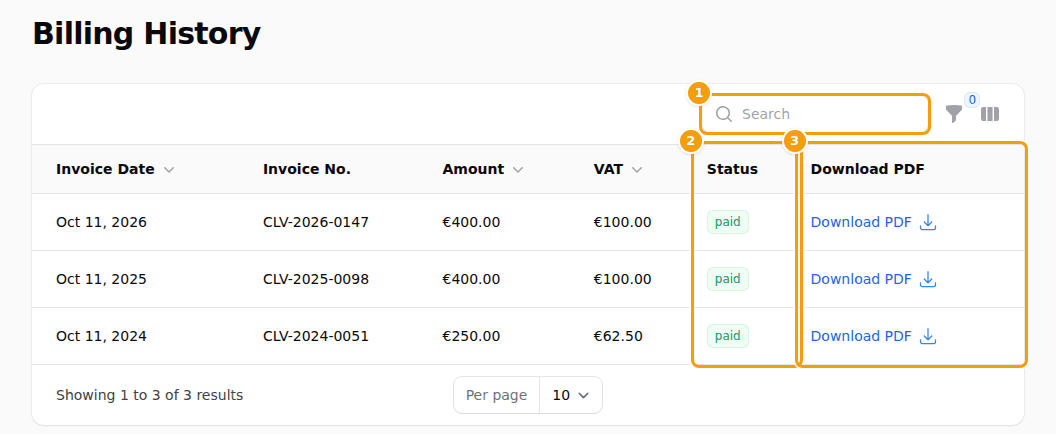
- Each row shows the Invoice Date, Invoice No., Amount, VAT and the Status: paid or unpaid.
- Download PDF (3) gets you the invoice to keep or to send to your accountant.
- The search (1) finds an invoice by its number, and the funnel filters by status. Click a column title with an arrow to sort by it.
Until you pay for the first time the page says "No invoices yet." Questions about an invoice go to Support, with the category Billing.