Articles in this topic
Your profile
Switch the language, choose the area you work in, change your password, sign out — and what the "?" button does.
3 min read
Everything about you rather than your business is in the top bar of the screen, on the right: the area button, the language button, the "?" and your avatar.
Switch the language
Clava speaks English, Croatian (Hrvatski) and German (Deutsch).
- Click the language button (1) at the top right. It shows the language you are using now, for example EN.
- Choose another language from the list (2). The screen changes at once.
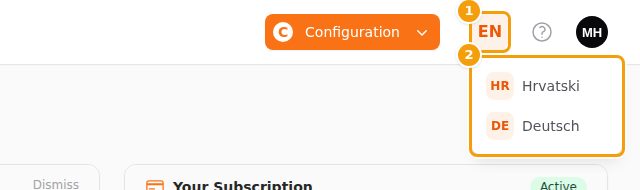
Clava remembers your choice for your account. The next time you sign in — on any computer or phone — you get the same language. Each person on your team can use their own.
Good to know
This is the language of the screens you work in. The language your guests see on your website is set in the website editor (see Languages).
Choose your area
Clava has separate areas, each for one kind of work. The area button (1) shows the one you are in; click it to open the others (2).
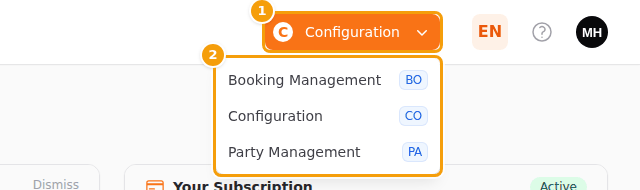
- Booking Management — the bookings and calendars you work with every day.
- Configuration — your venues, website, menus, emails, team and plan. Only administrators can open it.
- Party Management — parties and events. You see it when your plan includes parties and events.
You only see the areas you may open: administrators all of them, editors and readers Booking Management and Party Management (see Team roles).
Work for more than one business
If you are part of more than one business in Clava, a drop-down with the names of your businesses appears in the top bar. Choose the one you want to work on: the page reloads with that business's bookings and settings. What you may do depends on your role in that business. With only one business you don't see the drop-down.
Change your password
-
Click your avatar (1) at the top right and choose Change password (2).
-
Type your current password in Current password (1).
-
Type the new one in New password (2) and again in Repeat the new password (3). The rules are in the note under the box (see What a good password looks like).
-
Click Save password (4). Clava says "Your password has been changed." and takes you back to your area.
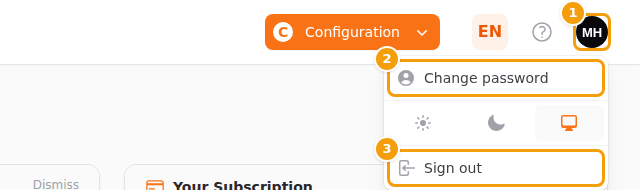
The avatar menu: the avatar (1), Change password (2) and Sign out (3) 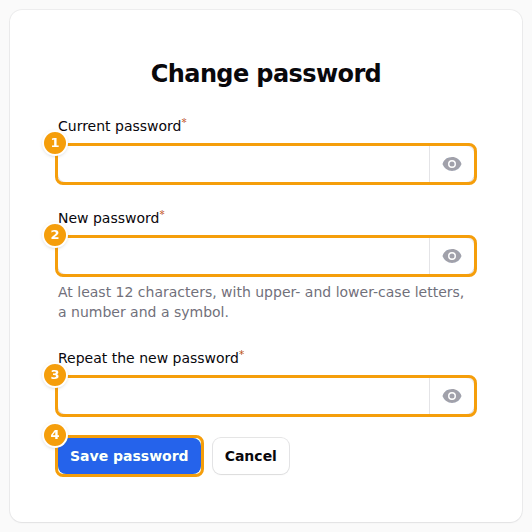
The page Change password: current password (1), new password (2), the new password again (3) and Save password (4)
Tip
Below Change password the menu has three symbols for the look of the screens: light, dark or automatic, as on your device.
Forgot your current password? Sign out and use Forgot password? on the sign-in page (see Forgot your password?). If you are asked for a new password straight after signing in, that is the first-sign-in step (see Your first sign-in).
Sign out
Click your avatar and choose Sign out (3). Do it on every computer that other people use.
The "?" button
The "?" in the top bar opens this help centre in a panel beside your page. It opens at the article that fits the page you are on; on a page without its own article it opens the start of the help, where you can also search. Close the panel and you are back exactly where you were.