Articles in this topic
The dashboard
What the Configuration dashboard shows — the "Grow your venue" checklist, your subscription, your venues and your support tickets.
4 min read
The Dashboard is the first page of Configuration. It shows what to do next, what your plan is, how your venues are doing and whether Clava support is waiting for you. Open it with Dashboard, at the top of the menu.
Good to know
The dashboard of Configuration is for administrators. Editors and readers start in Booking Management (see Team roles).
The checklist "Grow your venue"
The box Grow your venue leads you through the first things worth setting up. You can do them in any order.
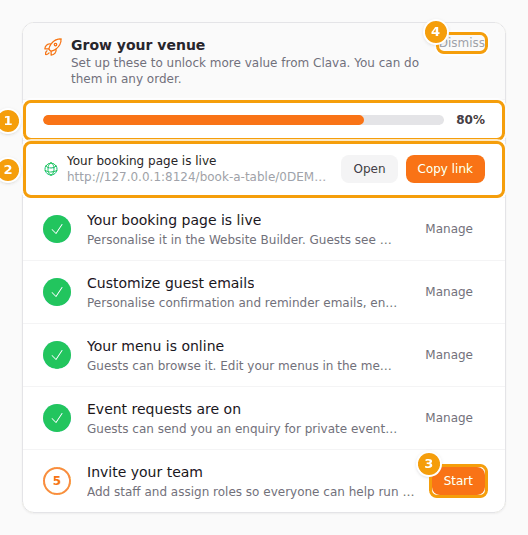
- The bar (1) shows in percent how many steps are done.
- The booking page link (2) is the address guests use to book. Open shows it in a new tab and Copy link copies it, so you can paste it into your website, social media or a message. A venue that takes enquiries but no table bookings shows "Your enquiry page is live" instead.
- Each step has a green tick when it is done. Click Manage to go and change it.
- A step still to do (3) shows Start, which opens the right page. Some steps also have a quick action, such as Add a sample menu or Turn on party requests, that does it in one click.
- A lock and "Upgrade" on a step mean your plan doesn't include it (see Plans and billing).
- Dismiss (4) hides the checklist for your whole business. It also disappears by itself when every step is done.
The steps are: your booking page online, customised guest emails, your menu, party and event requests, and inviting your team (see Add someone to your team).
Your subscription
The card Your Subscription shows where you stand with your plan.
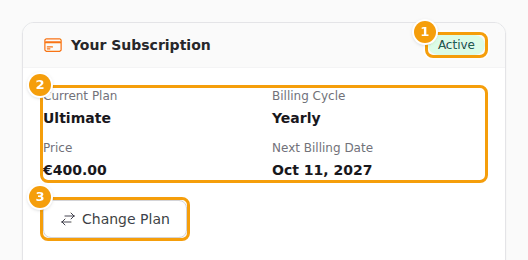
- A paid plan shows its status (1), the Current Plan, Billing Cycle, Price and Next Billing Date (2). Change Plan (3) opens the plans. Manage Billing (for card payments) and Cancel Subscription are here too when they apply to you.
- During your free trial the card says "You are testing the Ultimate plan for free", how many days are left, and has the button Choose a Plan.
- On the Free plan, or after a trial that has ended, it says so and offers Upgrade Plan.
- When a payment is late the card says so and shows what to do next.
Everything about plans, prices and invoices is in Plans and billing.
Your venues
Under the subscription you find one card for each of your venues, the first one you created at the top. It shows:
- Booking page, with Open booking page, a link to the page guests book on,
- Review stats: the Average Rating, how many reviews are Total Approved and how many are Pending — the ones waiting for your decision are marked Needs attention. View all reviews opens the review overview.
Anchor prices
This card appears for venues in Croatia, where every price shown to guests needs a second price, the anchor price, next to it. It says how many of your prices are ready, for example "62 of 62 prices ready", and Open anchor prices takes you to them (see Anchor prices). For a venue whose country isn't set yet, the card asks you to set it in Venue Setup, because the country decides whether the rules apply. Outside Croatia the card stays out of the way.
Support tickets
The card Support Tickets shows how many of your tickets are Open and how many are Awaiting your reply, and lists the latest open ones. Support opens the full list (see Support).