Articles in this topic
Sign in to Clava
Where to sign in, how to choose your own password the first time, where you land afterwards, and what to do when you forgot your password.
4 min read
You sign in with your email address and your password. It doesn't matter which Clava sign-in page you use — you always end up in your own area.
Sign in
-
Open the sign-in page, for example with Sign in on the Clava website or with a bookmark you saved earlier.
-
Type your email address in Email address (1).
-
Type your password in Password (2). The eye button at the end of the box shows what you typed.
-
On your own computer or tablet, tick Remember me (3) and you stay signed in.
-
Click Sign in (4).
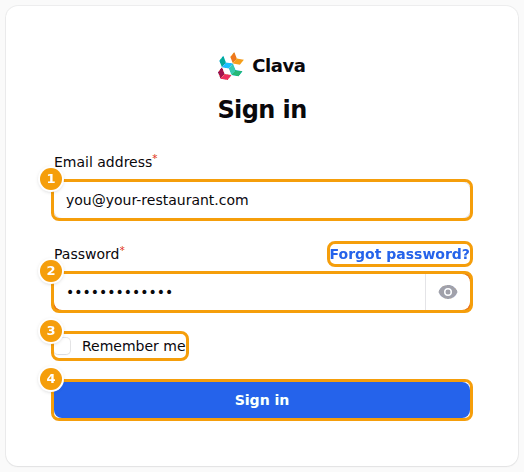
The sign-in page: email address (1), password (2), Remember me (3) and the Sign in button (4)
Tip
Don't tick Remember me on a computer that other people use too.
The sign-in page opens in the language you used last in this browser. Once you are in, Clava switches to the language saved for you — the one you chose last with the language button at the top of the screen (see Your profile).
Your first sign-in: choose your own password
When someone else chose your first password, Clava asks you to replace it before you do anything else. This happens in two cases:
- an administrator added you to the team and told you the password (see Add someone to your team), or
- you signed up yourself and the password came in Clava's welcome email (see Sign up for Clava).
-
Sign in with the password you were given.
-
Clava opens Choose your own password (1). You can't open anything else until you have chosen one.
-
Type your new password in New password (2) and once more in Repeat the new password (3).
-
Click Save password (4). Clava takes you to your own area.
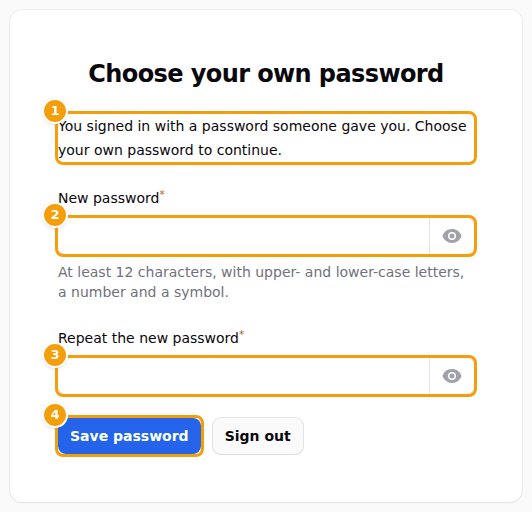
The page "Choose your own password": the note (1), the new password (2), the same again (3) and Save password (4)
Good to know
The new password has to be a different one from the one you were given. Changed your mind? Sign out, next to Save password, signs you out without choosing. And if you use Forgot password? instead, that counts as choosing your own — you go straight in afterwards.
What a good password looks like
The same rule applies every time you choose a password in Clava: the first time, when you change it later and when you reset it by email.
- at least 12 characters,
- upper-case and lower-case letters,
- at least one number,
- at least one symbol, for example
!or-, - not a password that has appeared in a known data leak. Clava checks this for you; if a password is refused and you can't see why, choose another.
Under the password box Clava shows the rule in short: "At least 12 characters, with upper- and lower-case letters, a number and a symbol."
Tip
Three or four unrelated words with a number and a symbol between them — for example river-Lantern-42-pine! — are
easy to remember and hard to guess. A password manager does the remembering for you.
Where you land after signing in
Clava opens the area that fits your role — whichever sign-in page you used:
| Your role | You land in | What you do there |
|---|---|---|
| Administrator of your business | Configuration | Your venues, website, menus, emails, team and plan |
| Editor or reader | Booking Management | Bookings, calendars and guests |
| Clava support team | Administration | Looking after all Clava customers |
If you may open more than one area, switch with the area button at the top of the screen. It shows the name of the area you are in, for example Configuration (see Your profile).
If you open a page that belongs to another role — for example from an old bookmark or a link a colleague sent — Clava simply takes you to your own area instead. Read more in Team roles.
Forgot your password?
-
On the sign-in page, click Forgot password? (just above the password box).
-
Type the email address you sign in with (1) and click Send email (2).
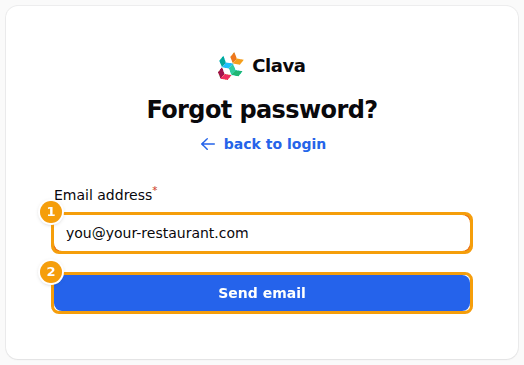
The Forgot password page: your email address (1) and the Send email button (2) -
Open the email from Clava and click the link in it. The link works for 60 minutes.
-
Type your new password twice (Password and Confirm password) and click Reset password. It has to follow the rules for a good password.
-
Sign in with your new password.
Good to know
For your safety, Clava shows the same message whether or not an account exists for the email address you typed. If no email arrives within a few minutes, look in your spam folder. Still nothing? Ask the administrator of your business which email address your account uses.
Problems signing in
- These credentials do not match our records. — the email address or the password is not right. Check for typing mistakes and make sure Caps Lock is off. Or get a new password.
- Too many login attempts — wait the number of seconds shown, then try again.
- Your account has no access to the staff area yet. — your password is right, but no business has added you to its team yet. Ask the administrator of your venue to add you (see Add someone to your team).
- Choose a password different from your current one. — on the first-sign-in page, the new password is the same as the one you were given. Think of a new one.