Articles in this topic
Members
Who can join a series and how — open, with approval or by invitation, referral links and an email domain — and how you approve, decline, invite, import, ban and search members.
9 min read
A member is a person who has joined a series. Members register once, receive a sign-in link by email and can then book the meetups of the series. This article is about the Members tab of a series and the choices that decide who can join.
Who can join
Choose the way in under Members in the settings of the series (when you create it, or later on the Settings tab).
| Choice | What happens |
|---|---|
| Open | Anyone who signs up becomes a member at once. |
| With approval | People apply and you approve each one. This is how a new series starts. |
| By invitation only | There is no sign-up form. You invite the members yourself, or import a list. |
Two more settings narrow it down:
- New members need a referral: people can only apply with the referral link of a current member.
- Email domain (for example
company.com): only people with an email address at that domain can apply. Invitations and imports ignore the domain, because you choose those people yourself.
The Member limit in the basics of the series caps the number of active members. People who wait for approval do not use up places. When the limit is reached, applicants are told that the series has no free places and you cannot approve, invite or import more people.
Good to know
The sign-up form never says whether an email address is already on your list. Everybody who fills it in sees the same thank-you message, so nobody can find out who the members are.
Referral links
Every member has a personal link to the series website. People who join through it are linked to that member: the Referred by column shows who brought whom, and a member's row says Brought in 2 people. A member finds the link on their membership card under Invite a colleague, with Copy link, WhatsApp and Email buttons. With New members need a referral switched on, an application without a good link or code is refused.
The list of members
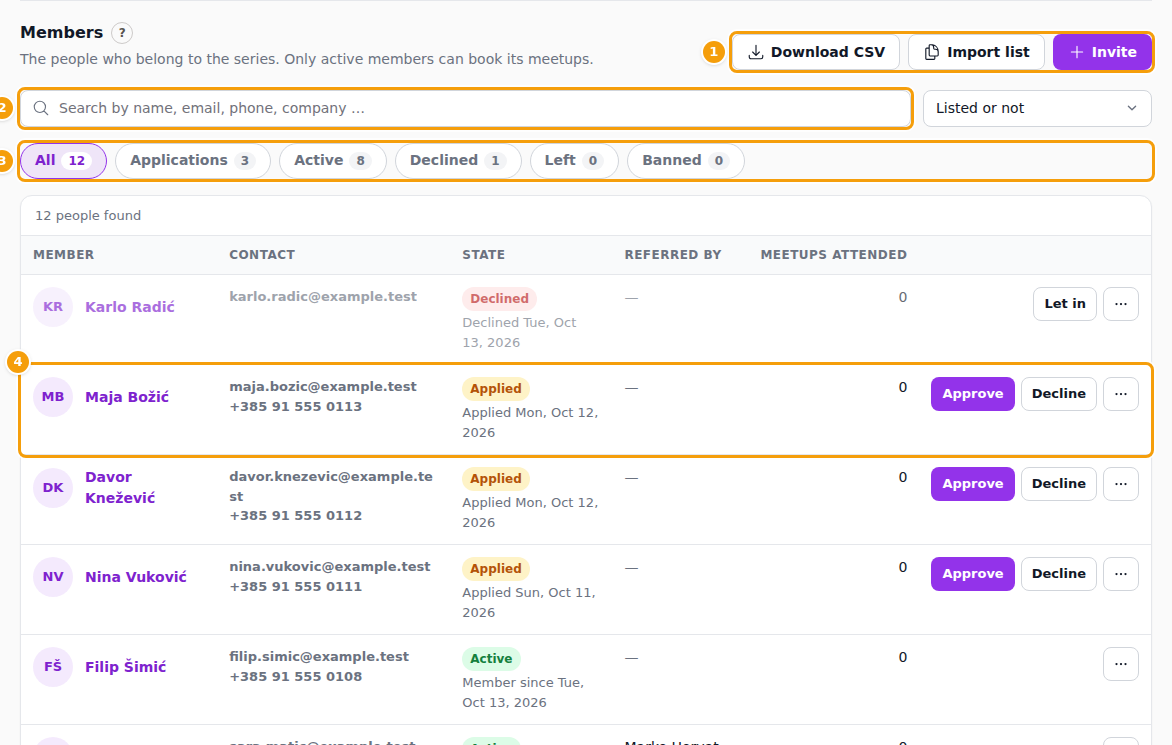
Open the series and choose the Members tab. At the top are Download CSV and, for editors, Import list and Invite (1). Below, a search box (2) and the Listed or not filter find people by name, email, phone, company or any answer in their profile. The buttons (3) filter by state, with the number of people in each: All, Applications, Active, Declined, Left and Banned.
Every row shows the person, their contact details, the State with its date (Applied, Member since, Declined, Left), Referred by and Meetups attended. Click the name to open the profile, see Member profiles.
Applications
An application (4) has two buttons:
- Approve opens a window where you can add a message. The person becomes a member and gets an email with a sign-in link and your message.
- Decline works the same way: the person is told once that the application was not accepted, with your message if you wrote one.
A declined person, or one who left on their own, has Let in instead, which makes them a member again.
When an application arrives, the applicant gets a confirmation email, and the series organiser — or, without an organiser, the venue's contact address — is told that someone applied, with a link to the Members tab. The texts of these emails (and of the welcome, the decline and the sign-in link) can be changed like any other email, see Email templates.
Invite people
Click Invite, enter the first name, last name (optional), email and phone, and keep Email the sign-in link now switched on if the person should get their link right away. The person is a member at once, even when the series asks people to apply. Without the link they are still a member, you just send the link later.
Import a list
Import list adds many people at once. Write one person per line: first and last name, email and, if you have it, a phone number, separated by commas, semicolons or tabs, up to 1000 lines at a time. Everybody becomes a member immediately, and nobody is emailed. The window reports how many people were added and how many were skipped because they are already members or appear twice, and names the lines that could not be read.
Ban, lift a ban or remove
The ... menu of a row has more actions:
- Send link again (active members): a new sign-in link by email, for someone who lost theirs.
- Ban: the person is signed out at once and cannot apply or book until you click Lift ban. Lifting a ban makes an earlier member active again; someone who was never approved goes back to Applications.
- Remove: the person is signed out and their profile, answers and photo are deleted. It cannot be undone, and the person can apply again later.
Banning and removing send no email.
Search and download
The search and the filters find people on the screen. Download CSV gives you the whole list as a file for your spreadsheet, with name, email, phone, state, dates, who referred them, whether they are listed, headline, meetups attended and one column for every profile question. Colleagues who can only view the series can search and download too.
What members see
Visitors of the series website see a form instead of a membership card.
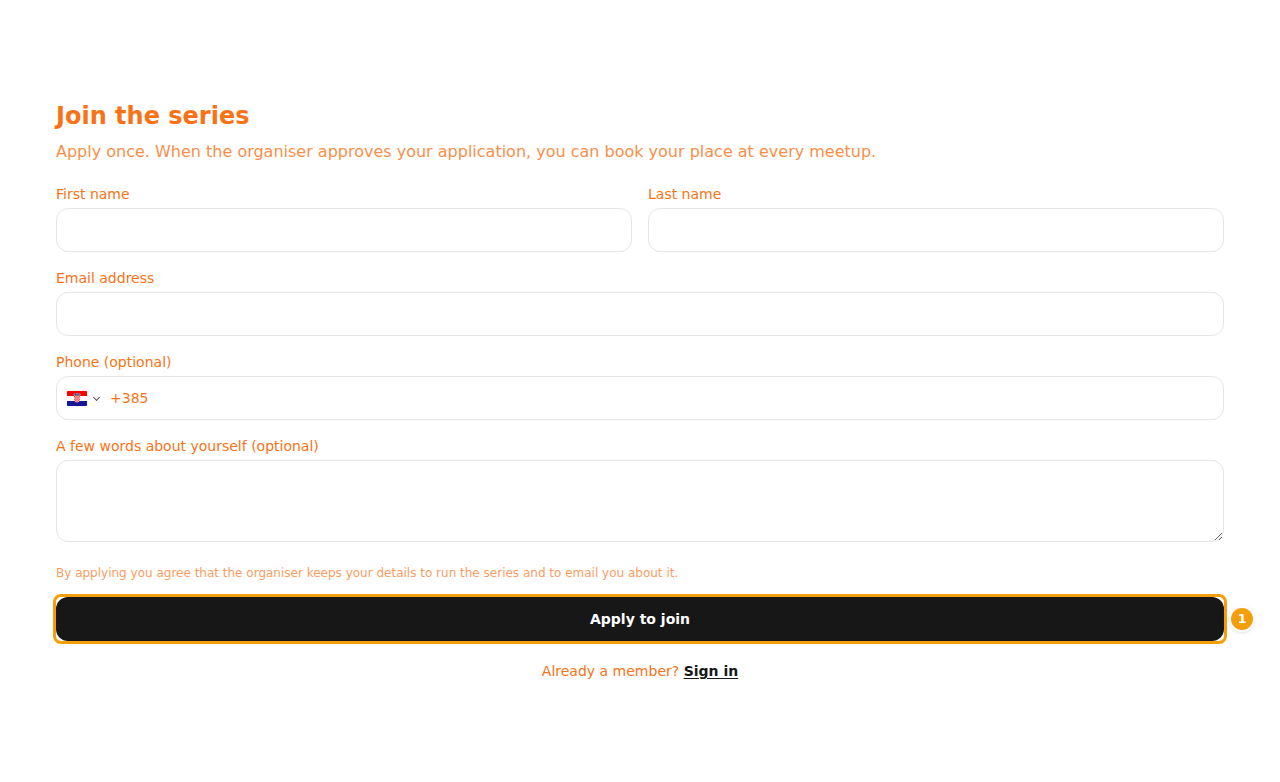
The form asks for first name, last name, email, phone (optional) and a few words about the person (optional). The button says Join the series for an open series and Apply to join when you approve; for an invitation-only series the page says that members are invited by the organiser. People who are members already use Sign in: they enter their email address and receive a sign-in link that works for 7 days.
A signed-in member sees their membership card.
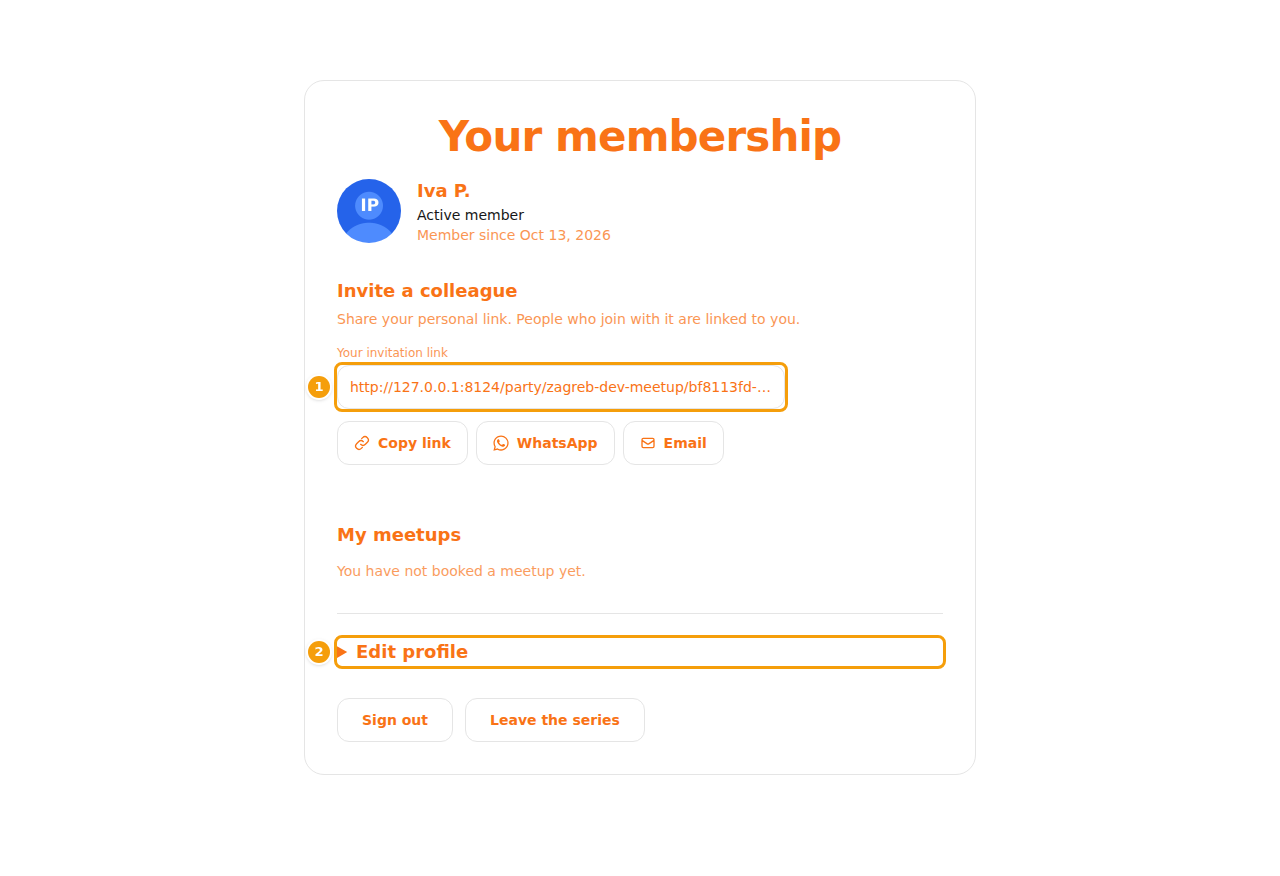
It shows the status, Member since, the invitation link, My meetups with their reservations, Edit profile, Sign out and Leave the series. Leaving asks first; the person is signed out, keeps their reservations and may join again at any time.
Members' emails come in the language of the form they used.