Articles in this topic
Events at a glance
Create an event of your own — a wine tasting, live music, a stand-up night — choose the space and how guests sign up, and keep an eye on it from the list, duplicate it for another date or cancel it.
9 min read
An event is an evening your venue hosts itself: a wine tasting, a tasting menu, live music, a stand-up night. You decide the date, the room and how many guests come. Guests get a page of their own for the event, where they reserve tickets or sign up for free, and on the night your team checks them in.
This is different from a party that a client hosts at your venue, such as a wedding. A party has an organiser who plans it with their own tools; an event is run by you. See Parties and events.
Where to find events
Open Events in the menu on the left of Party Management. The Booking Management area has an Events link in its menu that leads to the same page. Meetups that belong to an event series are not listed here: you find them under Series in the same menu.
Important
Events are part of plans with party management (Pro, Ultimate and the free trial). The plan also limits how many upcoming events you may have and how many guests an event may take. When you cannot create more, the page says You cannot create more events right now; otherwise it tells you how many more upcoming events your plan allows. Colleagues with view access can look at events, but only editors can change them.
Events can be switched off for the whole brand (Brand settings, Features) or for one location. While they are off, the Events entry is hidden and nothing new can be changed; existing events keep their public pages. See Switch events and series off.
The list of events
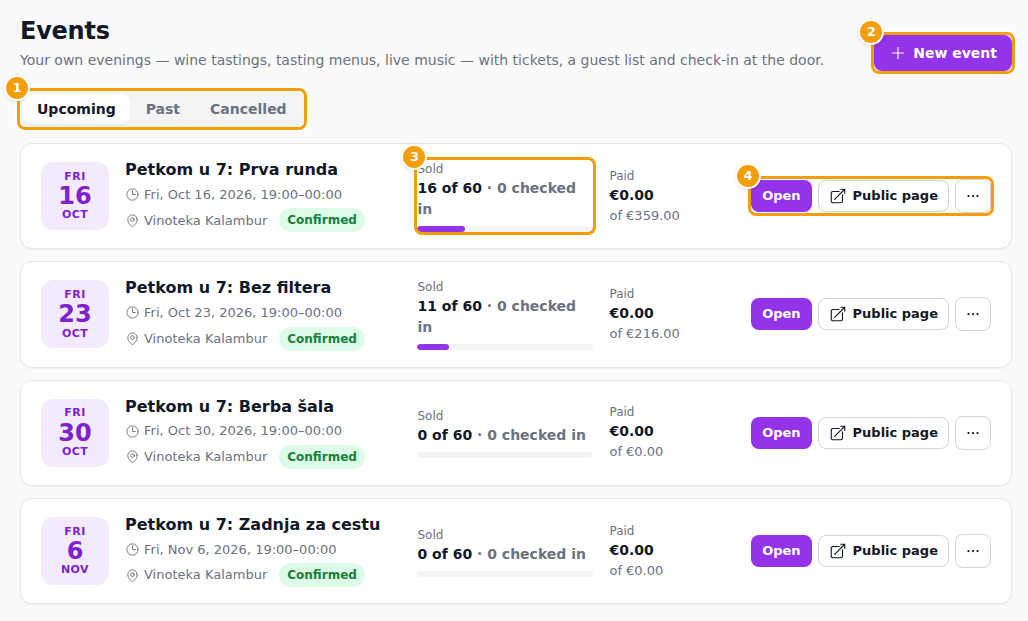
The page is headed Events. Three tabs (1) choose which events you see: Upcoming, Past and Cancelled. A brand with several locations also gets a Venue filter.
Each event is a card with its date, title, time, location and status. An event that is not published yet carries an amber Draft badge, see Draft and published. In the middle (3), Sold shows how many places are taken out of how many there are, with a bar and how many guests are already checked in; for a free event it says Registered. Paid shows what has been paid out of what is expected. At the right (4):
- Open opens the event.
- Public page opens the event's page, as guests see it. A draft has no public page, so the button is missing.
- The ... menu has Duplicate to another date and Cancel event.
New event (2) creates one. When you have none yet, the page offers Create your first event and a few ideas to start from: Wine tasting night, Tasting menu and Live music evening.
Create an event
Click New event. The form is one page with three numbered sections; you can change everything later. Click Create event at the bottom when you are done, or Cancel to leave without creating anything.
1. Basics
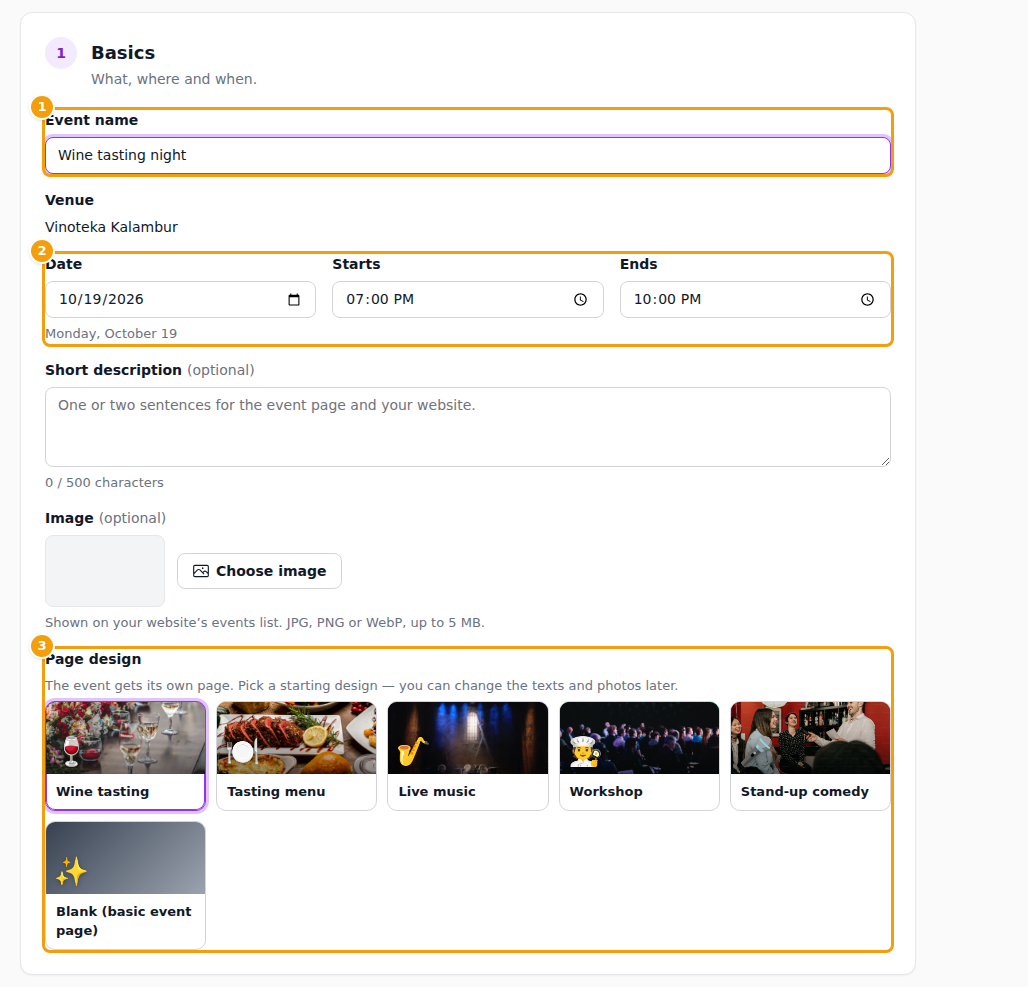
- Event name (1), for example Wine tasting night. Required.
- Venue: shown when your brand has several locations.
- Date, Starts and Ends (2). The date cannot be in the past. If it ends after midnight, the form says Ends the next day.
- Short description (optional): one or two sentences, up to 500 characters, for the event page and your website.
- Image (optional): a JPG, PNG or WebP of up to 5 MB. It is shown on your website's list of events.
- Page design (3): the event gets its own web page. Choose a starting design — Wine tasting, Tasting menu, Live music, Workshop, Stand-up comedy or Blank (basic event page). You can change the texts and photos later.
- Part of a series (optional): shown when your brand has event series. Choose a series and the event becomes a meetup of it: after you save, it opens on the Series page and no longer appears under Events. Not part of a series keeps it a plain event.
2. Space
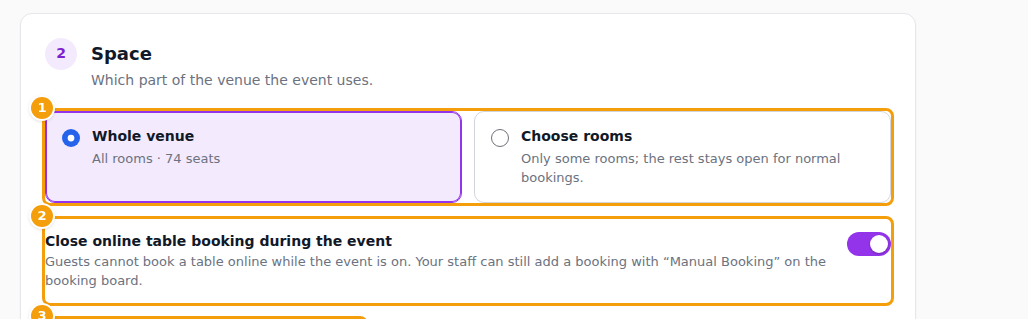
Space says which part of the venue the event uses.
- Whole venue (1) takes all rooms. Choose rooms takes only some of them; the rest stays open for normal bookings. (A venue with one room has just that room.)
- Close online table booking during the event (2) is on from the start: while the event is on, guests cannot book a table online. Your staff can still add a booking with Manual Booking on the booking board. If you chose only some rooms, online table booking stays open for the other rooms and the event's rooms are held for it.
- Number of guests (3) is how many guests can come. Clava starts from the seats of the chosen space; click Use with that number or type your own. Enter a whole number of 1 or more.
If tables in the chosen space are already booked at that time, Clava tells you when you save: choose other rooms or another time.
3. Guests
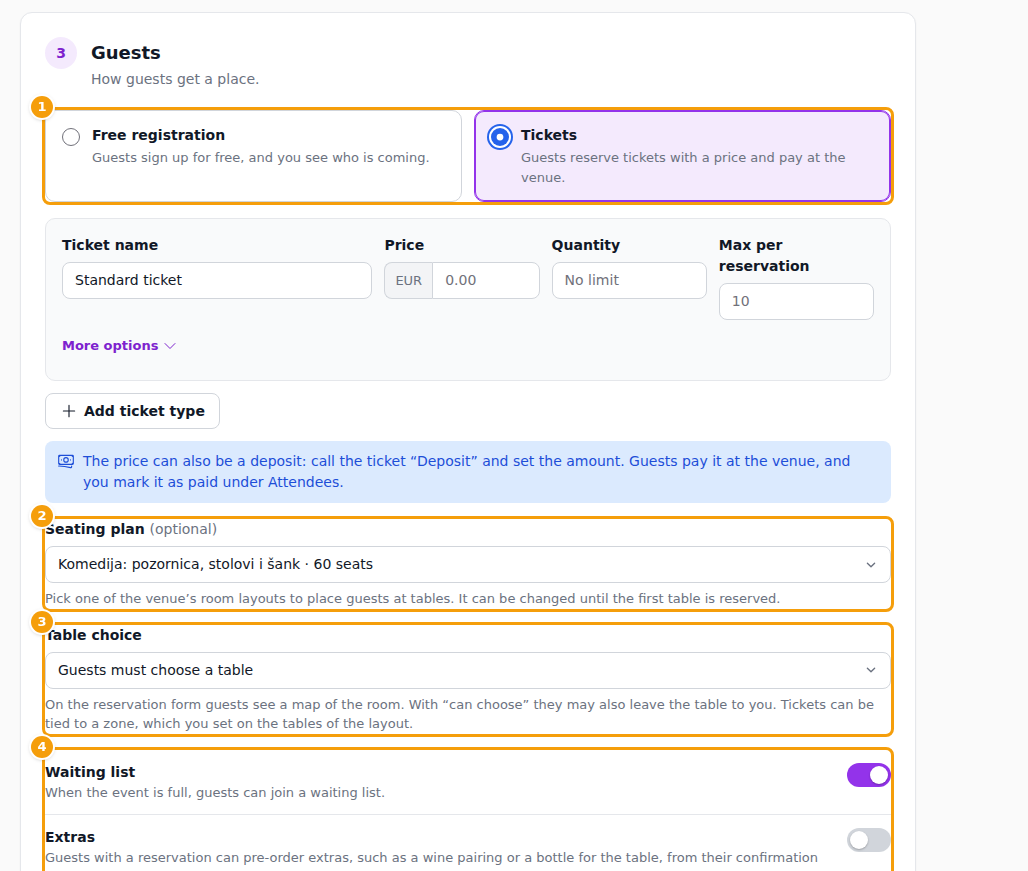
This section is about how guests get a place.
- Free registration (1): guests sign up for free and you see who is coming. Set Max places per registration — how many people one guest can register at once (empty means 10).
- Tickets (1): guests reserve tickets with a price and pay at the venue. You add one or more ticket types — see Tickets.
- Seating plan (2): optional. Choose one of your venue layouts to place guests at tables. You can change it until the first table is reserved. Once you choose a plan with tables, Table choice (3) appears — see Table choice.
- Four switches (4): Waiting list (on from the start), Extras (off), Show on your website (on) and Guests can cancel (on). They are explained in Tickets.
When you click Create event, Clava creates the event page and, if you chose it, closes online table booking for that time. You land on the event, ready to share.
The event page in your hands
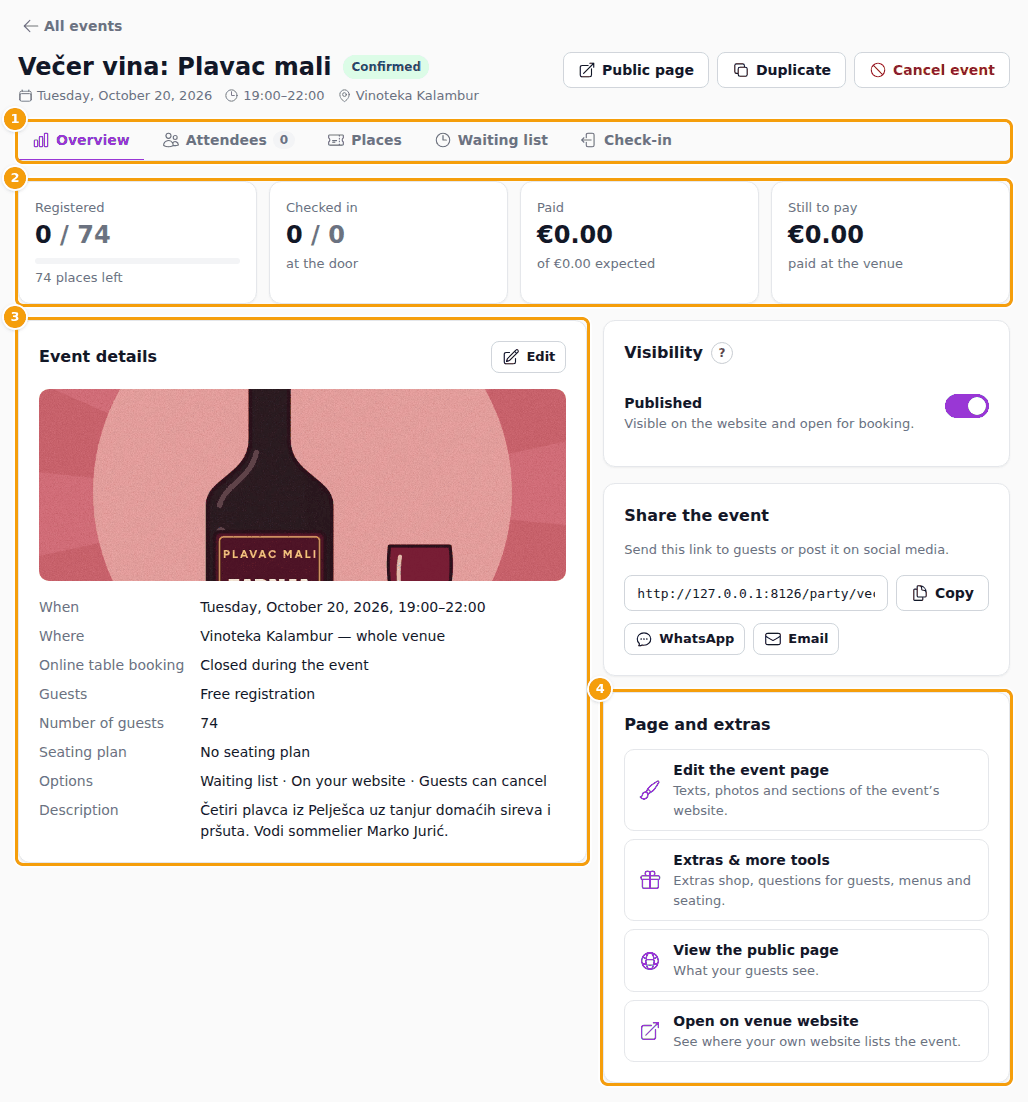
Click Open to look after an event. At the top you see its name and status (a Draft badge while it is not published), and the buttons Public page (not for a draft), Duplicate and Cancel event. The tabs (1) are Overview, Attendees, Tickets (Places for a free event), Waiting list (only when the waiting list is on) and Check-in. The last four are in Attendees and check-in.
The Overview tab starts with the numbers (2): Tickets sold (or Registered) with the places left, Checked in, Paid and Still to pay. The Visibility card says whether the event is published, see Draft and published. Event details (3) lists when, where, the space, whether online table booking is closed, how guests sign up, the capacity, the seating plan and the options. Click Edit to change any of it; the capacity cannot go below the places already reserved.
At the right, Share the event gives you the link to Copy, with buttons for WhatsApp and Email. Page and extras (4) has four links: Edit the event page (the texts, photos and sections of the event's website), Extras & more tools (the extras shop, questions for guests, menus and seating), View the public page and Open on venue website.
Draft and published
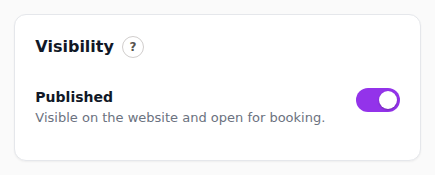
An event is either Published or a Draft. The Visibility card on the Overview tab holds the switch; only editors see it, and not for a cancelled event.
- A Draft is hidden: it has no public page, it is not listed on your website, guests cannot book it and, for a meetup, it cannot be announced to the members.
- Published means the page is visible and open for booking.
- When you publish, Clava asks you to confirm (Publish “…”?, then Publish). Switching back to Draft hides the page again.
- While a room request of a meetup waits for the venue, the switch is disabled and the card says Waiting for the venue: the meetup stays hidden until the room is approved, see Hire a room.
A draft shows an amber Draft badge in the list and at the top of the event, and its Public page button is hidden. Meetups start as drafts when you copy them, see Draft and publish.
Copy an event to another date
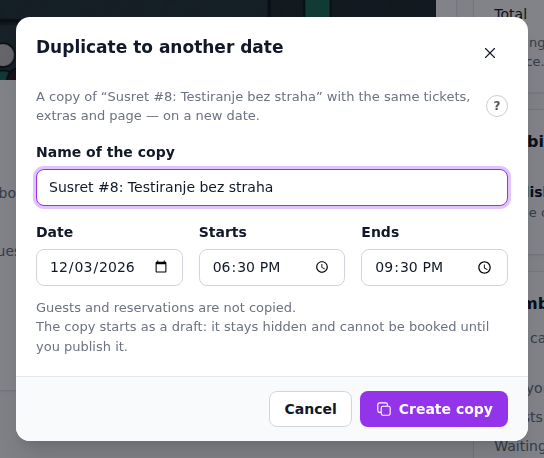
For an evening you hold again and again, open the ... menu of the event, or click Duplicate on the event, and choose Duplicate to another date. The dialog asks for the Name of the copy and for the Date, Starts and Ends of the new evening (it suggests the same weekday a week later). Click Create copy. The copy has the same tickets, extras and page; guests and reservations are not copied.
A plain event's copy stays live like the original. The copy of a meetup starts as a draft, hidden until you publish it, see Draft and publish.
Cancel an event
If an event cannot take place, click Cancel event (on the event, or in the ... menu of the list) and confirm. The event is taken off sale, its page shows that it is cancelled, and the space is free again for normal bookings.
You can tell the guests at the same time: tick Notify attendees and write a Message to the guests. Each guest who reserved gets an email in the language they booked in, with your message under Message from the team. A reservation without an email address is not notified: Clava says how many, and you contact those guests yourself.
Reservations are kept, so you still see who paid and needs a refund. Clava does not pay money back for you. The event moves to the Cancelled tab.
Events on your website
An event shows on your venue website as a teaser, and every event opens on its own page. How to show events on the website is described in Events on your website. The event's own page is made from the design you chose in step 1; edit it with Edit the event page.