Articles in this topic
The guest wallet
How a guest sees all the vouchers one of your businesses gave them — in a small wallet opened with an emailed link, no account — and how your staff look a wallet up by email.
5 min read
Guests collect vouchers: a welcome gift, a thank-you for a review, a promo code. The wallet puts all the vouchers one business gave to one email address on a single page. There are no accounts and no passwords: the guest asks for a link, gets it by email and opens it.
What the wallet is
- It belongs to one business (one brand) and one email address. The same guest has a separate wallet at every business, and never sees another business's vouchers.
- It lists vouchers made for that email address: personal vouchers, vouchers from automatic rules and vouchers your team gave. A promo code that anyone can use is not in a wallet. Templates and deleted vouchers are never listed.
- It shows up to the newest 50.
- It works only while your plan includes vouchers.
How a guest opens it
-
The guest opens any of their voucher pages (the link in the voucher email, or the QR code). At the bottom is a box My vouchers: See all your vouchers from here in one place: we email you a link, no account needed. A guest with a personal voucher sees the button Email me all my vouchers; another guest follows Open my vouchers.
-
On the wallet page, the guest types their email address and presses Email me the link.
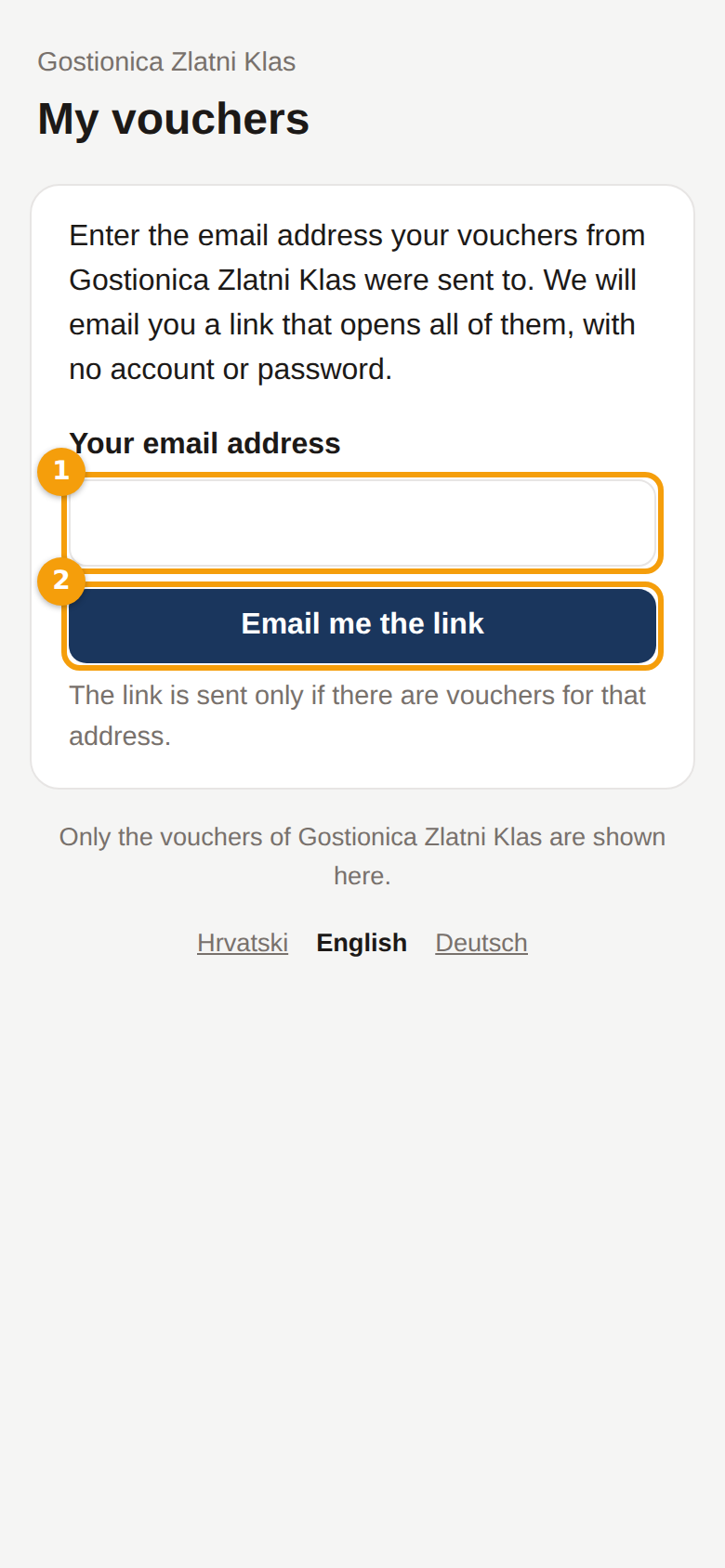
The wallet's first page on a phone: the email box (1) and the button (2) -
The page always answers the same: If there are vouchers for … at …, we have just sent a link to that address. It works for 24 hours. An email is only sent when the business really has vouchers for that address — so nobody can find out whether an address is known.
-
The email Your vouchers at … has a button Open my vouchers. The link works for 24 hours; the guest can ask for a new one at any time.
-
The wallet opens and stays open on that device for 12 hours. Close my vouchers on this device closes it sooner.
To protect guests, the number of links sent is limited — a guest who asks again and again gets nothing more for a while.
What the guest sees
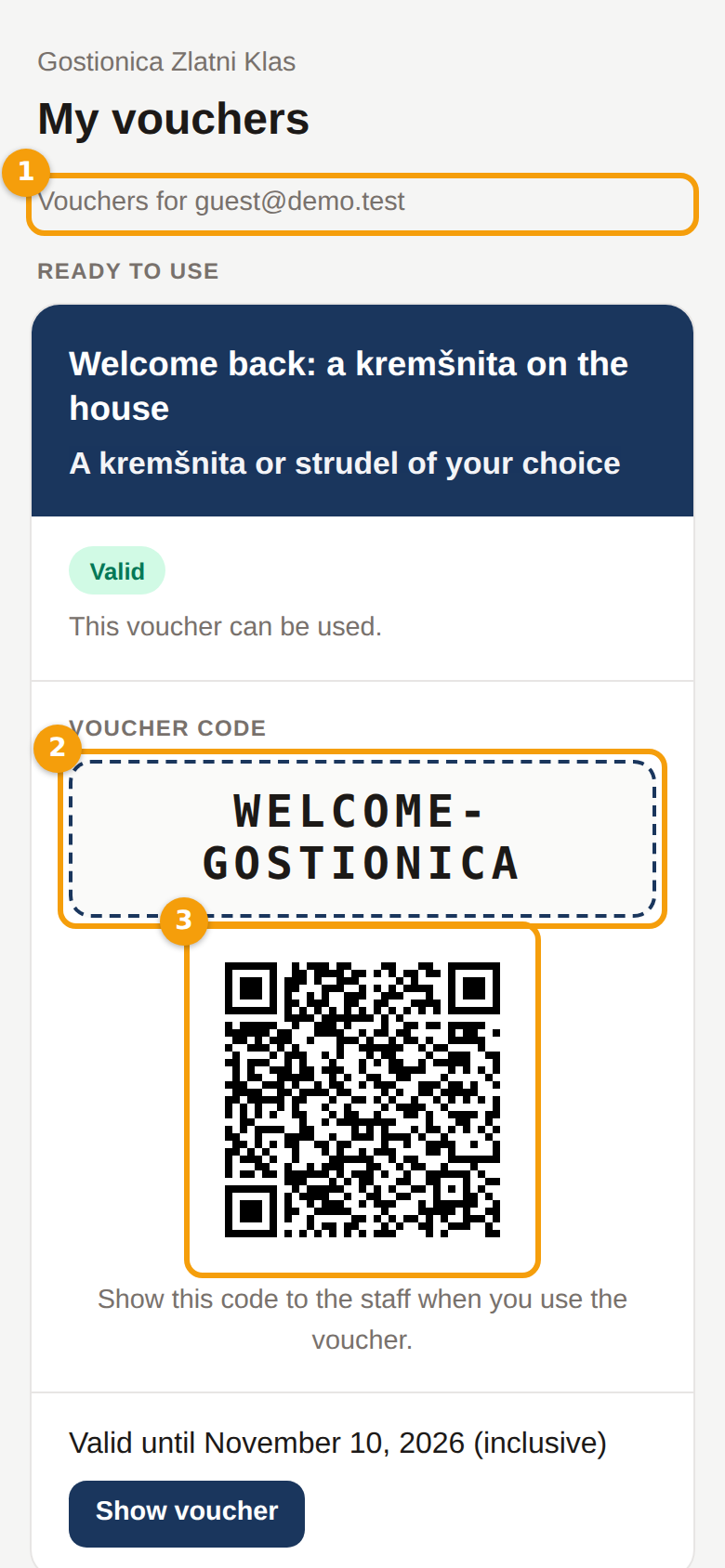
Under Ready to use every voucher is a card with its name, what it gives, its status, the code (2), a QR code (3) the staff can scan, the balance of a gift card, the last valid day and a button Show voucher that opens the voucher page. Vouchers that are used up or expired are folded away under Used or expired. At the bottom is a note that only this business's vouchers are shown.
The wallet is strict about the email address: a voucher for jo+work@company.com is not shown to a guest who typed jo@company.com. Only the spellings that every mail provider delivers to the same mailbox count as the same address (for example dots in a Gmail address).
Look a wallet up as staff
When a guest is at the table, you can see their vouchers too:
- On the Booking Dashboard, type the guest's email address in the Check voucher box and press Check.
- The window Vouchers of … lists every voucher your business issued to that address — those that Can be used now first. Tap one to open it and honour it. The email you typed counts as the guest's, so a personal voucher needs no second email step.
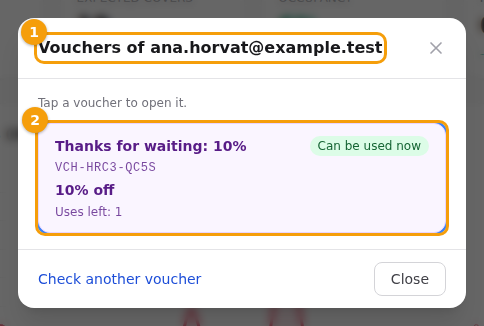
If the guest has none, the window says No vouchers for this email at this brand. At most the newest 50 are listed. Editors and administrators can do this; readers can't. See Vouchers at the table.
Privacy
- The wallet is per business: every look-up carries your business. Staff of another business never see it.
- The email address is never written in the link; the link is signed, so it can't be changed, and it only opens that business's wallet.
- Clava keeps no wallet and no guest account: the wallet is only a view of the vouchers issued to that email address.