Articles in this topic
Vouchers at the table
For your team — check a voucher code, QR code or guest email, honour it, record a walk-in or what a gift card guest spent, see vouchers on bookings, give a voucher on the spot, and what each answer of the check means.
8 min read
When a guest comes with a voucher, your team checks it and honours it: marks it as given and used up. Nothing is charged by Clava — a table booking has no price — so honouring only records that the guest got what the voucher promises. This article is for the people who work at the table.
Who can do what
| Readers | Editors | Administrators | |
|---|---|---|---|
| See the voucher on a booking | Yes | Yes | Yes |
| Check, honour, record a gift card spend, give a voucher | — | Yes | Yes |
| Honour a personal voucher for another email | — | — | Yes, with a reason |
| Make, change and delete vouchers (Marketing → Vouchers) | — | — | Yes |
The voucher tools also need a plan with vouchers, and a location that accepts voucher codes (see Vouchers at a location). See Team roles.
Check a voucher
The Check voucher box is at the top of the Booking Dashboard and of the Floor Dashboard of a restaurant location.

- Click the field (2) and type or scan the voucher. You can enter the code (capital letters, spaces and dashes don't matter), the address from a voucher's QR code, or — see below — a guest's email. A scanner that types like a keyboard works: it types the code and presses Enter.
- Press Check (3). If your business has several locations, choose the location next to the field first.
- A small window opens with the answer.
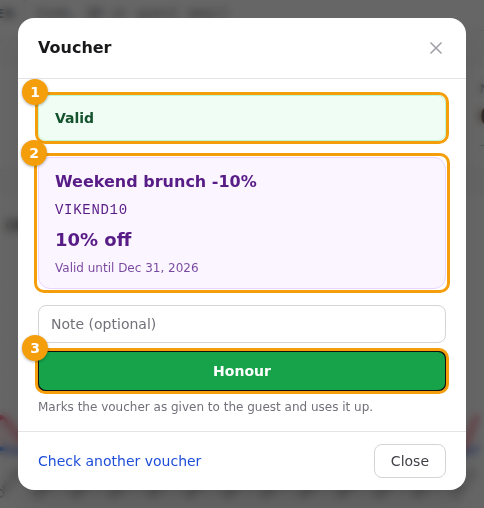
The green Valid (1) means the voucher can be used now. Below it you see the voucher (2): its name, code, what it gives, the last valid day, how many uses are left and its conditions — days, hours, guests, minimum spend. A red Not valid says why, in words — see below.
If a guest booked online with this code, the window says Claimed on the booking of Ana K. (7:30 PM): the code was typed at the booking, and you honour that claim.
What the answers mean
| The window says | What it means |
|---|---|
| Invalid voucher code. | There is no such code at your business. Check how it was typed. |
| This voucher expired on … / is not active until … | Outside its dates. The last day counts all day. |
| This voucher has been suspended. | Paused by an administrator. |
| This voucher has been fully used. / has reached its usage limit. | Used as often as allowed. |
| This voucher is not valid at this venue. | It is for other locations. |
| … only available between 17:00 and 21:00 / is not available on Tuesday | Outside the hours or days the voucher is for. |
| … requires at least 4 guests / is valid for up to 6 guests | The party is too small or too large. |
| … cannot be combined with an offer. | The booking has an offer and the voucher is not stackable. |
| This voucher was already honoured on … | Someone already gave it at the table. A gift card can still be spent from. |
| This voucher is personal (it asks for the Guest email) | It belongs to one guest. Type the guest's email to check that it is theirs. |
A voucher that is Not valid can't be honoured. Don't argue with the guest: the reason in the window is what Clava knows, and an administrator can look at the voucher in Marketing → Vouchers.
Honour a voucher
- Check the voucher as above. Make sure the guest really gets what it promises.
- Optional: write a Note.
- Click the green Honour. The window says Voucher … honoured.
What happens depends on how the voucher came to the table:
- The guest booked with the code. The claim on the booking is marked honoured, with your name and the time. The booking shows Honoured.
- Nobody claimed it — a guest at the door with a code or a printed voucher. Honouring records a walk-in: the use is used up, and in Marketing → Vouchers → Redemptions it appears as Used at the venue (no booking).
- It was honoured before. The window says so and changes nothing.
Important
Honour uses the voucher up. Press it only when the guest really gets what the voucher promises.
A personal voucher
A personal voucher belongs to one guest. The window asks for the Guest email (the booking's email is filled in if you checked it from a booking). If it matches, you can honour it. If it doesn't, an administrator can click Honour anyway and must write a Reason, which is saved with the voucher. Editors can't.
Gift cards: record what the guest spent
A gift card is never "honoured" — it has a balance. After the check the window asks Record what the guest spent.
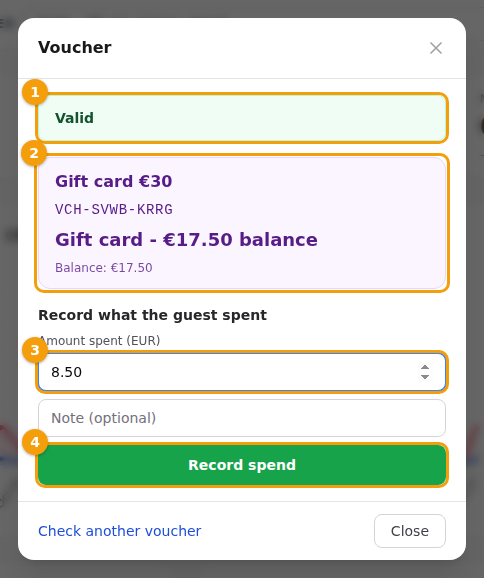
- Type the Amount spent (3). It can't be more than the balance.
- Optional: a Note.
- Click Record spend (4). The window says Recorded €8.50 from the gift card. Balance left: €9.00.
A card that is suspended, expired or not valid yet takes no spend.
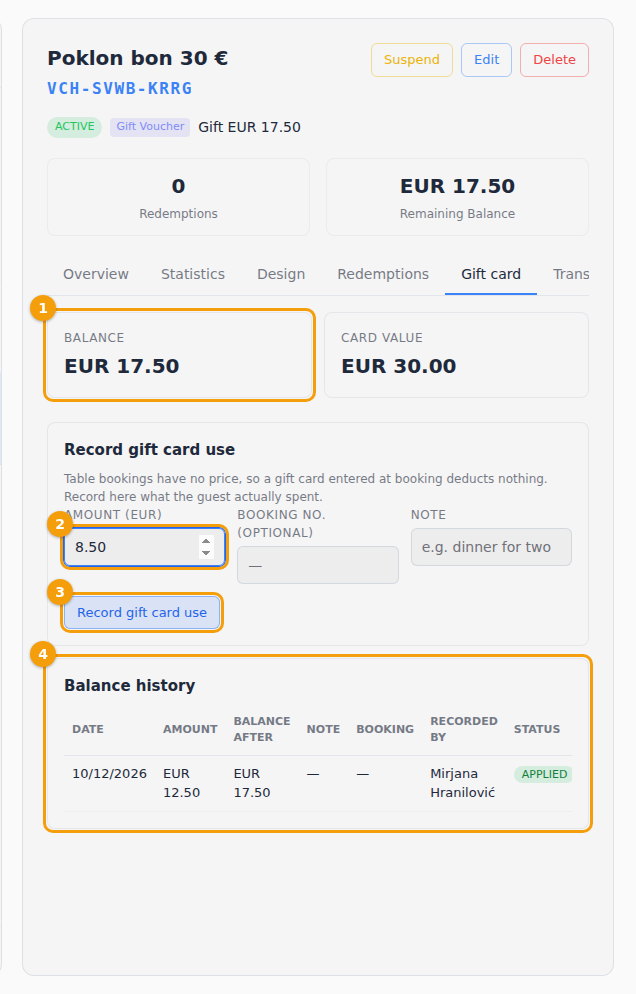
In Marketing → Vouchers, the tab Gift card shows the balance and every use. If a spend was recorded by mistake, an administrator clicks Undo next to it: the amount goes back on the card, and the use stays in the history as reversed.
Vouchers on bookings
- On the board and the dashboards. A booking that carries a voucher shows its name, code and what it gives, and its minimum spend. See A booking card.
- Returned. When a booking is set to Canceled or No Show, or is deleted, its voucher use goes back by itself: the voucher shows grey and crossed out, with Returned. Set the booking active again and the voucher is claimed again if it still applies.
- Check from a booking. In the booking window of the Floor Dashboard, Check voucher opens the same window for that booking's voucher. Once honoured it shows Honoured, and the voucher can't be removed or replaced any more.
- A code for a booking you make. In the booking window of the Floor Dashboard there is a Voucher code box; a refused code shows its reason under the box. Replace with another code and Remove the voucher from this booking change it later. Editors and administrators can do this; readers can't.
Give a voucher on the spot
You can give a guest a voucher — an apology, a thank-you — without leaving the dashboard. It works with templates that an administrator marked Staff may hand this out (see Templates).
- On the Booking Dashboard, in the list Upcoming Today, click Give voucher under the guest's name. (On the Floor Dashboard there is a Give voucher button too.)
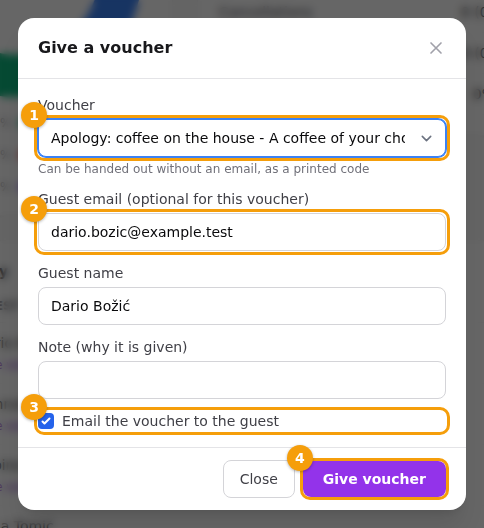
- Choose the Voucher. The guest's email, name and the booking are filled in; you can change them.
- Optional: a Note (why it is given). Keep Email the voucher to the guest ticked to send it.
- Click Give voucher (4).
The window Voucher created shows the code and the last valid day, with Open voucher page, Print or download PDF and Copy code. For a template that may be handed out without an email, leave the email empty to get a code anyone can use — print it or write it down.
Limits: you can give 20 vouchers a day, and a guest can have only one unused voucher from each template. If no voucher is offered in the list, no template has Staff may hand this out yet — ask an administrator.
Look up all of a guest's vouchers
Type a guest's email address in the Check box instead of a code and the window lists every voucher your business issued to that address — see The guest wallet.