Articles in this topic
Booking rules
Decide how many guests one online booking may have, how far ahead guests must book, which questions the booking form asks, and what bigger groups are told. Also: which controls on this tab do nothing today.
9 min read
The Booking Rules tab holds the rules your guests meet on the booking page: how many guests one booking may have, how soon they can book, and whether the form asks about allergies. The tab is long, so scroll down. A few controls on it do nothing today — this article tells you which, so you don't spend time on them.
These rules are for online guests. Your team can still add any booking in Booking Management, whatever the rules say: on the Floor Dashboard, or with Manual Booking on the Booking Board. The one exception is the New Booking button on the Booking Board (Capacity calendars). Its window offers only the times guests can pick too, so it also follows your opening hours and the rules below. Blocked days and hours don't stop it.
How many guests, and how far ahead
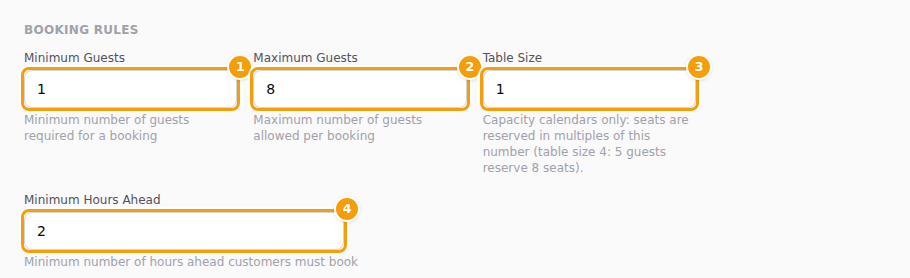
These four fields are in the group Booking Rules. The first three show for calendars with the strategy Restaurant/Venue booking calendar or Capacity booking; Minimum Hours Ahead shows for every calendar. Type a whole number in each.
| Field | What it does |
|---|---|
| Minimum Guests (1) | The smallest number of guests a booking can have. It is the first number button on the booking page. With 2, guests start at 2 and a table for one can't be booked online. It starts at 1. |
| Maximum Guests (2) | The largest number button on the booking page. It can't be lower than Minimum Guests. Leave it empty and guests see the buttons from Minimum Guests up to 10. Whatever you type, guests can book at most 50 online. For bigger groups see Messages for larger groups. |
| Table Size (3) | For Capacity booking calendars only: seats are reserved in blocks of this size. With a table size of 4, five guests reserve 8 seats. Leave it at 1 unless your seating really comes in fixed blocks. It has no effect on a Restaurant/Venue booking calendar. |
| Minimum Hours Ahead (4) | How much notice you need. Clava hides every start time that is earlier than now plus this many hours. See below. |
Minimum Hours Ahead
Say it is 10:20 and Minimum Hours Ahead is 3. The earliest start time guests can pick today is 13:30 (13:20, rounded up to the next quarter of an hour). The rule counts across midnight too: at 20:20 with 12 hours, the first time tomorrow is 08:30. A day that has no time left shows guests no times at all.
- 0 means no extra notice, but guests still need one hour: at 10:20 the first time on offer is 11:30.
- A calendar created during Clava's own set-up starts with 2.
- The number only removes times. It does not close a whole day — to do that use Disable Same-Day Bookings below.
Good to know
Clava counts "today" and "hours from now" with the time zone saved on your calendar. A new calendar starts on universal time (UTC), which in Central Europe is one or two hours behind: around midnight "today" then changes later than on your own watch, and the first time offered today can be a little earlier than you expect. Add a small safety margin if exact notice matters.
The seven switches
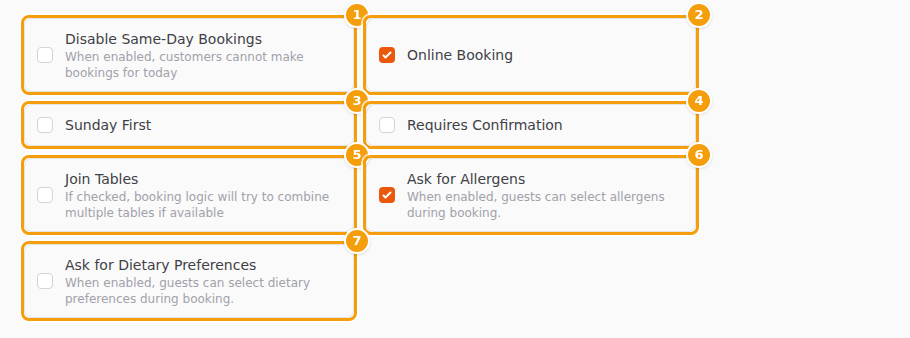
Below the fields come seven switches in two columns. They are tick boxes: tick one to turn it on.
| Switch | What it really does |
|---|---|
| Disable Same-Day Bookings (1) | Off at first. On: guests can't book for today — the date picker starts tomorrow. Your team can still book for today, except with the New Booking button on the Booking Board, whose window offers no times for today. |
| Online Booking (2) | On at first. This is the master switch for guests. Off: nobody can book online. The booking page and the booking form on your website still open, but every date shows Sorry, there are no available slots for the selected date and party size. — there is no polite "closed" message. Tell guests another way, for example on your website. Exception: if you have switched on party requests, the booking page and your website show only the request form, without the Book a Table tab — right for a venue that works by enquiry. Your team can still add bookings, except with the New Booking button on the Booking Board, whose window then offers no times (use Manual Booking there). |
| Sunday First (3) | Off at first. On: weeks start on Sunday instead of Monday — in the date picker guests see, in the working hours grid and in the blocked dates calendars. The two grids change after you save. |
| Requires Confirmation (4) | Does nothing today. Every online booking is confirmed at once; there is no step where you approve it. Leave it off. |
| Join Tables (5) | Does nothing useful today. Clava never combines tables: each booking gets one table. Leave it off. |
| Ask for Allergens (6) | On: the details step of the booking form, Step 3: Your Details, shows a list of the 14 common allergens and the guest can tick theirs. The answer is saved with the booking and your team sees it. |
| Ask for Dietary Preferences (7) | On: the same step shows a list — Vegetarian, Vegan, Pescatarian, Gluten-Free, Dairy-Free, Halal, Kosher. The answer is saved with the booking. |
Requires Confirmation, Ask for Allergens and Ask for Dietary Preferences belong to the Pro and Ultimate plans. On the Free plan they are greyed out, with a PAID badge and the note that they are available on Pro and Ultimate. During a trial they carry a TRIAL badge and work. If you save on a plan without them, Clava turns them off.
Tip
On a Capacity booking calendar your team can also close and open online booking on the Booking Board in Booking Management, with the button Online Booking Open / Online Booking Closed.
Let guests choose where they sit
On a Capacity booking calendar, a venue with more than one area — inside and terrace, hall and garden — can let guests pick the area themselves. Tick Guests choose the area (it shows for Capacity booking calendars only; it is off at first). Then, after a guest picks a time that fits in several areas, the details step starts with Area and one button for each area that still has room at that time. The first one is chosen already, so a guest who ignores it is seated as before.
- Name the areas for your guests under Floors and tables: the Name guests see, in each language of your location. A language you leave empty shows the floor name.
- Only floors ticked Bookable Online are offered, and only while they have enough free seats. The choice is checked again when the guest books: if the area has filled up in the meantime, the guest is asked to pick another area or time.
- With the switch off, guests are seated on the first floor that has room, and nothing is asked.
Messages for larger groups
At the bottom of the tab, Exception Messages let you show a note when a guest taps a big number — for example "For 7 or more guests, please call us." The note is only a note: the guest can still go on and book.
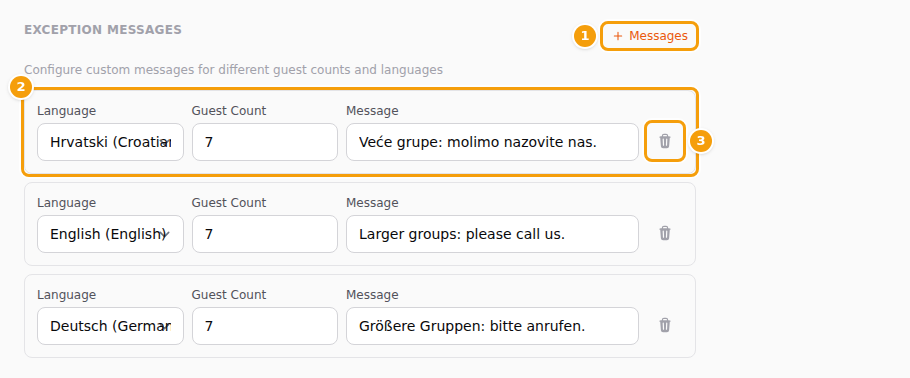
- Click + Messages (1). A new row (2) appears.
- Choose the Language the message is for. It is the language of the booking page the guest is reading.
- Type the Guest Count. The note shows when the guest taps this number or any larger one.
- Type the Message. You can make words bold by putting two asterisks on each side, like
**call us**, and add a link as[our contact page](https://example.com). - Click the save button at the top of the tab.
To remove a message, click its trash icon (3) and save.
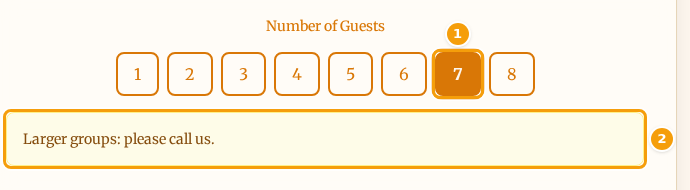
What the guest sees: the yellow box (2) under the number buttons, in their language. A few things to know:
- One message per language. Clava shows the first message whose Language matches the language of the booking page. A guest who reads the page in a language you have no message for sees nothing — there is no fallback to English. Add one row for each language of your website. See Languages.
- The number buttons stop at Maximum Guests. If Maximum Guests is 8, nobody can tap 9, so set the Guest Count of your message to 8 or lower.
- Mind the field width. The message box on this tab is narrow, so a long text looks cut off while you type. Guests see it in full.
Tip
Want bigger groups to call you instead of booking? Set Maximum Guests to the biggest group you take online and add a message at that same Guest Count: "For 8 or more guests, please call us on ...". If you also host celebrations, guests can send a request instead — see Event and celebration requests.
Three numbers for older integrations
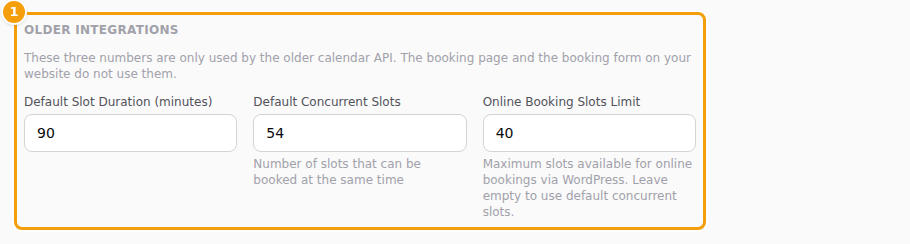
The first group on the tab, Older integrations, holds three numbers. Clava says it itself in the grey text under the heading: they are only used by the older calendar interface, for example by an older plug-in for your website. Your booking page and the booking form on your website do not use them.
| Number | Used by |
|---|---|
| Default Slot Duration (minutes) | Older integrations only. It does not set how long a guest's table is held — online bookings always last 90 minutes. |
| Default Concurrent Slots | Older integrations only. |
| Online Booking Slots Limit | Older integrations only. It can stay empty. |
Leave them as they are. Changing them changes nothing for your guests. Clava still checks them when you save, so don't empty the first two: each needs a whole number of at least 1.
When Clava says "Not saved"
Clava checks all fields of the tabs General, Booking Rules and Communication when you click save. If one is wrong, nothing is saved, a red message Not saved appears at the top right, and a red note under the field says what to change.
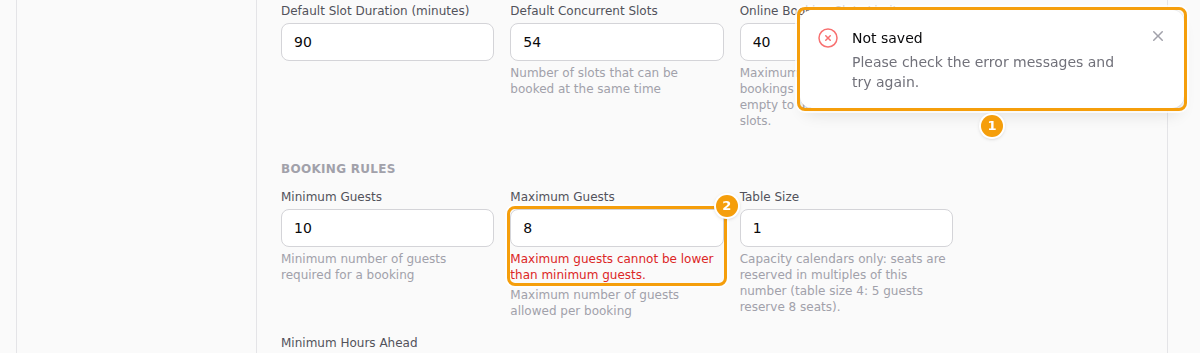
Here Minimum Guests was set to 10 while Maximum Guests is 8, so the note says Maximum guests cannot be lower than minimum guests. Fix the field and save again.
What Clava checks on this tab:
- Minimum Guests — a whole number from 1 to 50.
- Maximum Guests — empty, or a whole number from 1 to 1000 that is not lower than Minimum Guests.
- Table Size and Default Concurrent Slots — whole numbers of at least 1.
- Default Slot Duration (minutes) — a whole number from 1 to 1440.
- Online Booking Slots Limit — empty, or a whole number of at least 1.
- Minimum Hours Ahead — a whole number from 0 to 8760.
- Exception Messages — every row needs a Language and a Guest Count of at least 1.
Tips
- Want same-day bookings? Leave Disable Same-Day Bookings off and keep Minimum Hours Ahead small, like 1 or 2. Want to close today completely? Switch Disable Same-Day Bookings on.
- Don't count on the two quiet switches. Requires Confirmation and Join Tables do nothing today, so a booking is always confirmed and always gets one table.
- Test as a guest. After you save, open your booking page in a private window and tap the numbers 1, your maximum and one in between.
- Press save once at the end. The three tabs General, Booking Rules and Communication are saved together — see How saving works.