Articles in this topic
General settings
Name your booking calendar, choose how it finds a place for your guests (the booking strategy) and see which of your locations uses it.
5 min read
The General tab is the first tab of every booking calendar. You give the calendar a name, choose how it takes bookings, and see which of your locations uses it. Most of it you set once, when you create the calendar.
What is on the tab
Open Booking Calendars in the menu on the left, under Venue Setup, and click your calendar. It always opens on General. New to this page? Read What a booking calendar does first.
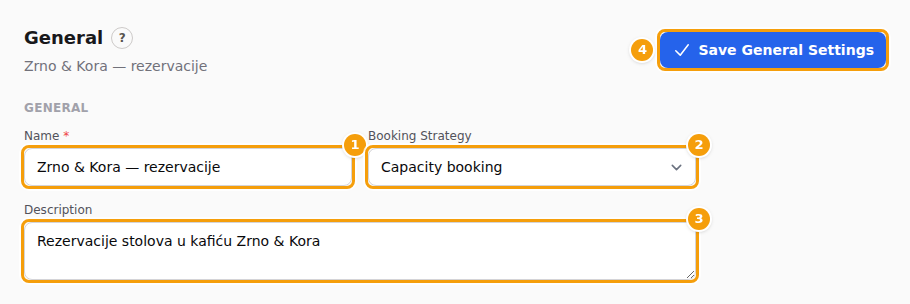
| Field | What it does |
|---|---|
| Name (1) | The calendar's name. A red star means it is required. You see it in the list of calendars and in the Associated Booking Calendar list in Venue Setup. Guests never see it. |
| Booking Strategy (2) | How Clava finds a place for a guest: at a table, or on a floor with free seats. See below. |
| Description (3) | A note for yourself and your team, for example which location the calendar is for. Guests never see it. It is optional. |
| Save General Settings (4) | Saves this tab and the tabs Booking Rules and Communication — they share one set of fields. See How saving works. |
Change the name
- Click your calendar in the list. The General tab opens.
- Type the new text in Name (1). You can change Description (3) in the same way.
- Click Save General Settings (4). A green message, Saved., appears at the top right.
The new name shows in the list on the left and in Venue Setup straight away. Nothing changes for your guests.
Tip
Call each calendar after its location, for example "Zrno & Kora – Riverside". The name appears in a list in Venue Setup, so a clear name stops you from linking the wrong calendar.
Booking strategy
The strategy decides how Clava finds a place for a guest. It also decides what Clava needs from you in Floors & Tables.
| Choice | How it works | What Clava needs |
|---|---|---|
| Restaurant/Venue booking calendar | The guest gets a table. Clava picks the smallest free table that has enough seats. | Your tables with their seats |
| Capacity booking | The guest gets a place on a floor that still has enough free seats. No table numbers. | Floors with a Seated Capacity, ticked Bookable Online |
| Resource-based booking | For older set-ups that rent out rooms or courts. | Do not choose this — see the warning below. |
Pick Restaurant/Venue booking calendar or Capacity booking and read the details in Floors and tables. When a calendar has one of these two strategies, a second group, Restaurant Settings, appears under the first.
Careful
Changing the strategy of a calendar that is already in use changes your booking page at once. Switch from Restaurant/Venue booking calendar to Capacity booking without ticking Bookable Online on a floor, and guests see no times. Save the change only when your floors and tables are ready for it.
Careful
Don't choose Resource-based booking for a restaurant or café. Your booking page can't work with it: every date shows guests Sorry, there are no available slots for the selected date and party size. The tab Booking Rules also loses its guest fields, and Venue Setup does not offer such a calendar in its list.
The location that uses this calendar
Under Restaurant Settings you find Associated Venue. It only shows you which location uses the calendar. You can't change the link here.

- (1) The name of the location that uses this calendar. If none does, the box says No venue is linked to this calendar yet. A calendar that is not linked is not used by any booking page.
- (2) The orange link opens Venue Setup. It reads Change in Venue Setup when a location is linked, and Link a venue in Venue Setup when none is. It takes you to your list of locations; from there click Configure on the location, then open the tab Booking & Patrons.
- (3) The line under the box tells you where the link is made. The tab is called Booking & Patrons, the hint calls it "Booking".
The steps for linking are in What a booking calendar does.
Good to know
If two locations use the same calendar, only one of them is shown here. Give each location its own calendar.
When Clava says "Not saved"
Clava checks every field of the three tabs General, Booking Rules and Communication when you click save. Leave Name empty, for example, and nothing is saved:
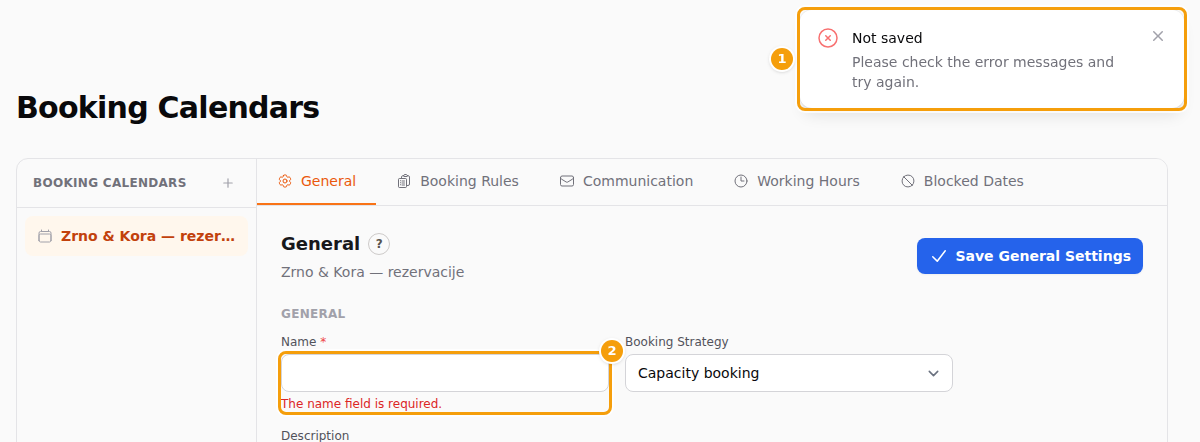
- (1) A message Not saved, with the line Please check the error messages and try again., appears at the top right.
- (2) A red note under the field says what is wrong, here The name field is required.
Fix the field and click save again. If the mistake is on another tab, Clava opens that tab for you. The rules for the other fields are in Booking rules and Emails and messages.