Articles in this topic
Bookings and guests
Choose the booking calendar your location uses, and decide whether the booking form shows the optional marketing and regular-guest (patron) tick boxes.
5 min read
The Booking & Patrons tab does two jobs. It connects your location to its booking calendar — without that link, guests cannot book a table online. And it switches two optional tick boxes on your booking form on or off: one for marketing consent and one for joining your regular guests.
Choose your booking calendar
The booking calendar is the part of Clava that knows when you are open, how many guests you can seat and which days are closed. A location uses one calendar at a time. A venue you add with New Venue gets its own calendar and is linked to it automatically, so you only change the link here if you want another calendar. If you have not made one yet, read What a booking calendar does first.
- In Venue Setup, click Configure on your location, then click Booking & Patrons.
- Open the list Associated Booking Calendar (1) and click the calendar this location should use. The list shows your booking calendars by name — the restaurant and capacity types.
- Click Save Booking Settings. A green message, Changes saved successfully., confirms it.
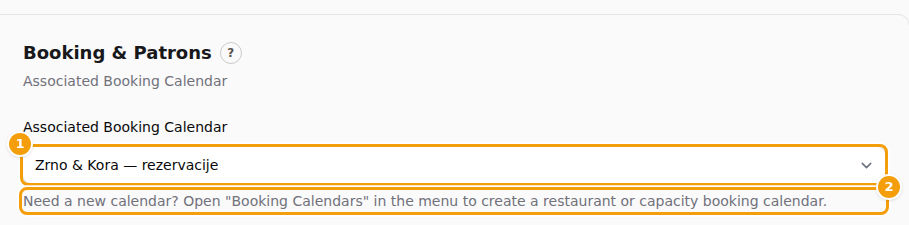
The line under the list (2) tells you where a new calendar is made: in the menu on the left, under Venue Setup, click Booking Calendars. Create the calendar there, then come back to this tab and choose it.
The change is live at once — there is nothing to publish. Your team's booking screens use the same calendar.
Important
Without a calendar, nobody can book online. The booking page still opens, but after a guest picks a date and the number of guests it says Sorry, there are no available slots for the selected date and party size. The same happens when the Online Booking switch is off on the Booking Rules tab of the calendar. Check both when guests tell you they cannot book — see Booking rules, or the whole list of reasons in If guests see "no available slots".
Careful
Choose a calendar that no other location uses. Clava does not stop you from picking one that is already in use, but then both locations share its opening hours, closed days and booking rules — which is rarely what you want.
Ask guests for marketing consent or to join your regular guests
Two switches add an extra tick box to the step of your booking form where guests type their details, Step 3: Your Details. The tick boxes are optional: guests can book without ticking either one. Both start switched off.
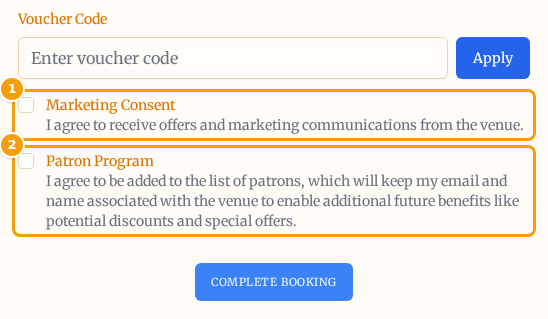
- Switch on Ask for Marketing Consent (1) to add the tick box Marketing Consent. Next to it the guest reads: I agree to receive offers and marketing communications from the venue.
- Switch on Ask for Patron Registration (2) to add the tick box Patron Program. A patron is a regular guest. The guest reads: I agree to be added to the list of patrons, which will keep my email and name associated with the venue to enable additional future benefits like potential discounts and special offers.
- Leave Force Patron Registration (3) switched off — see below.
- Click Save Booking Settings (4).
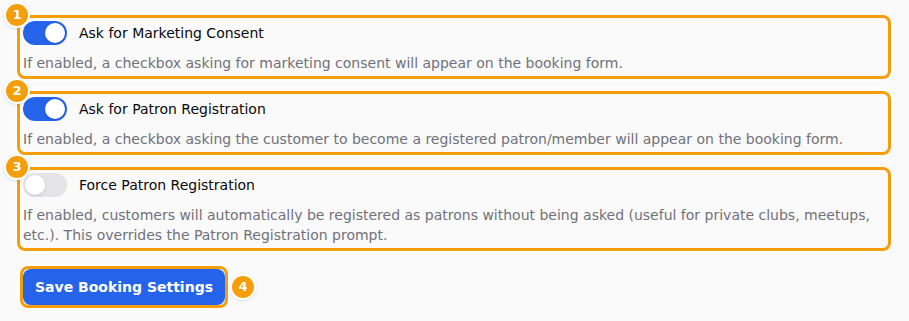
When a switch is on, guests see the tick box in their own language on your standard booking page, in the booking widget on another website, and on the booking page of your website. Switch both off and the whole block is gone. The tick boxes do not appear when your team adds a booking in Booking Management.
Good to know
The labels in your language may say "regular guest" (hr: stalni gost, de: Stammgast) where the English says "patron". They mean the same thing.
What happens to the answers
When a guest ticks a box, Clava saves the answer with that booking. Today that is all it does:
- No booking screen shows the answer, and there is no list of the guests who ticked it and no export.
- Clava does not use the answer to send anything, and Patron Program does not give a guest a discount by itself.
So the switches change what guests see on the form, but they do not give you a guest list yet. If you need proof that a guest agreed to receive offers, keep your own record — for example, a sign-up list that you manage.
Force Patron Registration
Force Patron Registration (3) is meant to register every guest as a patron without asking. It does not do that at the moment. When you switch it on, the Patron Program tick box disappears from the booking form — even if Ask for Patron Registration is on — but the booking is not marked as a patron.
Careful
Leave Force Patron Registration switched off. If Ask for Patron Registration is on, switching Force Patron Registration on only takes the question away from your guests.
Good to know
- Nothing is saved until you click Save Booking Settings. One click saves the calendar and all three switches together. Clicking Change venue or reloading the page throws away what you changed — see Save your work.
- Everything here shows on the booking form at once. There is no Publish step.
- The booking form is the same everywhere. Your standard booking page, the booking widget and the booking page of your website all use it. To change its colours, see Your booking form follows your website.