Articles in this topic
Website and social media links
Add the address of your own website and your social media profiles, so guests can find you online from their booking confirmation.
4 min read
The Online Presence tab holds two things: the address of your own website, and links to your social media profiles. Guests see them on the Booking Details page, which they open from their booking confirmation email. The address of your website is in the email itself too. So a guest who liked the evening can find you again.
Add the address of your website
- In Venue Setup, click Configure on your location, then click Online Presence.
- Click the Website URL box (1) and type or paste your address. You can write it short, for example zrnokora.hr or www.zrnokora.hr.
- Click outside the box. Clava completes the address for you and shows it in full, as https://zrnokora.hr (1). The grey line under the box (2) says so: You can leave out "https://", it is added for you.
- Click Save Online Presence at the bottom of the tab. A green message, Changes saved successfully., confirms it.
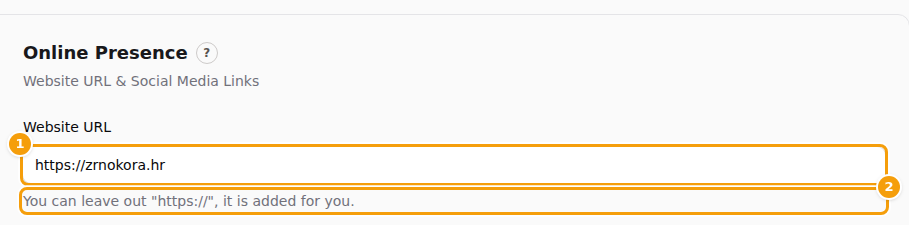
Pasting the full address from your browser works just as well. And if you click Save Online Presence without leaving the box first, Clava completes the address before it saves.
Good to know
Website URL is for a website you already have somewhere else, such as your own restaurant website. It is optional: leave it empty and the guest's email and Booking Details page simply have no website line. Using the website you built in Clava? Paste its address here if you want those links to lead to it — see Share your website and booking link for how to find it.
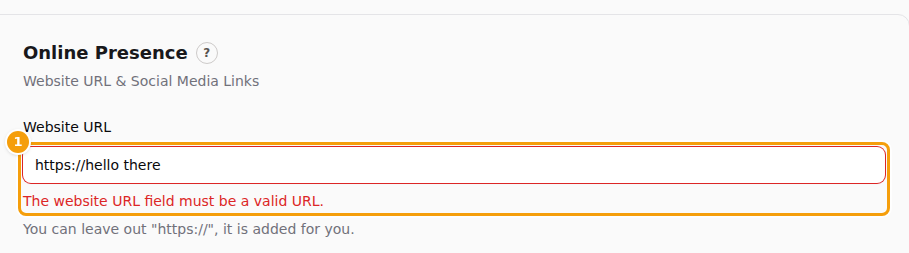
If what you type cannot be an address — for example, it contains a space — a red message appears under the box, The website URL field must be a valid URL., and nothing is saved. Correct the address and click Save Online Presence again.
Add your social media profiles
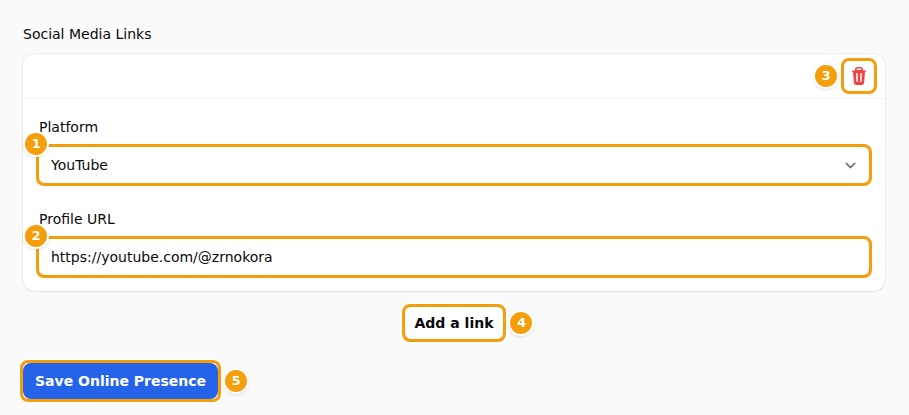
- On the same tab, under Social Media Links, click Add a link (4). A new row appears.
- In Platform (1), choose the network: Facebook, Instagram, X (Twitter), LinkedIn, YouTube, TikTok or Pinterest. The names are always in English. These seven are the only networks on the list.
- In Profile URL (2), paste the address of your profile. Open your profile in your browser and copy the address from the address bar. As with the website address, you may leave out https://.
- Want more networks? Click Add a link (4) again and fill in the next row. To remove a row, click the red bin icon (3) in its top right corner.
- Click Save Online Presence (5).
Important
A link only appears for guests when both its Platform and its Profile URL are filled in. A row with only one of them is saved but never shown.
Careful
Removing a row with the bin icon (3) does not ask first. The row is only gone for good once you click Save Online Presence. Changed your mind before saving? Click Change venue and open the location again — everything unsaved is thrown away, so the old links come back.
Tip
Clava does not check whether you added the same network twice. Add each network once, so guests don't see two identical icons.
What your guests see
| What you enter | Where guests see it |
|---|---|
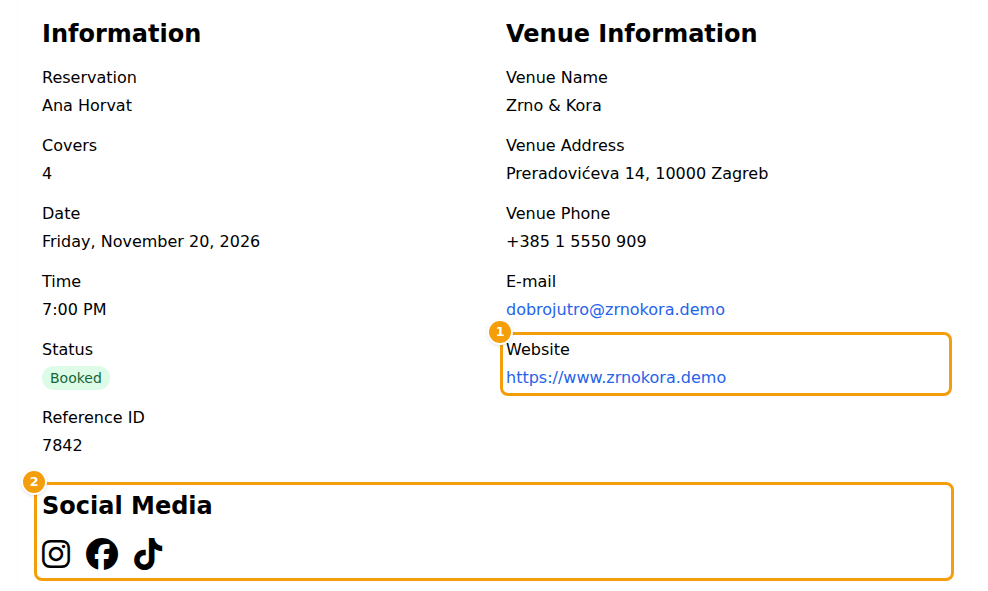
| Website URL | In the standard booking confirmation email, on a line called Website. On the Booking Details page, in the Venue Information block, in the Website row. On the thank-you page after a guest leaves feedback, where the link Return to Venue leads to it. |
| Social Media Links | On the Booking Details page, in a Social Media block with one icon per network. In the Social Media section of your website, if you add that section to a page. |
The Booking Details page is the page guests open with Manage my reservation in their confirmation email.
Good to know:
- Changes show straight away. There is no Publish step for this tab.
- The icons in your website's footer come from somewhere else. They are set in the website editor, on the Nav & Footer tab. See Social media and contact details.
- The Social Media section of your website shows the links from this tab. To add that section, see Social links in a Social Media section. Pinterest appears there with a plain round symbol instead of its logo.
- Your booking page and the booking form do not show these links. Only the confirmation email (the website address) and the Booking Details page do.
- Did you change the confirmation email? The Website line only appears if your email text still contains it. Check it under Email Templates.