Articles in this topic
Venue profile
Set the name, the languages and the contact details of your location — the basics your website, your emails and your booking page rely on.
6 min read
The Venue Profile tab holds the basics of your location: its name, the languages it offers and how guests can reach you. These details appear on your website, in your confirmation emails and on your guests' Booking Details page — so it is worth getting them right first.
Open the profile
- In the menu on the left, click Venue Setup.
- Click Configure on your location.
- Venue Profile is the first tab in the list, so it opens right away.
Fields marked with a red star are required: Name, Locale, Contact Person and Contact Email. The Contact Phone is optional, but worth filling in.
Name and main language
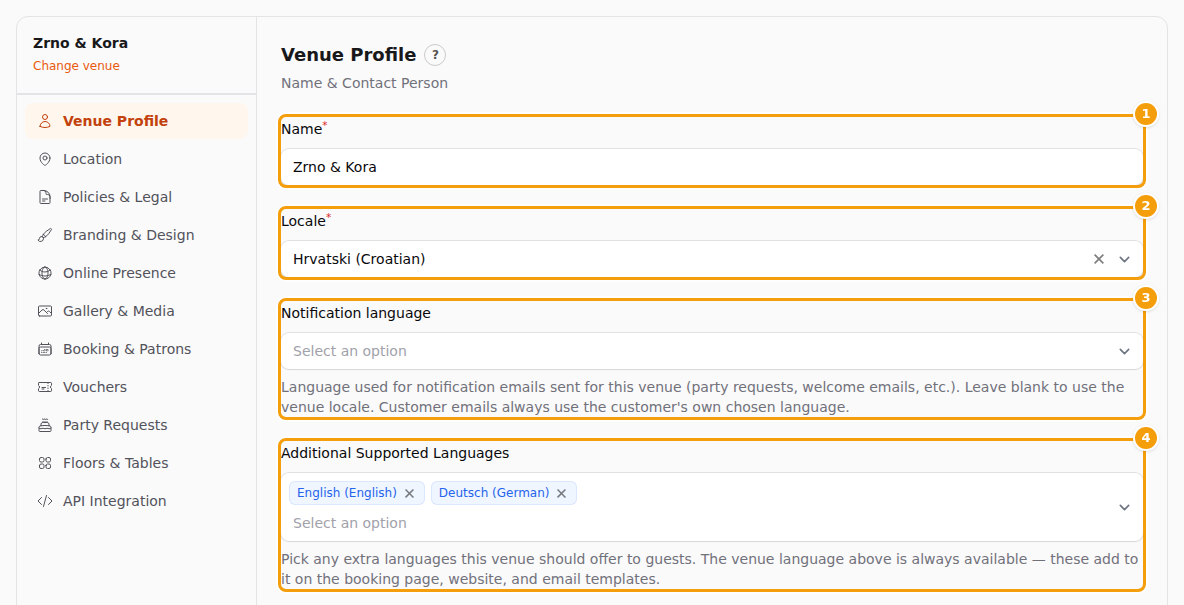
- Type the Name (1) of your location the way your guests know it. It appears in your confirmation emails ("Your reservation at … is confirmed") and in your list of locations. Your website has its own name, which starts out as this one — see Your website's name.
- Under Locale (2), choose the main language of this location. Click the field and scroll, or start typing — for example Croat. Each language is shown with its own name first and the English name in brackets, like Hrvatski (Croatian).
- Optional: under Notification language (3), choose the language of the notification emails of this location — for example the emails about event requests. Leave it empty to use the main language. Emails to your guests about their bookings use the language the guest chose; emails to guests about event requests always use the main language.
- Under Additional Supported Languages (4), add the other languages you offer. See the next section.
- Scroll down and click Save Profile — see Save your changes.
Important
When you create a new location, its main language starts as the language of your brand's first location (English if you have none yet). If your guests speak another language, change Locale first. Your guests see your booking page and your website in the main language until they pick another one. Changing it does not translate anything you have already written.
Good to know
Locale and Notification language are about your location and your guests. The language of the Clava screens you work in is changed with the language button (for example EN) at the top right of the screen.
Currency
Choose under Currency the currency of this location's prices. Every menu price (the price per person of a set menu and the price of each dish) and every offer price of this location is shown in it: in the menu builder, on your website and booking page, and in the event request form.
- Click Currency and choose it, for example EUR (€) or GBP (£).
- Click Save Profile.
Good to know
Changing the currency changes only the symbol and how prices are written: the amounts stay as you entered them. A new location starts with the currency of your other locations.
Prices and legal
For a location in Croatia, every price guests see needs an anchor price next to it. This section decides whether that rule applies to your location and how it looks. See Anchor prices for what the anchor price is.
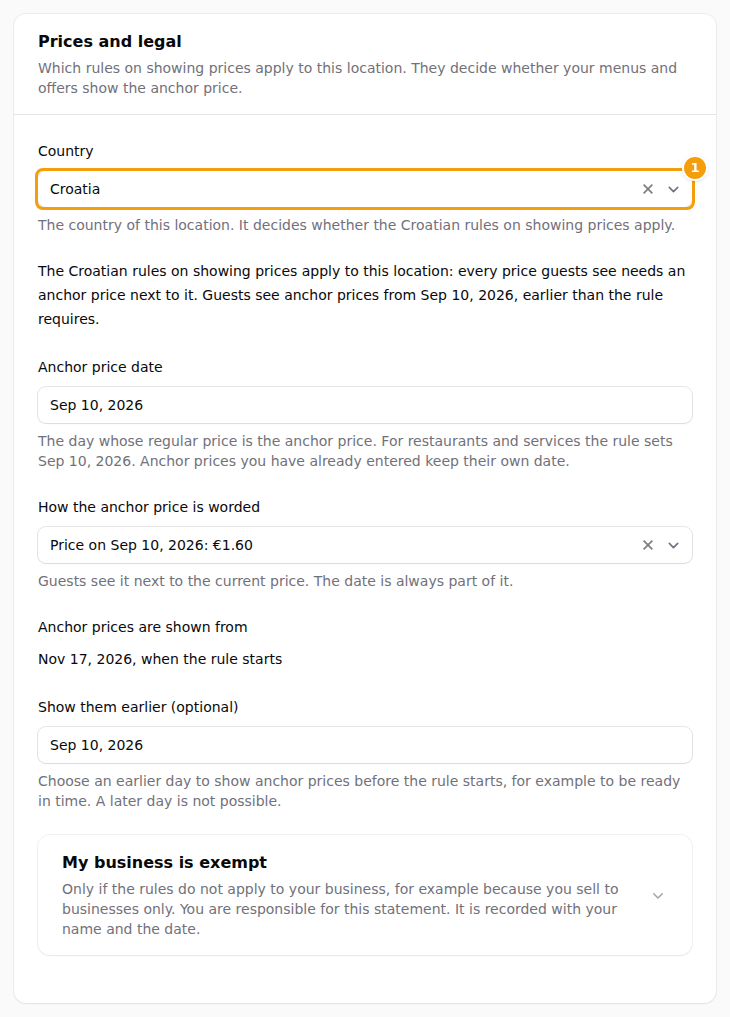
- Under Country (1), choose the country of the location. Croatia switches the Croatian rules on: the menu builder and the offer editor then ask for anchor prices, and the Anchor prices page appears. For any other country nothing changes. A country we guessed from your billing details carries a note: check it and save, so we know it is right.
- Anchor price date is the day whose regular price is the anchor price. For restaurants and services the rule sets it. Anchor prices you have already entered keep their own date.
- How the anchor price is worded is the text guests read next to the price, for example Price on 10. 9. 2026.: 1,60 €. The date is always part of it.
- Anchor prices are shown from is the day the rule starts, 17 November 2026. Under Show them earlier you can choose an earlier day to be ready in time; a later day is not possible. You can also do this on the Anchor prices page.
- Click Save Profile.
A location that has other locations in the same brand also has Copy to all locations: it copies the country, the date, the wording and the early start to the others.
Good to know
My business is exempt is only for businesses the rules do not apply to, for example because they sell to businesses only. Open it, give the reason and click Declare exempt: guests then see no anchor prices and the anchor price fields are hidden. You are responsible for this statement, and it is saved with your name and the date. Apply the rules again takes it back.
The Price list card
Below it, a location under the Croatian rules has the card Price list. It is about the public, machine-readable price list that Clava makes and updates for you, see The Anchor prices page and the price list.
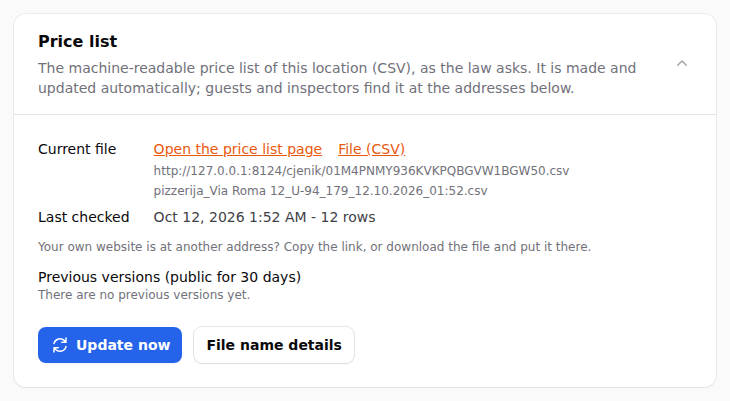
- Current file: Open the price list page and File (CSV) are the two addresses to give to your own website, and the name of the file. Last checked says when Clava last compared it with your prices, and how many rows it has.
- A line tells you how many rows still have no anchor price, so their anchor columns in the file are empty, and what is missing from the file name (the address, the establishment code or the storage number). The file is published anyway.
- Previous versions are the earlier files, which stay public for 30 days.
- Update now makes a new file at once, for example after a big change. It can be pressed a few times in ten minutes.
- File name details is where you type the type of establishment, the establishment code, the storage number and the address that the Ministry asks for in the file name. Clava does not know these numbers: use the ones from your registration.
The card appears only for a location under the Croatian rules, that is, when its country is set to Croatia.
Offer more languages
Tourists, regular guests from abroad, guests who feel more at home in another language: add the languages your guests speak under Additional Supported Languages. Your main language is always available, so you only add the others.
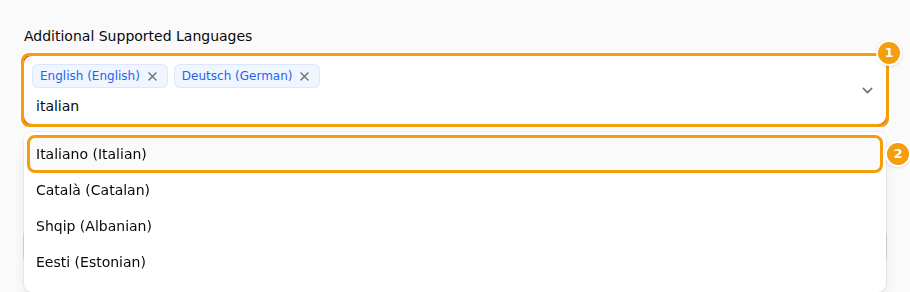
- Click the field Additional Supported Languages (1) and start typing the language — in English, like Italian, or in its own name.
- Click the language in the list (2). It appears as a small tag in the field. Add as many languages as you like.
- To remove a language, click the x next to its tag.
- Click Save Profile.
What this changes:
- On your standard booking page — the simple page guests see while your website is hidden — guests get language buttons such as EN, HR or DE as soon as your location has two or more languages.
- Your website can only offer languages from this list. You switch them on in the website editor — see Switch languages on for your website.
- The Policies & Legal tab gets one tab for each language, so you can write your rules in every one of them.
- When you save a new language, Clava prepares your email texts in that language in the background. You do not have to wait for it.
Careful
Adding a language does not translate your website, your policies or your menus. Where a text is missing in a guest's language, they may see a text in another language, or nothing at all. Fill in every language you add — see Fill in your texts for each language. The buttons and labels of the booking form are translated into the main European languages; in other languages they may appear in English.
Contact details
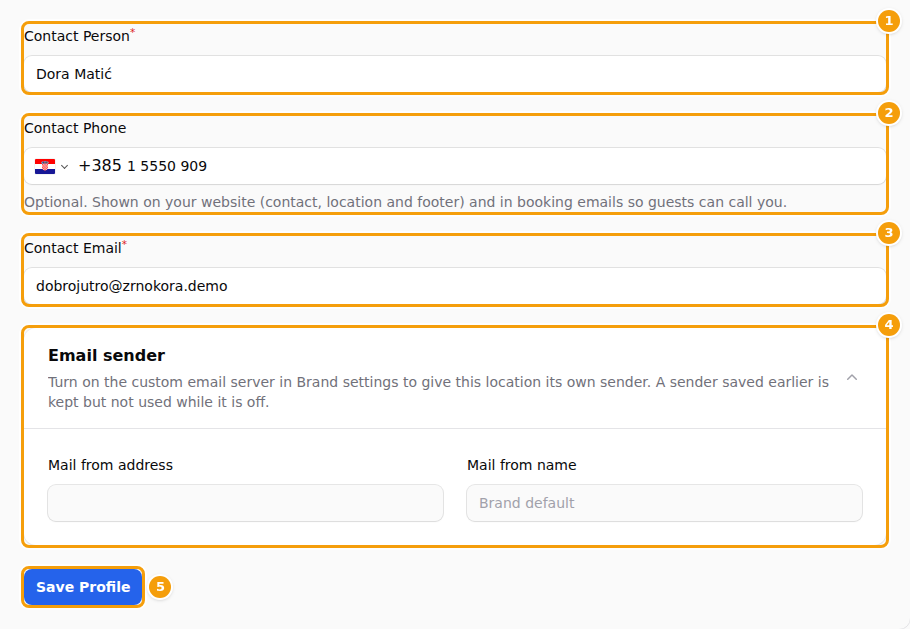
- Contact Person (1) — the person who answers questions about this location. The field is required, but Clava does not show this name to your guests, to people who organise an event with you, or on your website. It is your own note of who looks after the location.
- Contact Phone (2) — the number guests can call. It is optional, but when you fill it in, guests see it on your website and in your emails (see below). The country is set at the flag on the left of the field — Croatia is preselected, and its dial code +385 stands fixed next to the flag, so you do not type it. Type only the rest of the number, for example 1 5550 909 for a Zagreb landline or 91 555 0101 for a mobile; a leading zero (01 5550 909) does no harm. For a number abroad, click the flag first and choose that country (for Germany, +49 appears next to the flag and you type 30 12345678). Type just the digits: when you leave the field, Clava adds the spaces, and everywhere else it shows the number with its dial code, always the same way: +385 1 5550 909.
- Contact Email (3) — the address guests can write to. It is also the address that receives your event requests, unless you set up another address for them — see Decide who is told.
- Email sender (4) is optional and greyed out for most businesses. See Your own email sender.
- Click Save Profile (5). The message Changes saved successfully. confirms that everything is stored.
Where your guests see these details
Clava uses your profile everywhere your location is shown:
- Your Name, Contact Phone (if you filled it in) and Contact Email — together with the address from the Location tab — appear in the standard confirmation email that guests receive after an online booking, and on the Booking Details page they open from that email. The phone number is shown as +385 1 5550 909.
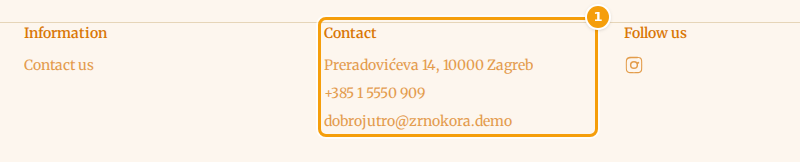
- On your website, the phone number and email address appear in the Location and Contact sections, and in the footer when you switch on Show contact details in the footer — see Social media and contact details. On a phone, a tap on the number starts the call.
- Your additional languages become the language buttons on the booking page and the languages you can switch on for your website.
Good to know
Your website shows the profile as it is right now — you do not need to click Publish after changing a phone number or an email address.
Save your changes
Click Save Profile at the bottom of the tab. Every tab of Venue Setup is saved on its own, so save before you open another location or leave the page — changes you did not save are lost.
If something is missing or not valid, nothing is saved. A red message appears under the field instead; fix it and click Save Profile again.
The most common reasons:
- A required field is empty.
- The phone number is not a real number: it is incomplete, or it does not exist in the chosen country. The red message under the field shows how a number looks, for example +385 92 123 4567. If you do not want to show a number, leave the field empty — it is optional. An older entry that is no number at all (like ask for Marko) is shown as it is and may stay; a new number you type has to be a real one.
- The email address is not a valid address.
Your own email sender (optional)
Normally, emails to your guests go out from your brand's sender address. If your business uses its own email server, each location can have its own sender address and name — for example bookings@yourrestaurant.com with the name Zrno & Kora bookings. This is an extra for businesses with their own email server; if you don't have one, leave the section as it is.
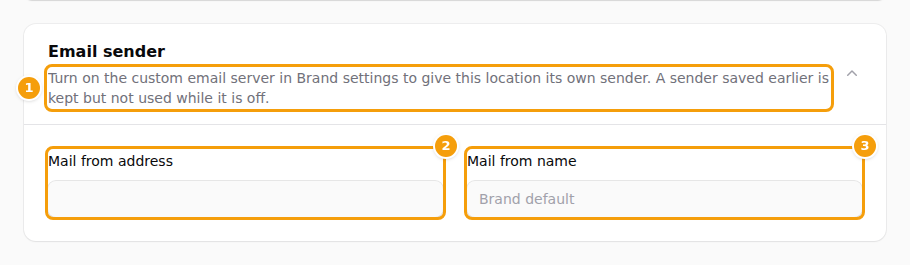
While the custom email server is switched off, the section is greyed out and tells you what to do:
To use your own sender:
-
In the menu on the left, open Brand settings. In the Custom email server section, switch on Use a custom email server, fill in the server details and the Mail from address, then click Save.
-
Come back to Venue Profile. The section now explains that the address must be on your brand's domain, and its fields can be edited.
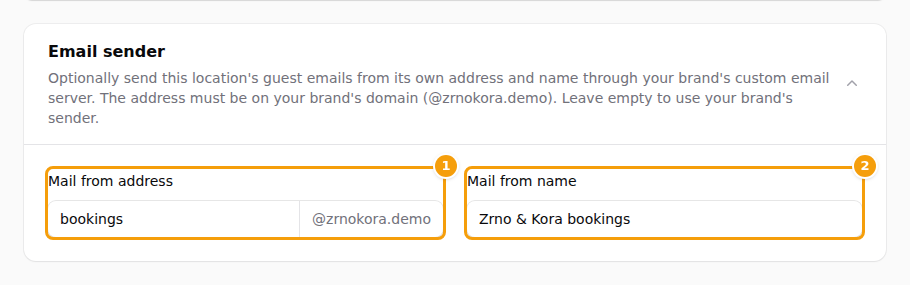
The Email sender section with the custom email server switched on: the address with the fixed domain (1) and the name (2) -
Type only the part before the @ into Mail from address (1), for example bookings. The rest of the address — your brand's domain — is fixed and shown in grey next to the box.
-
Type the Mail from name (2) guests see as the sender, for example Zrno & Kora bookings.
-
Click Save Profile.
Leave both boxes empty to keep using your brand's sender.
Important
The custom email server is part of the paid plans. On a plan without it you can fill in the settings, but emails keep going out from Clava until you upgrade. Your email provider must also allow sending from the address you choose — if emails do not arrive, ask whoever set up the email server.
Good to know
If you switch the custom email server off later, the sender you saved is kept but not used.