Articles in this topic
The Anchor prices page and the price list
Fill in the anchor prices of many dishes at once (confirm, new, typed), keep your evidence, show anchor prices early, and find the public price list of your location that Clava keeps up to date for you.
7 min read
The Anchor prices page is where you fill in the anchor prices of many dishes in a few clicks, instead of opening each dish. It also shows how far you are. Its second job is the price list: a public page and a file with all your current prices that Clava builds and updates for you. Both exist only for locations whose country is set to Croatia in Venue Setup. To enter the anchor price of a single dish, see Anchor prices.
Open the page and read the summary
- In the menu on the left, under Venue Content, click Anchor prices. (The same page opens from the green Anchor prices: 62 of 62 ready label at the top of Menus.)
- If you have several locations, choose one under Location.
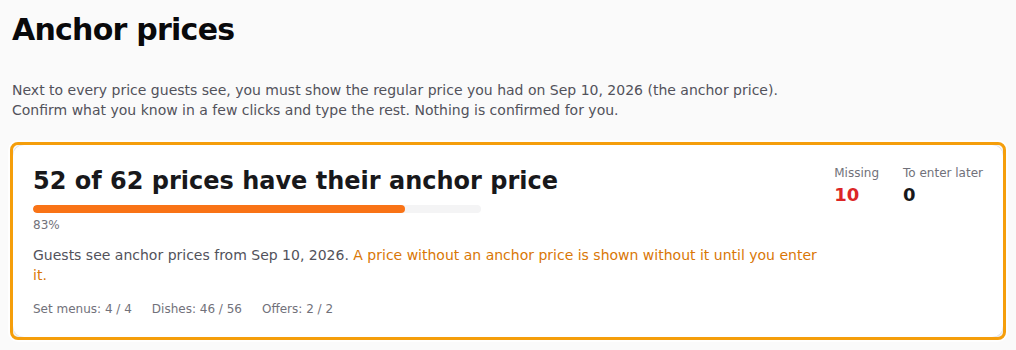
At the top you read, for example, 62 of 62 prices have their anchor price, with a bar and the numbers of Missing and To enter later prices, split into set menus, dishes and offers. A green All set box means there is nothing left to do. A card called Worth a look lists things that are not wrong yet but will cause trouble, such as a price written in a dish description (which has no anchor price of its own). Open the menus takes you there.
Good to know
The page never confirms anything for you. Whatever it suggests, you tick it, and you say that it is right.
Below the summary, the prices that still miss their anchor price are sorted into up to three groups.
Unchanged since the reference day
This group holds prices that the price history shows were not changed since before the reference day. They are the easiest: if they were your regular prices that day (not a special offer, a group price or a loyalty discount), confirm them in one click.
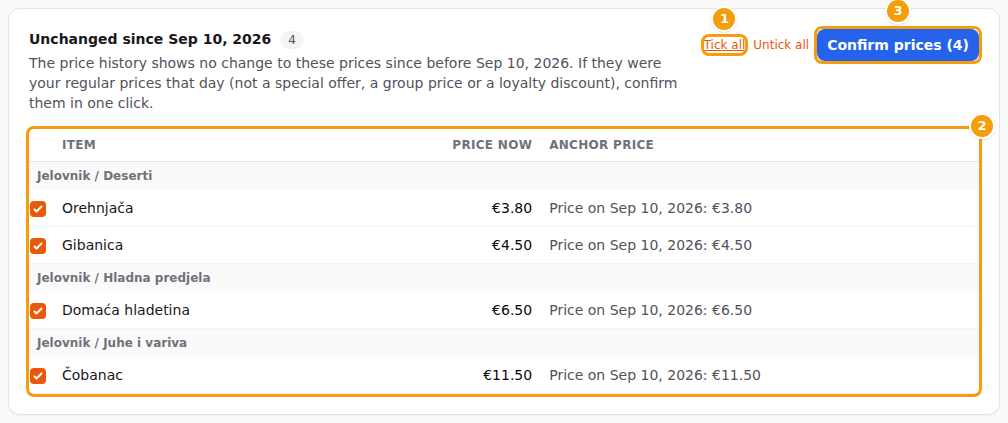
- Click Tick all (1), or tick only the prices you are sure about (2). Nothing is ticked for you.
- Click Confirm prices (3). A window asks you to confirm.
- Read the sentence, tick the box and click Confirm prices. You are saying that, to the best of your knowledge, these were the regular prices at your location on the reference day. Your name and the time are saved with every price.
New since the reference day
A dish that was added after the reference day and has not changed price since has no price from the reference day. Its anchor price is its first price and the day it went on sale.
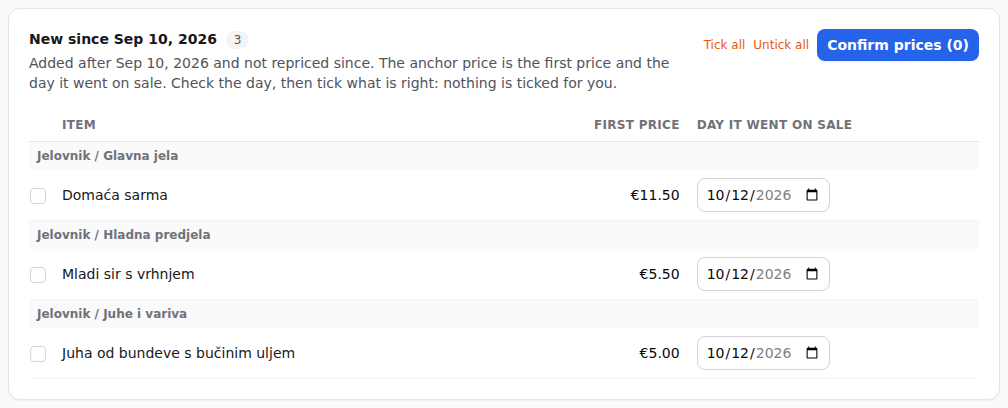
- Check the Day it went on sale of each dish. It starts as the day the dish was added. Change it if the dish went on sale later, for example because it waited in a draft menu.
- Tick what is right, click Confirm prices and confirm in the window Confirm the first prices.
Enter the price you had
Here are dishes whose price changed, or for which the history cannot tell. Nothing can be suggested, so you type.
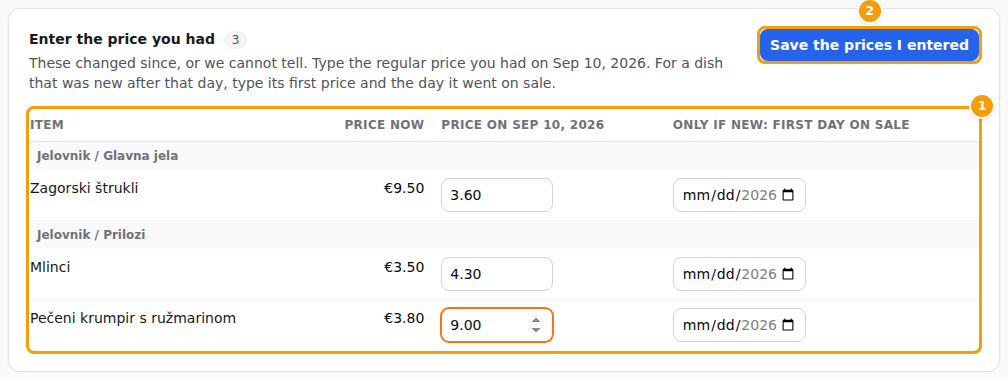
- Type the regular price the dish had on the reference day under Price on Sep 10, 2026.
- For a dish that was new after that day, type its first price and, in the last column, the first day it was on sale.
- Click Save the prices I entered. A green message says how many were saved. A price that breaks a rule, for example an anchor date in the future, is not saved: it is marked, and nothing else is saved either, so you can fix it.
A whole menu in a spreadsheet
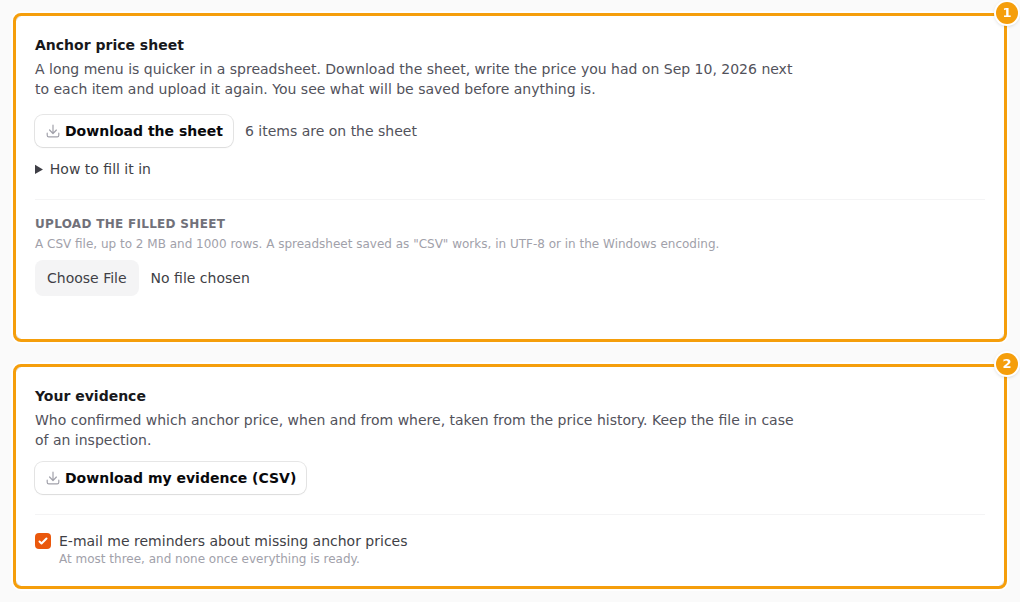
For a long menu, or a chain, Anchor price sheet is quicker. Click Download the sheet, write the price of the reference day next to each dish, save it as CSV and upload it under Upload the filled sheet. You see what would be saved before anything is, and tick the confirmation before you apply it. The sheet never adds a dish and never changes a price. The steps are the same as in Import menus, which can also carry anchor prices.
Your evidence
An inspector may ask when and by whom an anchor price was entered. Under Your evidence click Download my evidence (CSV). The file lists every anchor price with its date, who confirmed it, when, and from where (the wizard or the sheet). Keep a copy. Under it, E-mail me reminders about missing anchor prices switches the reminders for you on or off: at most three, and none once everything is ready.
Show anchor prices now
Guests see anchor prices from 17 November 2026. When every price has its anchor price, a green All set box asks whether guests should see them on your website already. Click Show anchor prices now and confirm: from that moment they appear, instead of waiting for the date. You can also choose an earlier day in Venue Setup under Show them earlier.
The public price list
The law asks every business with a website to publish a machine-readable price list: a file that a program can read, one for each location. Clava makes it for you and you do not have to do anything.
- It is built from your active menus, set menus and the offers that are on now, with the regular price, the special price if there is one, the anchor price and its date, the unit and the category.
- It is updated every day by 8:00 AM and after every price change, and kept public for 30 days after a new version replaces it.
- Every location has its own page and its own file. The page shows when it was last checked, a button Download the price list (CSV), the File name, a table of everything the file says and the Previous versions. The file itself is always written in Croatian, because that is what the rule asks.
- A location whose country has no such rule has no price list.
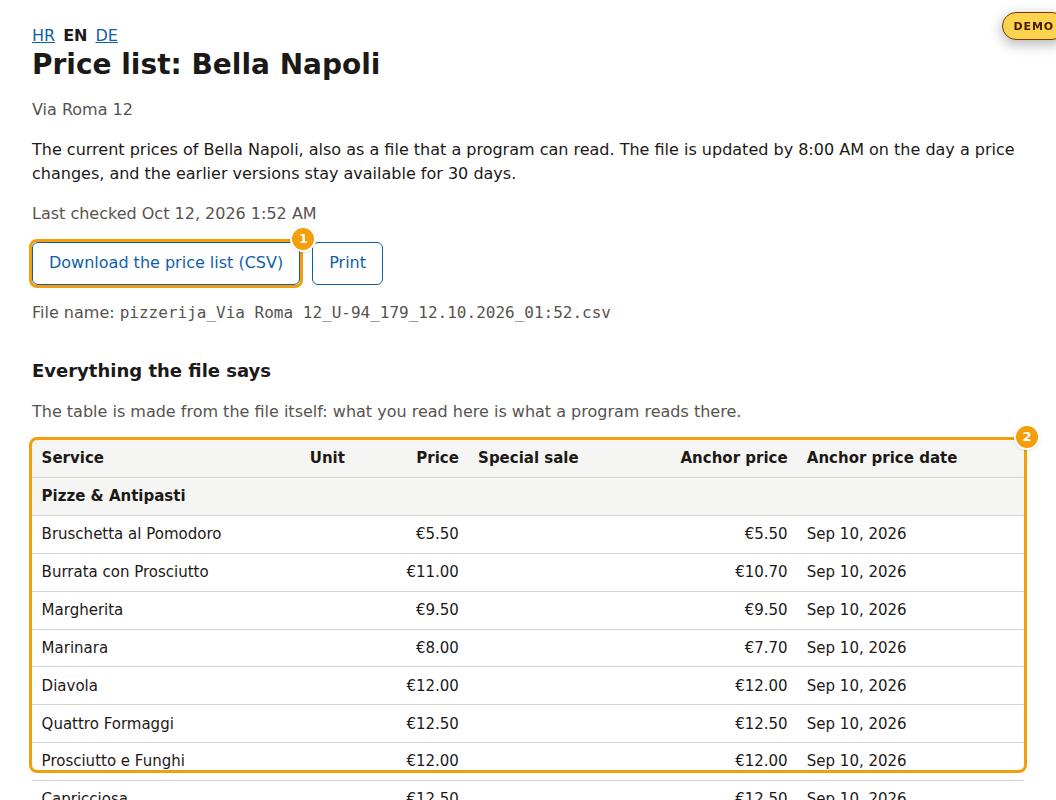
Locations on a Clava website get a Price list (CSV) link in the footer by themselves. If your own website is at another address, copy the link of the price list page into your site, or download the file and put it there; do it again when prices change. Both are on the card Price list in Venue Setup, where you also find Update now and the details for the file name.
Tip
Print the page or read the table on it before an inspector does: it says exactly what the file says.