Articles in this topic
Menus in several languages
Write your menu in your own language and add translations for your guests — choose the languages, type the translations, and see what guests get when a translation is missing.
6 min read
Many guests read your menu in their own language. A menu has one default language — the language you write it in — and as many other languages as you like. For each language you can translate the name and the description of the menu, of every course and of every dish. Clava does not translate for you here: you type the translations yourself.
How languages work
- The default language is marked with a star (★). It is the language you type first. Where a translation is missing, guests get the text in this language.
- A new menu starts with the languages of its location: the main language of the location is the default, and its additional languages are the others. You set them in Venue Setup.
- Only texts are translated: the names and the descriptions. Prices, allergens and dietary tags are the same in every language.
Choose the languages of a menu
- Open the menu and click Edit.
- Scroll down to the box Menu languages. It shows the languages as small tags.
- Click Save Changes (4) when you are done. Menu updated. confirms it.
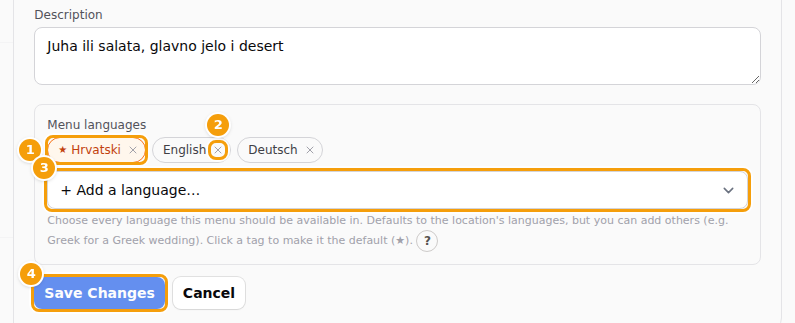
- To add a language, open the list + Add a language… (3) and click the language. The list shows each language with its own name and its code, for example Deutsch (de). The language appears as a new tag.
- The tag with the star (1) is the default language. To make another language the default, click its tag.
- To remove a language, click the small cross (2) on its tag. See Remove a language first.
Tip
Choose the default language before you start typing and then leave it as it is. Changing it later does not translate anything: the texts you typed stay as they are and are simply treated as the new default language.
Type the translations
As soon as a menu has two or more languages, the forms of the menu, of every course and of every dish get a row of language tabs at the top.
- Open the menu, a course or a dish. The tab of the default language (with the star) is open: that is where the main text goes.
- Click another language tab, for example Deutsch.
- Type the Name and, if you like, the Description in that language.
- Click Save or Save Changes. All the languages of this form are saved together.
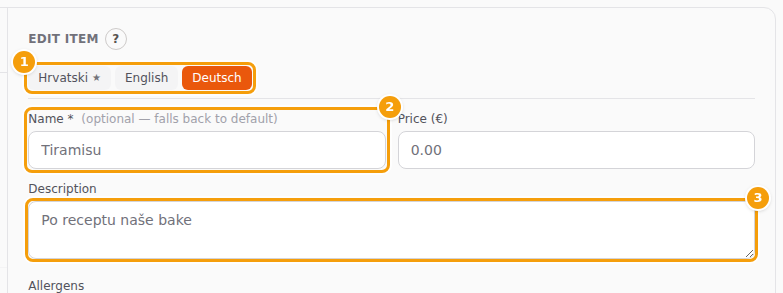
The star on the first tab (1) marks the default language. In every other language the label of the Name says (optional — falls back to default) (2). The grey text inside an empty box is the text of the default language: it is what guests get as long as the box stays empty. So you can translate the dishes that matter and leave the rest.
You do this for the menu, for each course and for each dish. Each of them has its own Save button.
What guests see
On your website a guest reads the menu in the language they have chosen, as far as you translated it. Where there is no translation, they get the text in the default language.
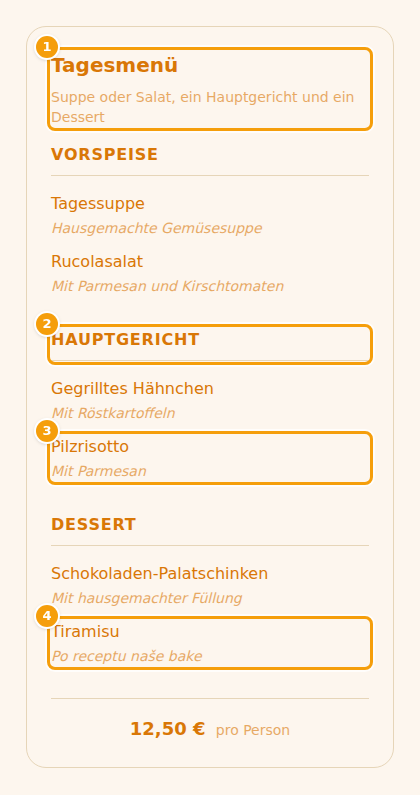
In the picture the guest has chosen German. Everything you translated is shown in German. The dessert Tiramisu has no German text yet, so its description stays in the default language.
For this to work, your website itself must offer the language: it has to be one of the languages of your location, and you switch it on for the website in the website editor. See Switch languages on for your website. The heading of the Menu section, for example Our Menu, is a text of the website and is translated there.
See a menu in another language
Click Preview. When the menu has more than one language, the window has a list Language. Choose a language to see the menu as a guest who speaks it would. A dish with no translation shows in the default language, just as it will on your website.
Remove a language
Careful
When you remove a language and click Save Changes, all the texts you typed in that language — in the menu, in its courses and in its dishes — are deleted. This cannot be undone. If you only want to hide a language for a while, leave it in place.
If you remove the default language, the first of the remaining languages becomes the default. The texts you typed stay as they are.