Articles in this topic
Policies and legal texts
Write down what guests should know about arriving late, cancelling and paying — once for each language — and Clava adds it to their confirmation email and booking page.
6 min read
Guests like to know the rules before they come: how late they may arrive, until when they can cancel, and how they pay. In the Policies & Legal tab you write these rules once for every language of your venue. Clava then adds them to your guests' confirmation email and to their booking page.
The three texts
Despite the name of the tab, there are exactly three texts to write:
| Text | What to write | Example |
|---|---|---|
| Late policy | How long you keep the table for a guest who is late, and how to let you know. | We hold your table for 15 minutes. If you are running late, please call us. |
| Cancellation policy | Until when a guest can cancel or change a booking, and how. | You can cancel for free up to 2 hours before your reservation. |
| Payment policy | When and how the guest pays: on site, by card, a deposit for large groups. | Payment is made on site, by cash or card. |
Good to know
There are no fields here for terms and conditions, an imprint or a privacy notice. Put those on pages of your website instead — see Add a page.
Write and save your texts
-
In Venue Setup, click Configure on your venue — see Choose a venue — then click the Policies & Legal tab (1). The editor needs a moment to load and first says Loading….
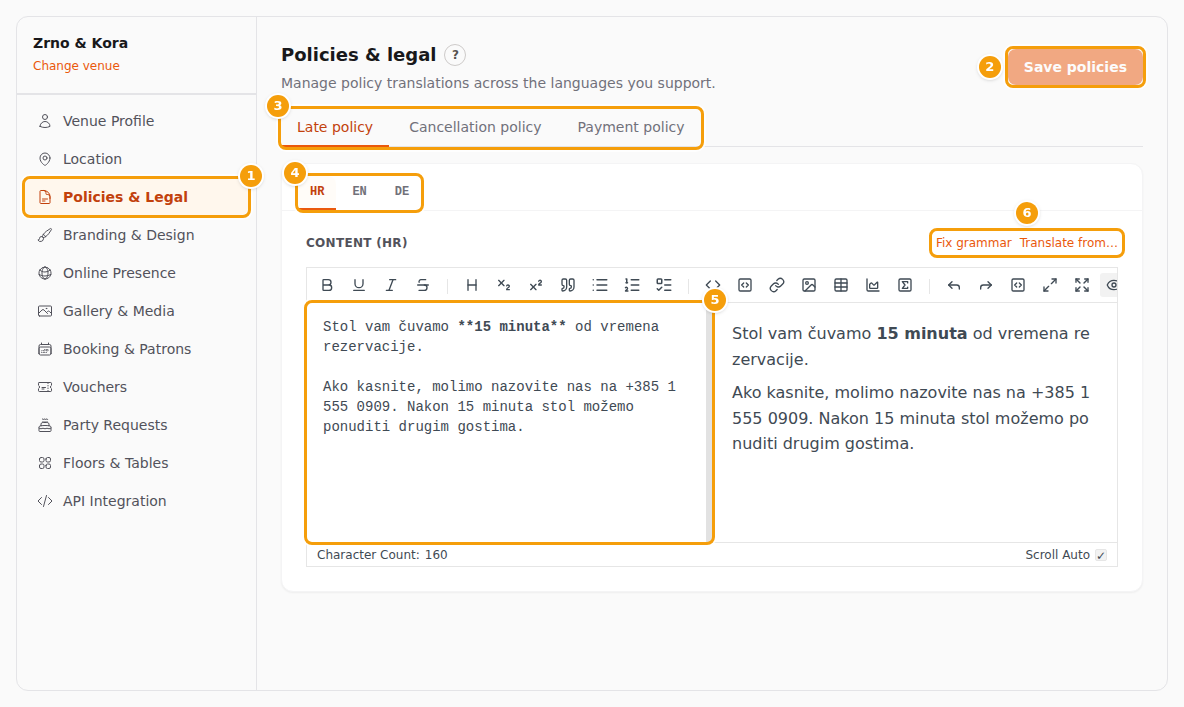
The Policies & Legal tab (1), Save policies (2), the three policies (3), the languages (4), the text box (5) and the two helper buttons (6) -
Click the policy you want to write (3): Late policy, Cancellation policy or Payment policy.
-
Click the language (4). The first tab is the main language of your venue. See Texts in several languages below.
-
Type your text in the box on the left (5). Use short, friendly sentences and plain text, without bold or lists — see Write plain text.
-
Do the same for the other policies and languages. Every policy has its own language tabs.
-
Click Save policies (2) at the top right of the editor.

Save policies (1) after a text was changed
Save policies is pale and can't be clicked until you change something. When you click it, it briefly says Saving…, and then the green word Saved appears next to it for a few seconds. One click saves all three policies in all languages. A red message above the editor means something went wrong — try again.
Your texts are live as soon as you save them. There is nothing to publish.
Careful
Unlike the other tabs with a form, Policies & Legal does not keep what you typed when you open another tab. If you switch tab, click Change venue or reload the page before you click Save policies, your text is gone — and Clava doesn't warn you first.
Good to know:
- A new venue starts without texts. A venue you add with New Venue has empty policies, unless you copy another venue and leave Settings ticked: then its texts come along. A venue that was set up while you signed up may already have a ready-made cancellation text and late text. You can change them like your own.
- An empty text is a deleted text. If you clear a text and save, that language's text is removed.
- The label above the box tells you the language. For example, Content (HR) means you are writing the Croatian text. In the pictures, the example venue writes in Croatian, its main language.
- The right half of the editor is only a preview. You type in the left half.
Where your guests see the texts
- In the booking confirmation email. The standard email has three lines: Cancellation:, Payment: and Arriving late:. A line without a text is left out. The email is in the language of the booking.
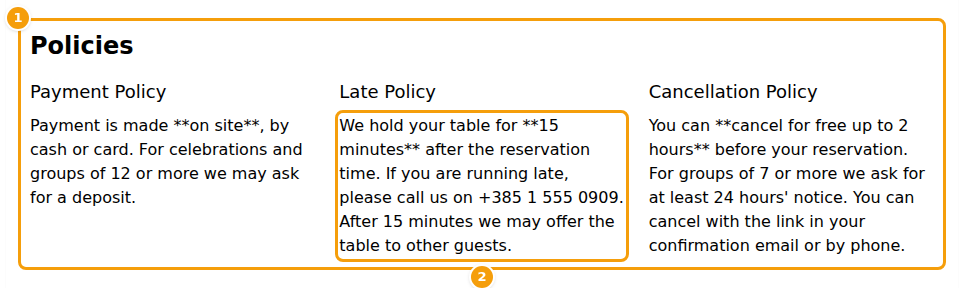
- On the guest's Booking Details page. The email contains the link Manage my reservation. It opens the page Booking Details, which has a block Policies with the three texts. The page always shows your current texts, also for bookings that were made earlier. You can see it in the picture in Write plain text.
The texts are not shown on the booking form before the guest books, and not on your website. Want guests to read your rules before they book? Write them in a section of your website too — see Add a section.
Tip
If you changed the confirmation email under Email Templates, check that it still contains the three policy lines. The texts only appear where the email asks for them.
Write plain text
The box looks like a small word processor, with buttons for bold text, lists, links and pictures, and a preview
that shows bold words as bold. Guests don't see any of that. Your texts are shown as plain text, so a word
you wrapped in two stars, like **15 minutes**, appears with the stars (2). The same goes for # headings,
- lists, links and pictures. The picture shows the Booking Details page of a guest: the block with your three
texts (1), and a text in which the stars are still there (2).
So write like this:
- Use ordinary sentences. Don't use the toolbar buttons.
- Keep each text short — two or three sentences.
- Put each idea on its own line. In the email every line stays on its own line, but empty lines are dropped. On the Booking Details page the lines run together, so end every sentence with a full stop.
Tip
Want to stress something, such as the 24 hours of notice? Say it in a sentence of its own: Please cancel at least 24 hours before your booking.
Texts in several languages
The language tabs follow your venue's languages: first the main language (Locale), then every language under Additional Supported Languages, in the order you added them. To add a language, see Offer more languages. A new tab appears at once; it is empty until you write something.
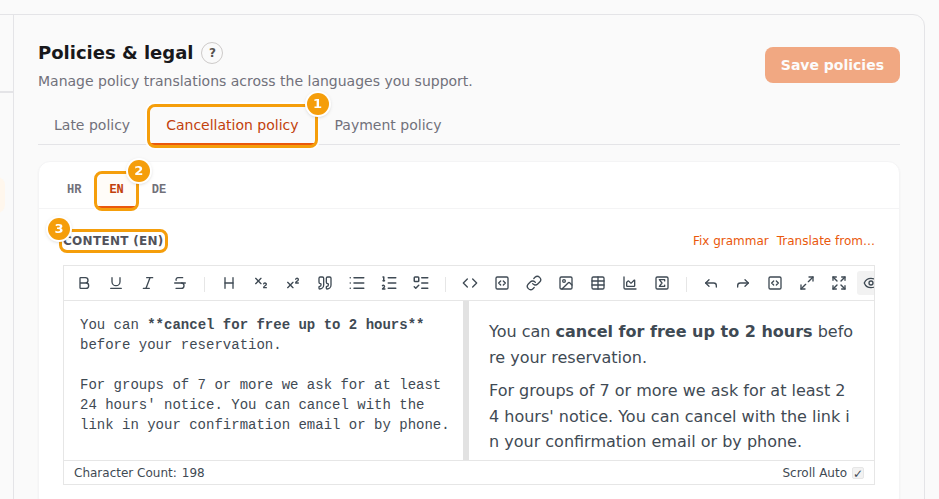
Each guest sees the text in the language of their booking. If you haven't written a text in that language, Clava shows your English text instead, and if there is none, one of your other texts. So a text in only one language is better than no text — but guests read it more easily in their own language.
Good to know
If you remove a language from your venue later, its texts are not deleted. They are only hidden, and they come back if you add the language again.
Fix grammar and translate
Two small buttons above the box (6) can save you some typing:
- Fix grammar checks the text in the box. It is pale while the box is empty. A window Grammar suggestion shows your Original and a Suggestion (editable) — you can still change it — and sometimes a short list of Changes. Click Apply to put the suggestion in the box, or Cancel to keep your text.
- Translate from… appears when your venue has two or more languages. Choose the language to translate from and click Translate. The window Review translation shows the Source on the left and the Target on the right. You can still edit the target. Apply puts the translation in the box and replaces what was there before.
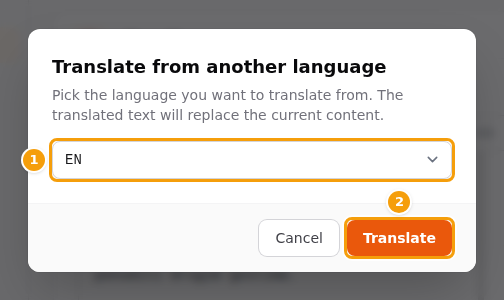
The suggestions come from an AI service, so Clava sends your text to it. Nothing changes until you click Apply, and even then the text is not saved until you click Save policies. If the helper isn't available at the moment, a red message appears above the editor for a few seconds and nothing changes — just write the text yourself. If the language you translate from has no text yet, you see The selected source language has no content yet — fill it in first.
Important
Always read a translation before you save it. A machine can change the meaning of a rule, for example how many hours before the booking a guest can still cancel.