Articles in this topic
The guest list
Add your guests one by one or many at once, send the invitations, see who has answered, remind the ones who have not, send a personal sign-in link by WhatsApp, Viber, SMS or e-mail, and check guests in on the day.
8 min read
For the couple or host of a party.
The Guest List is where you keep everyone you invite. You see at a glance who is coming, who has not answered and who needs a reminder.
The guest list at a glance
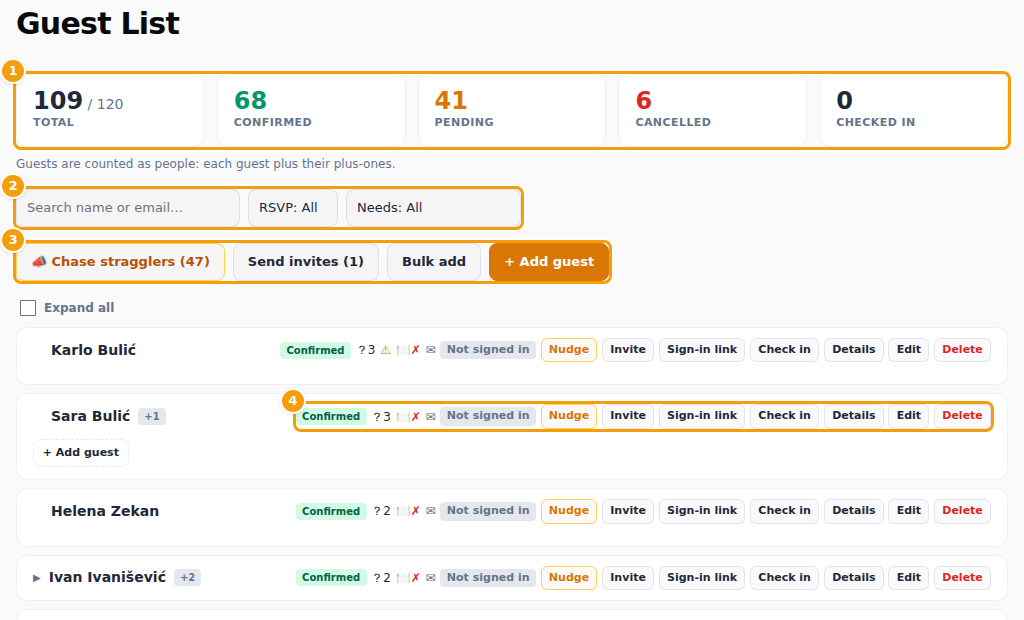
- (1) The numbers: Total out of the places of your party, Confirmed, Pending, Cancelled and Checked in. They count people: each guest plus the plus-ones they may bring. A guest with "+2" stands for three people.
- (2) Search by name or e-mail address, filter by RSVP status, or by what is Needs: a missing menu choice, missing answers, a pending RSVP, or guests who Never signed in.
- (3) The buttons above the list: Chase stragglers, Send invites (only when there are guests who have not been invited yet), Bulk add and Add guest.
- (4) One guest, with their status, small signs and the buttons for this guest. A guest with plus-ones has a small arrow: open it to see the plus-ones who have been named.
The small signs next to a guest mean: a plate for a menu choice made (a plate with a cross: still missing), a question mark with a number for answered questions (with a cross: required answers missing), a warning sign for dietary needs, an envelope for an invitation sent, a tick for checked in and a megaphone for a reminder sent recently.
What the statuses mean
| Status | Meaning |
|---|---|
| Pending | Invited, not answered yet |
| Confirmed | Is coming |
| Cancelled | Cannot come. No longer counts as a guest |
| Locked | The RSVP deadline passed before this guest answered. They can no longer change their answer |
| Banned | Cannot sign in to your website at all |
Add a guest
- Press Add guest.
- Fill in the First name and, if you like, Last name, E-mail and Phone. Without an e-mail address the guest cannot be invited by e-mail, but you can still send a personal link (see below).
- Under Allowed additional guests type how many plus-ones this guest may bring. Their places are reserved at once and count towards the places of your party. A guest who comes alone has 0.
- Open Dietary requirements if you already know: tick No allergies, or the allergens, and any dietary preferences, and add a note if you like. Guests can also fill this in themselves.
- Press Save.
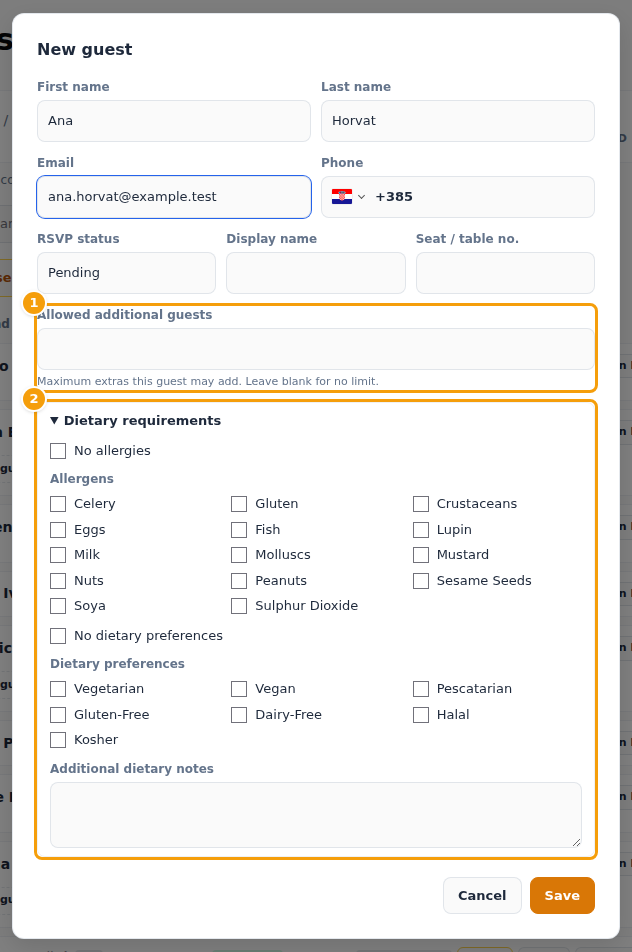
Adding a guest does not send anything. The guest is invited when you press Invite on their row or Send invites (see Invite your guests). Phone numbers are written in international form, for example +385 91 555 0101.
Good to know
When all places are taken you see "The party is full — no free places remaining" and cannot add more guests. Ask your venue if you need more places.
To change a guest later press Edit on their row. Details shows their menu choices, answers and dietary needs. Delete removes the guest and their plus-ones.
Add many guests at once
- Press Bulk add.
- Type or paste the e-mail addresses, separated by a comma, a semicolon or a new line.
- Press Bulk add again.
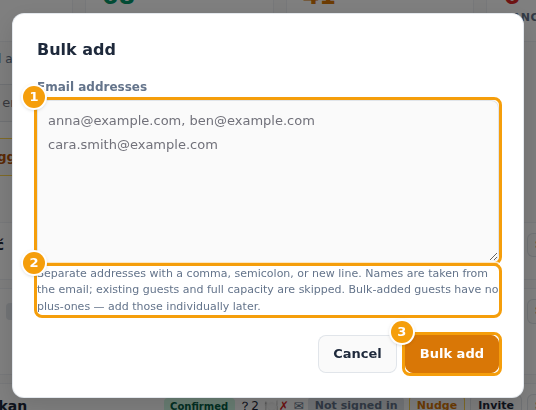
The name of each guest is made from the e-mail address: ana.horvat@… becomes Ana Horvat. Addresses that are already on the list are skipped, and so are the ones that no longer fit into the places of your party. The new guests are Pending, have no plus-ones and have not been invited yet. Add their plus-ones one by one, with Edit. You can correct a name with Edit as well.
Invite your guests
- Invite on a guest's row sends the invitation e-mail to that guest.
- Send invites above the list sends it to everybody with an e-mail address who has not been invited yet. The number in brackets tells you how many that is.
The invitation contains the guest's personal link. There they say whether they can come and, depending on your party, choose their menu, tell you about allergies and answer your questions. A small envelope shows who has been invited.
Remind guests who have not answered
- Nudge on a guest's row sends a reminder to that one guest. It appears for guests with an e-mail address who have not answered or have not chosen their menu.
- Chase stragglers sends a reminder to everybody who is still Pending or has not chosen a menu. You are asked to confirm first. Guests who were reminded in the last 24 hours are skipped, so nobody gets two e-mails in a day.
You can also use Chase stragglers on the dashboard.
Send a personal sign-in link
Your guests have no password: they sign in with a link. For a guest who has no e-mail address, or whose e-mail did not arrive, send the link yourself:
- Press Sign-in link on the guest's row. A window opens with a new link.
- Choose how to send it: WhatsApp, Viber or SMS (the guest needs a mobile number), E-mail the link, or Copy link or Copy message to paste it anywhere. The message is already written for you.
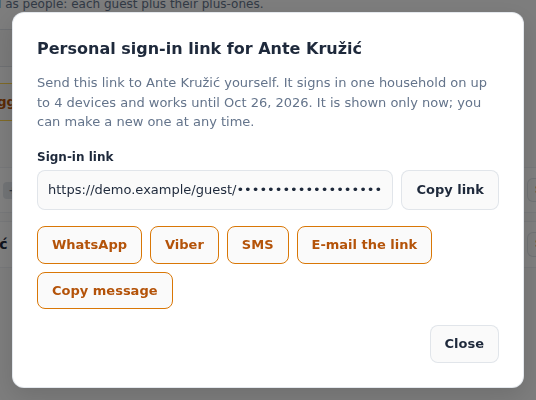
The link is shown only now, and it signs in one household, the guest and their plus-ones, on a few devices for a limited time. You can make a new one at any time. Next to each guest the list shows whether they have opened your website (Opened the site with the date, or Not signed in). Use the filter Needs → Never signed in to find the ones to remind. Sign out everywhere signs a guest out on all devices, for example after a lost phone. More in How guests sign in.
Check guests in on the day
Press Check in on a guest's row when they arrive. Checked in at the top counts them. Pressed by mistake? The button now says Undo check-in.
Dietary needs
Dietary needs are listed as allergens (celery, gluten, crustaceans, eggs, fish, lupin, milk, molluscs, mustard, nuts, peanuts, sesame seeds, soya and sulphur dioxide) and dietary preferences (vegetarian, vegan, pescatarian, gluten-free, dairy-free, halal, kosher), plus a free note. A guest can enter them in the guest area, you can enter them for a guest with Edit, and the dashboard shows an overview for the kitchen.