Articles in this topic
Questions for your guests
Ask your guests what you need to know, such as who needs a ride or which song gets them dancing. How to create a question and its choices, make it required, translate it, read the answers, and how the menu choice and its deadline fit in.
5 min read
For the couple or host of a party.
Use Questions to ask your guests anything you need to know before the day: who needs a ride, where they are staying, which song gets them on the dance floor. Guests answer in their guest area, together with the invitation.
Your questions
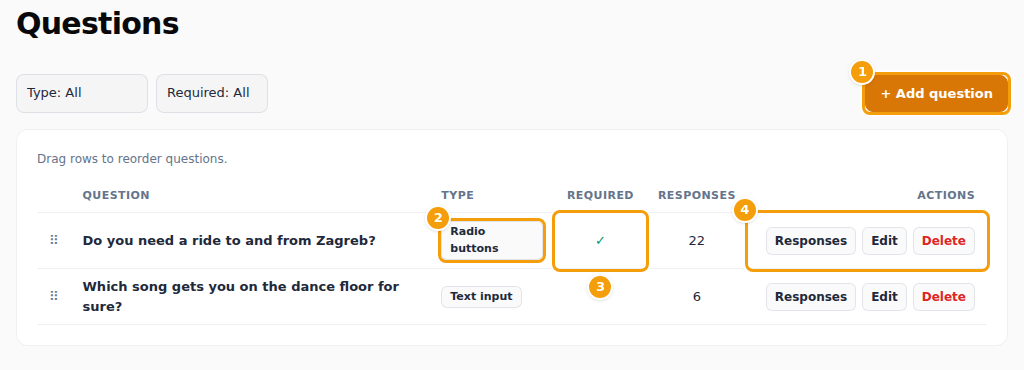
- (1) Add question makes a new one.
- (2) The Type tells how the guest answers: Radio buttons (one choice out of a few), Dropdown select (one choice from a list), Date picker, Checkbox (yes or no) or Text input (free text).
- (3) Required shows a tick when guests have to answer.
- (4) Responses shows who has answered what, Edit changes the question and Delete removes it. Deleting also removes the answers already given, so you are asked first.
The column Responses counts the answers. Drag a row by its handle to change the order in which guests see the questions. With the filters Type and Required above the list you can show only some questions.
Add or change a question
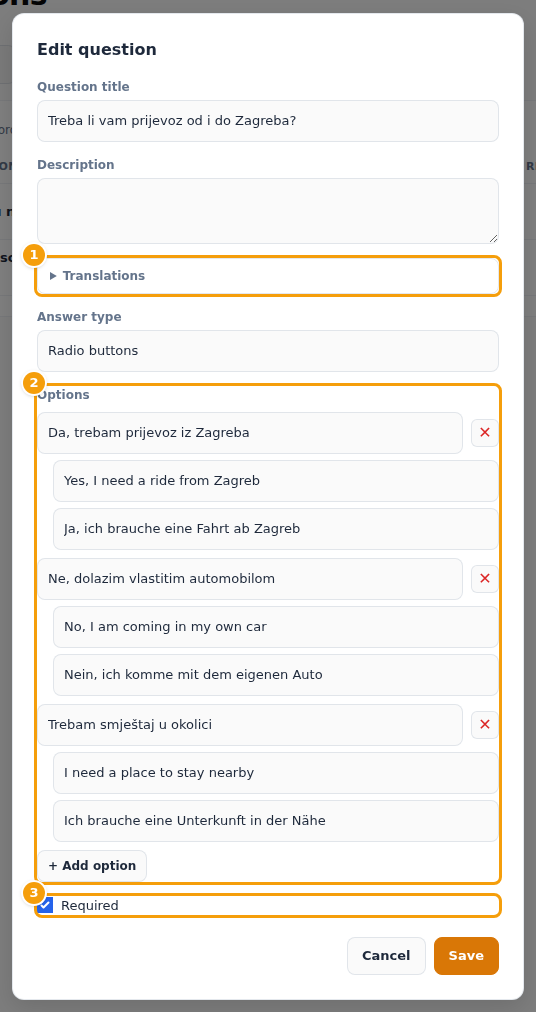
- Press Add question, or Edit on an existing one.
- Write the Question title and, if it helps, a Description.
- Choose the Answer type. For Radio buttons and Dropdown select add the Options: write each choice and press Add option for the next. The red cross removes a choice.
- Tick Required if every guest has to answer.
- Press Save.
Tip
Write each choice so that it makes sense on its own and as a count: "Yes, I need a ride from Zagreb" is better than "Yes". The answers are counted by the text of the choice.
Translations
If your party website is offered in other languages, the window has a Translations section. There you write the title, the description and the text of every choice for each other language. A guest who reads your website in that language sees the translation; when a field is left empty, the text you wrote above is shown. Guests who choose in different languages still give the same answer, so your counts stay correct. The section is not there when your website has only one language.
Read the answers
- Responses on a question lists every guest and their answer.
- On the Guest List press Details to see all the answers of one guest. The filter Needs → Missing answers shows the guests who have not answered a required question, and a small question mark with a cross sits next to them.
- On the Dashboard, Readiness → Required answers shows how many guests have answered the required questions, and Needs attention names how many are missing. The Questions box lists every question with the number of answers.
The menu and the deadlines
Your venue prepares the menu for your party. Each guest chooses their dishes in the guest area, and the dashboard shows the numbers under Menu selections, and under Readiness how many guests have chosen. You cannot change the menu itself here; ask your venue.
Under Deadlines on the dashboard you set the last day to answer the invitation (RSVP deadline) and, unless your venue has fixed it, the last day to choose the menu (Menu selection deadline). A deadline that your venue has fixed shows a lock and Set by the venue; ask them if you need another date. After a deadline the answers can no longer be changed. See Deadlines.
To remind guests who still owe an answer or a menu choice, use Chase stragglers or Nudge on the guest list.