Articles in this topic
What the website editor does
Your website in one place — change it in a draft, check it in the preview, and publish it when you are happy.
4 min read
The website editor — called Website Builder in the menu — is where you create and change your restaurant's website yourself: texts, photos, menu, opening hours, colours and pages. You don't need any technical knowledge.
Your website is online from day one
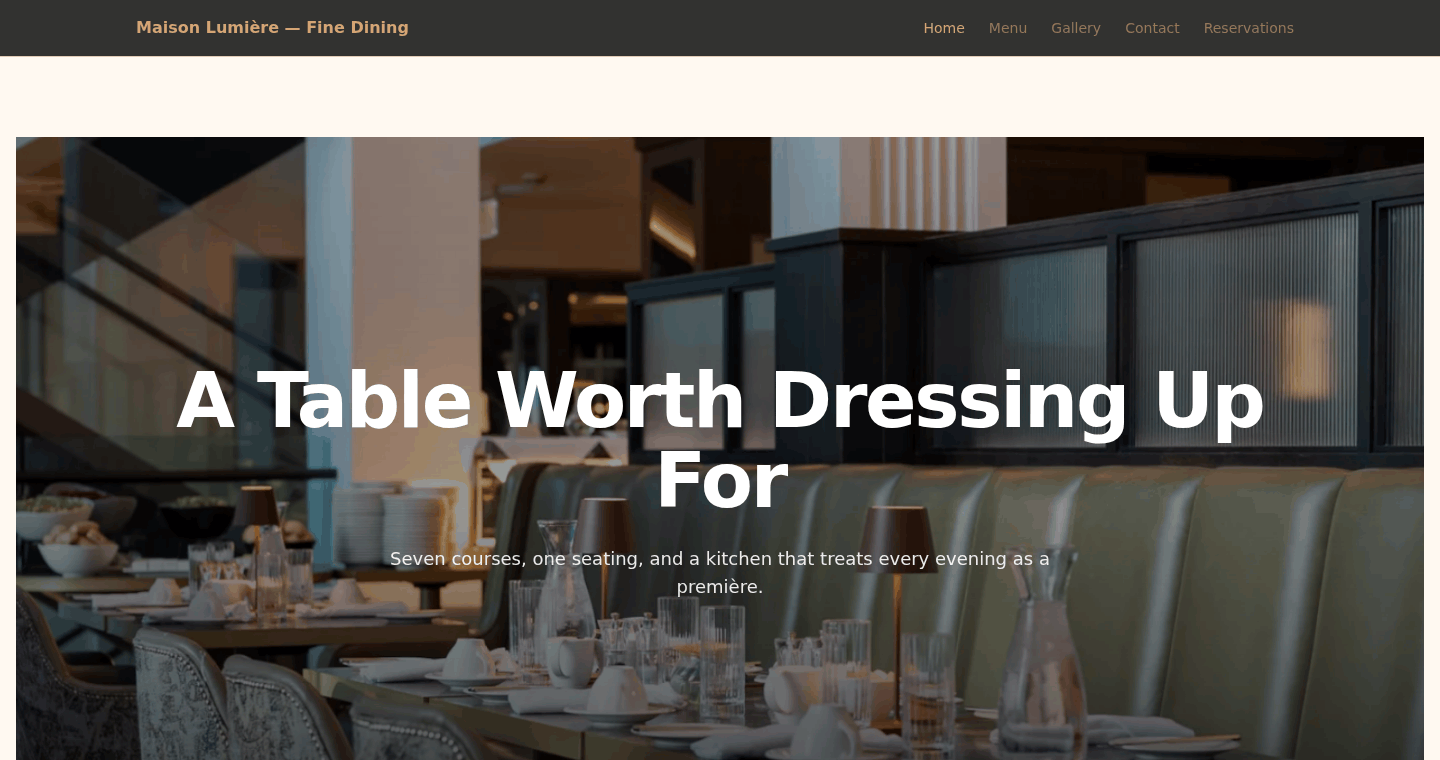
Every venue gets a website automatically. At the start it is a single page — your website's home page — with your name, the booking form, your opening hours, a map and your contact details, so guests can reserve a table straight away. It is already online; you don't have to do anything for it.
With the website editor you can turn it into a full website: add your menu, photos, your story, reviews, more pages and your own colours — as much or as little as you like.
In this help, "booking page" can mean three different things. We always use these names:
| Name | What it is |
|---|---|
| Your website's home page | The first page of your website. At the start it is the only page, and it shows the booking form. |
| A Booking page | An extra page you can add to your website, with the page type Booking. It shows the booking form with your menu bar and footer around it. See The booking page. |
| The standard booking page | A simple page with only the booking form. Guests see it instead of your website while your website is hidden. See Hide your website. |
Draft and live website
Two words you will see everywhere in the editor:
- Draft — the version of your website you are working on in the editor. Guests don't see it.
- Live website — what guests see when they visit your website. It changes when you click Publish.
| Draft | Live website | |
|---|---|---|
| Who can see it | You and your team members who can open the editor | Everyone |
| Where you see it | In the editor's preview, or with the Preview button | At your website address |
| When it changes | When you edit something in the editor | When you click Publish |
So you can take your time: try things out, change your mind, and publish when everything looks right. Guests never see a half-finished page.
How your changes get into the draft. Changes to sections — texts, photos, layout, order — are saved to the draft automatically; you see Saved to draft. In the Page, Nav & Footer and Site tabs and in SEO Settings you click the save button first (for example Save Page Settings).
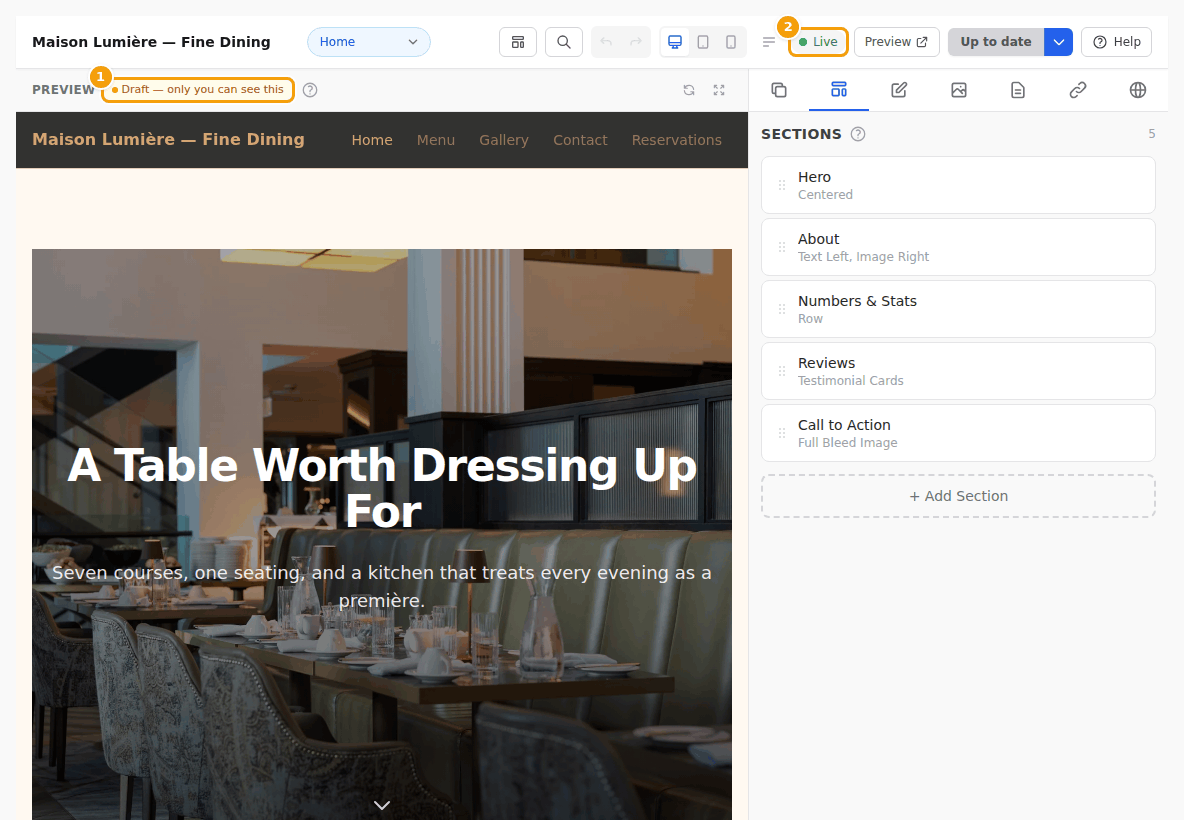
Who "only you" is. Above the preview it says Draft — only you can see this. "You" means you and your team members who can open the website editor (team members with the Admin role). Guests, and anyone who isn't signed in to your Clava account, can't see your draft.
Important
Some things don't wait for Publish:
- Sections that show your opening hours, menus, offers, events or guest reviews take them from your venue's information in Clava — and so do your logo and your contact details. When you change them there, your live website shows the change straight away. This includes the Event Details and Event Programme sections: a new event, a sold-out event or a switched-off event shows at once. See Which events appear.
- Colours you change under Venue Setup → Branding & Design can go live straight away too. See Your booking form follows your website.
Tip
The label in the toolbar tells you where you stand. A green Live means your website is online. A small orange dot next to it means your draft has changes that guests don't see yet.
Three steps: edit, preview, publish
Whatever you change, it always works the same way:
-
Edit. Pick a page and a section, then change the texts or photos in the side panel on the right. Your changes are saved to the draft automatically — you'll see Saved to draft.
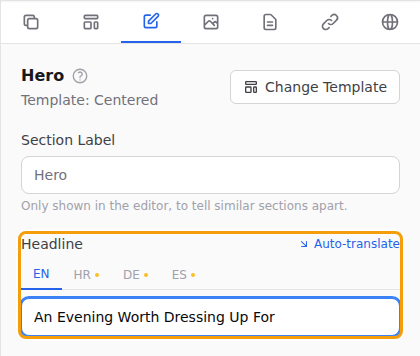
Changing the headline of the top section in the side panel -
Preview. Look at the preview on the left: it updates while you work. Use the screen buttons (1) to see how your page looks on a computer, a tablet and a phone, or click Preview (2) to open your draft in a new browser tab.

The screen size buttons (1) and the Preview button (2) -
Publish. When you are happy, click Publish. Your changes are on your live website straight away.

The Publish button in the toolbar
What you can change
- Pages — add pages such as Menu, Gallery or Private Dining, rename them and put them in order. See Pages.
- Sections — the building blocks of each page: a big welcome picture, your story, your menu, photos, opening hours, reviews and more. See Sections.
- Design — a ready-made template, your colours and your fonts. See Templates, colours and fonts.
- Photos — upload your own pictures or choose free stock photos. See Images.
- Menu bar, footer and site title — the links at the top and bottom of every page and your social media. See Site name, menu and footer.
- Languages — show your website in several languages. See Languages.
You can always go back
- Right after you publish, a green message appears with an Undo button. One click puts the previous version back online. See Undo a publish.
- Every publish is kept in the Version history. You can look at an older version, put it back online, or open it in the editor to continue from there. See Versions.
- While you edit, the undo arrow in the toolbar takes back your last changes to sections. See Undo and redo.
Good to know
Only team members with the Admin role can open the website editor. See Roles.
Related
- Your first steps — a guided tour, from opening the editor to your first publish
- Publish your changes
- Preview your draft
- Something doesn't work?