Articles in this topic
Troubleshooting
Solutions for the messages and problems you may run into in the website editor.
5 min read
Something doesn't work as expected? Find the message or the problem below. Most problems are solved in a minute.
Tip
Most messages in the editor have a Learn more link. It opens the matching section of this help.
My changes don't show on my website
Work through these checks one by one:
-
Did you publish? Look at the toolbar of the editor. An orange dot next to Live and a blue Publish button mean that guests don't see your changes yet. Click Publish. See Publish your changes.
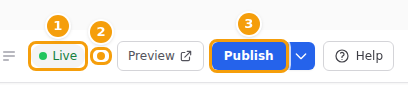
The orange dot (2) and the blue Publish button (3): your changes are not online yet -
Is your website hidden? If the label in the toolbar says Hidden, guests see your standard booking page. See Put your website back online. On a party website the label says Not published, and the party's address shows strangers "page not found" until you publish. See Party and event websites.
-
Is your browser showing an old copy? Open your website and reload the page: click the round arrow next to the address bar, or press F5. On a phone, pull the page down.
-
Are you looking at the right page and language? Check that you are on the page you changed, and switch the language of your website if you changed the text of one language only.
-
Is the section switched off? A section that is switched off looks pale in the Sections list, and guests don't see it. Rest your mouse on it, click the crossed-out eye (Enable), then publish. See Hide or show a section.
-
Party and event websites only: is it for signed-in guests only? On a party or event website, a page or a section can be set to Signed-in guests only or Only visitors who are not signed in. Check the Visibility setting of the page or section. Visitors who are not signed in see the login page instead of a page for signed-in guests, and that page is left out of their menu. To see it as a guest does, use View as → Guest above the preview, or open the link from an invitation email. Restaurant websites don't have this setting. See Who sees a page or a section and Privacy check and View as.
-
Do you have more than one location? Every location has its own website, and you publish each one separately. See Several locations.
"Some changes could not be saved"
You see Some changes could not be saved. Check the editor and try again. when the editor could not save your last change — usually because the internet connection dropped for a moment. The editor also shows a red message next to the Save Changes button, for example Network Error.
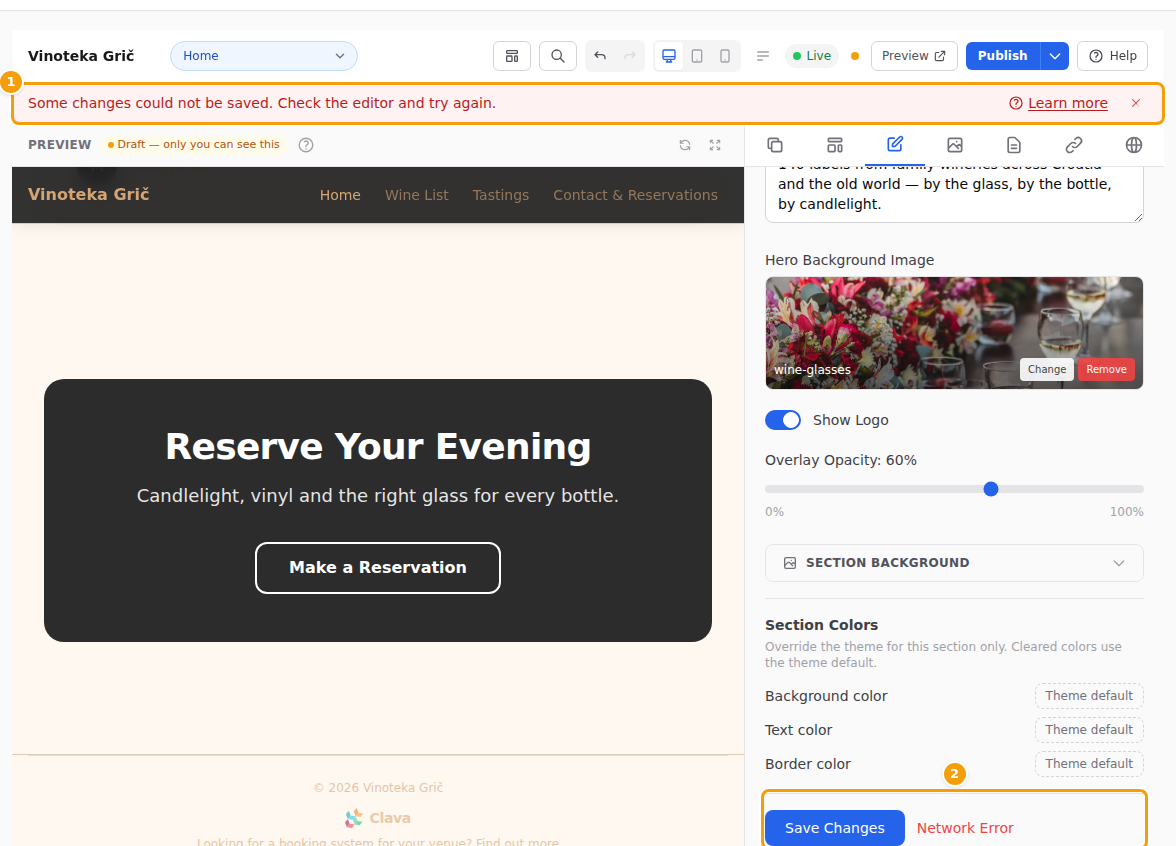
- Check that you are connected to the internet.
- Click Save Changes at the bottom of the editor. When it says Saved to draft, your change is safe.
- Click Publish again.
Tip
Does it keep happening? Copy the text you just typed (so you don't have to type it again), then reload the editor page (press F5). Everything that says Saved to draft is kept.
"Save your … changes first"
The Site, Nav & Footer and Page tabs have their own save button. Their changes only go into your draft when you click it. If you click Publish before that, the editor reminds you — for example with Save your Site settings changes first.
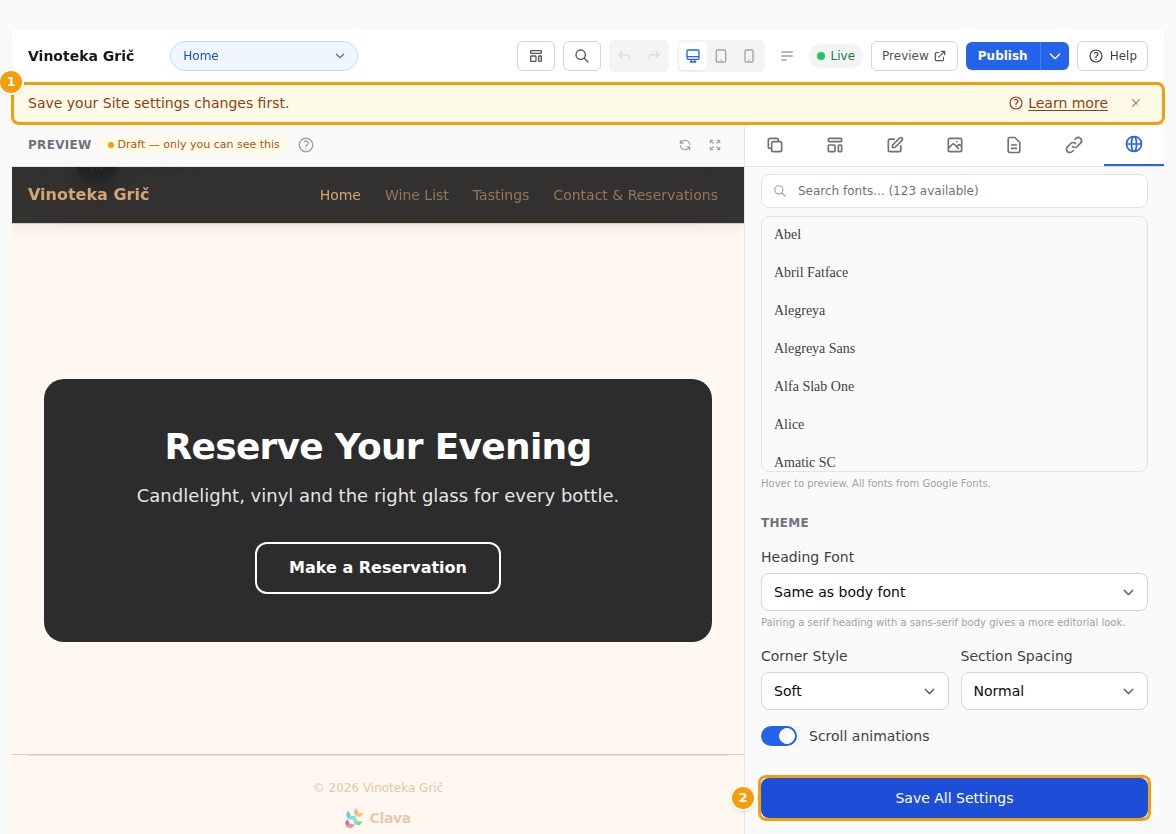
- Open the tab the message names: Site settings is the Site tab, Nav & Footer the Nav & Footer tab, and Page Settings the Page tab.
- Click its save button:
- Site tab — Save All Settings (at the bottom),
- Nav & Footer tab — Save,
- Page tab — Save Page Settings.
- Click Publish again.
"This image is used on your website"
You tried to delete a photo that your website still shows. The editor keeps it so your website doesn't end up with a gap. Remove the photo from the sections that show it, publish, and then delete it. See This image is used on your website.
"You don't have permission to do this"
You see You don't have permission to do this. Ask an administrator of this business. — or you can't find Website Builder in the menu at all.
Only administrators can edit and publish the website. Ask the owner of your Clava account (or another administrator) to change your role to administrator, or to make the change for you. See Team roles.
The preview link shows "not found"
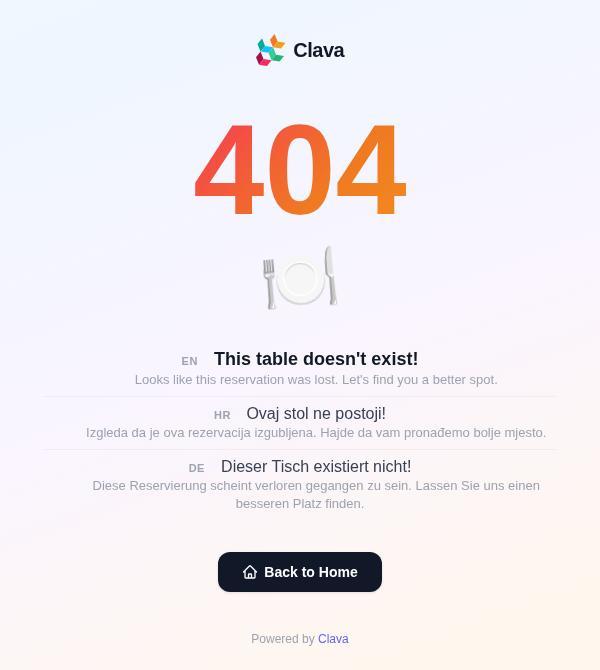
Preview links are private. Only people on your team who are signed in to Clava can open them. Anyone else — or a colleague who is not signed in — sees a not found page like this one:
- Is it a colleague? Ask them to sign in to Clava first, then open the link again.
- Is it someone outside your team? Publish your website, then send them the address of your live website. See Share your website and booking link.
"Nothing to undo: the live website has changed since"
You clicked Undo after a publish, but in the meantime the live website changed — for example a colleague published, or someone made another version live. The editor does not undo in that case, so it never overwrites someone else's work.
Open the Version history and choose the version you want: see Make an older version live.
"Already up to date"
Your live website already shows everything in your draft — for example because the changes were published from another tab or by a colleague. There is nothing to do. See Working in several tabs.
"This version has pages your current plan doesn't include"
You tried to make an older version live (or open it in the editor), but it uses pages or sections that your current plan does not include. You can:
- choose another version, or
- upgrade your plan, then try again.
The same happens with This version uses sections your current plan doesn't include.
"Website versions are being set up"
You may see Website versions are being set up. Please try again in a few minutes. right after an update of Clava. Wait a few minutes, reload the editor page (press F5) and try again.
Still stuck?
If a message says Something went wrong. Please try again., reload the editor page (press F5) and try once more. Changes that say Saved to draft are kept. If the problem stays, contact us via Support in the menu on the left, and tell us what you clicked and which message you saw.
Related
- Publishing, the toolbar labels and Undo — Publishing
- Go back to an earlier version — Version history
- Private previews — Preview your draft
- Who can do what — Team roles