Articles in this topic
Preview your draft
See exactly how your website will look — on a computer, a tablet and a phone — before your guests do.
3 min read
Before you publish, check how your changes look. The preview always shows your draft: what your website will look like after you publish. Your guests keep seeing the live website until you click Publish.
Preview your draft
The big area on the left of the editor is the preview. It shows the page you are working on and updates by itself a moment after each change.
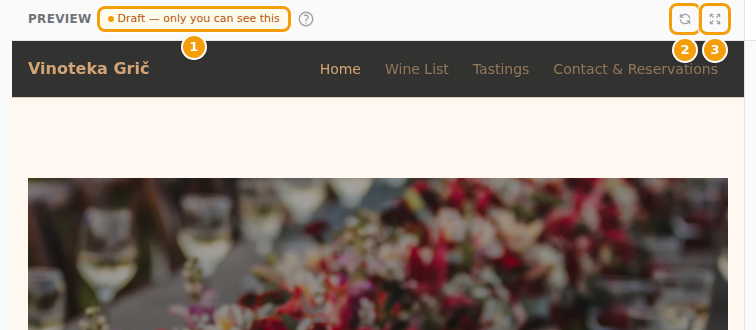
- Look at the label at the top: Draft — only you can see this. It reminds you that you are looking at your draft, not at your live website. The small ? next to it opens this help.
- Make a change in the side panel, for example type a new headline. After a moment the preview shows it.
- Want to change something you see? Click it in the preview. The editor opens that section for you.
- Does the preview not show your latest change? Click Refresh preview (the round arrows at the top right of the preview).
- Want more room? Click Fullscreen (the four arrows) to fill the whole screen with the preview. Click it again to go back.
Good to know
"Only you" means you and your team, never your guests. The other administrators see the same draft when they open the editor, and anyone on your team who is signed in to Clava can open a preview link. See Who can open a preview.
Tip
You can also hide the side panel: click Hide Sidebar (the three lines in the toolbar). Click it again to bring the side panel back.
Check how it looks on a phone or tablet
Many guests visit your website on their phone. Check that everything is easy to read there too.
-
In the toolbar, find the three small screen buttons: Desktop (computer), Tablet and Mobile (phone).
-
Click Mobile. The preview becomes as narrow as a phone. Next to the Draft label you see its width (375px).
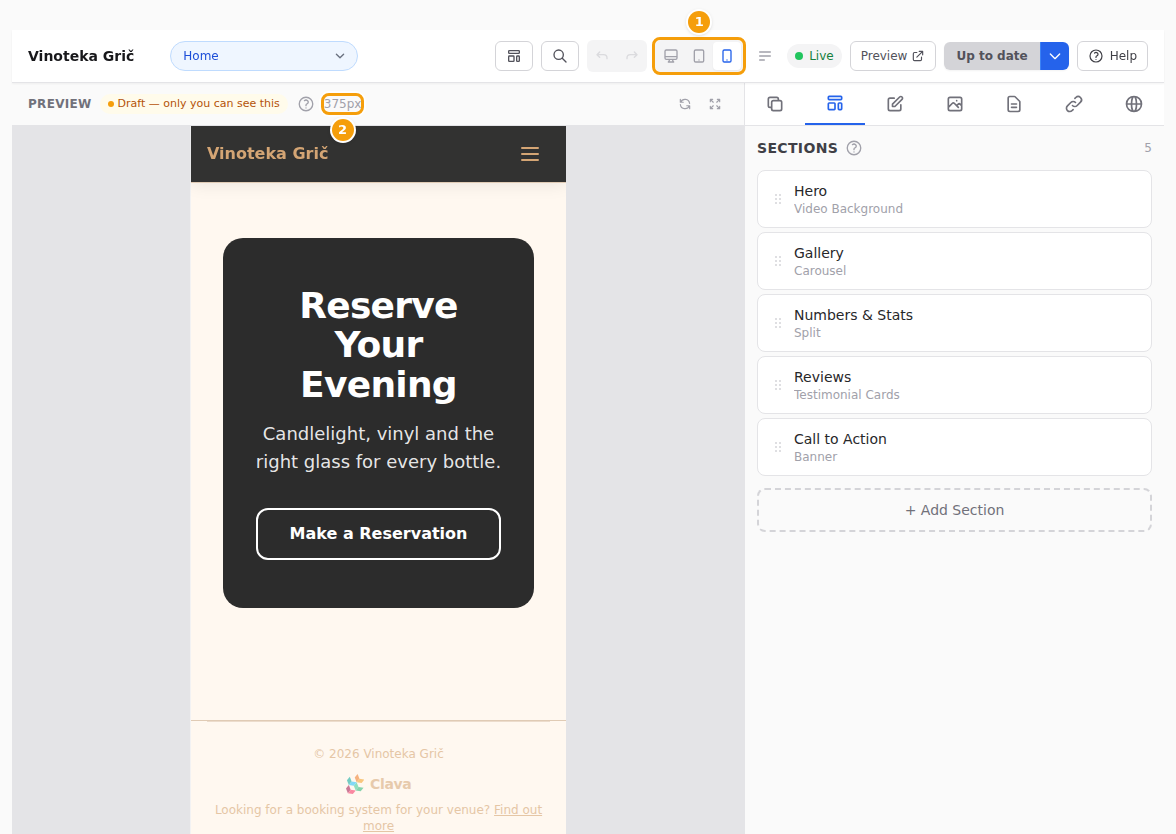
The screen buttons (1) and the phone width (2) -
Scroll through the page. Are the texts short enough? Do the photos look good?
-
Click Desktop to go back to the normal view.
Good to know
Changing the screen size only changes the preview. It does not change your website.
Open the preview in a new tab
To look at your draft as a whole website, and click from page to page like a guest, open it in its own browser tab.
-
In the toolbar, click Preview (next to the Live label).
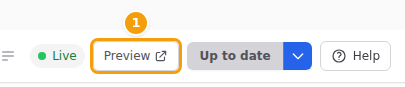
The Preview button in the toolbar (1) -
Your draft opens in a new tab, starting with your home page. Use the menu of your website to visit the other pages.
-
In the bottom left corner you see a dark label: Preview · Draft. It tells you that this is your draft, not the live website.
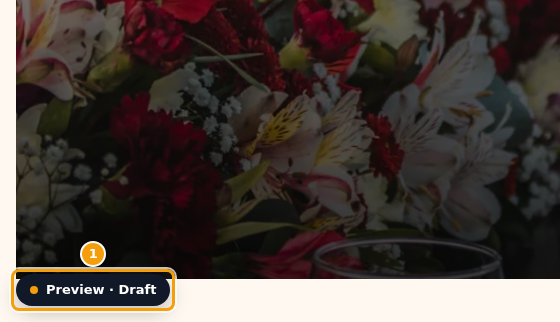
The Preview · Draft label in the bottom left corner of your draft (1) -
Close the tab when you are done, and go back to the editor tab to make more changes.
Tip
Made changes while the preview tab was open? Reload the preview tab (the round arrow next to the address bar, or press F5) to see them.
Party websites: see it as a visitor or a guest
Party and event websites only.
A party website shows different things to different people. Above the preview, next to Refresh preview, View as lets you choose who is looking:
- Editing view — everything on every page, as you edit it.
- Visitor — what a stranger who has not signed in sees: pages and sections for guests are gone and the menu is short.
- Guest — what a signed-in guest sees, with a made-up guest ("Hi, Ana").
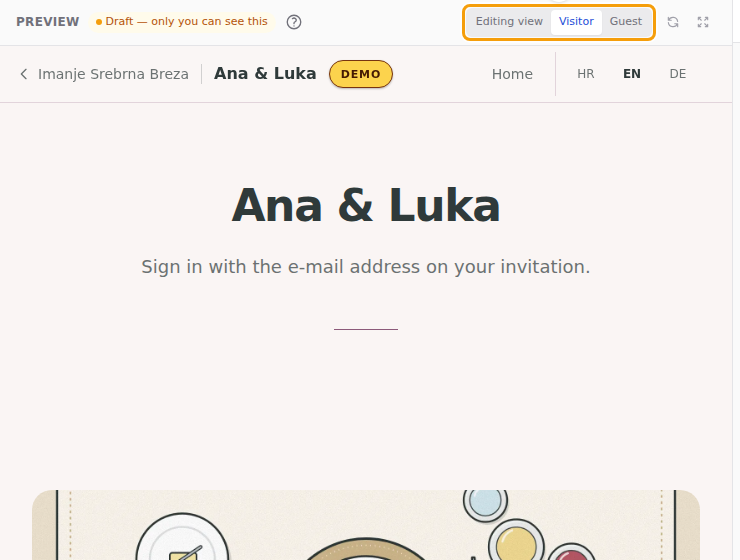
- Click Visitor. The preview reloads without anything that is for guests only.
- Click Guest to see the guest's view, then Editing view to go back and edit.
The two views follow exactly the rules of the published website, so use them before you publish. The yellow bar above the editor has a button Preview as visitor that does the same. See Privacy check and View as and Who sees a page or a section.
Who can open a preview
Previews are private. Only people on your team who are signed in to Clava can open them. That means:
- You can send the preview link to a colleague who has their own Clava login. They see your draft after signing in.
- Anyone else — a guest, a friend, your web designer without a Clava login — sees a not found page instead. See The preview link shows "not found".
Want to show your new website to someone outside your team? Publish it first, then send them the address of your live website. See Share your website and booking link.
Good to know
You can also preview older versions of your website from the version history. Their label says Preview · Version and the number. See Preview an older version.
Related
- Happy with what you see? — Publish your changes
- Draft and live website explained — What the website editor does
- Change what you see in the preview — Sections
- Something doesn't look right — Troubleshooting